The release of Ubuntu 26.10 marks another milestone in the evolution of Canonical’s flagship Linux distribution. While the operating system is designed to provide a reliable, polished experience straight out of the box, a fresh installation invariably leaves plenty of room for refinement. Whether you are migrating from a different operating system or upgrading from a previous version of Ubuntu, a strategic combination of system updates, software package adjustments, and targeted configuration tweaks can dramatically elevate your day-to-day productivity and personalization.

Performing a Crucial System Update
Before embarking on aesthetic customizations or installing specialized software, establishing a secure and stable foundation should always be the primary objective. Because official installation media are not updated on a daily basis, a newly deployed system will almost certainly have a collection of security patches, upstream bug fixes, and package upgrades waiting in the queue.
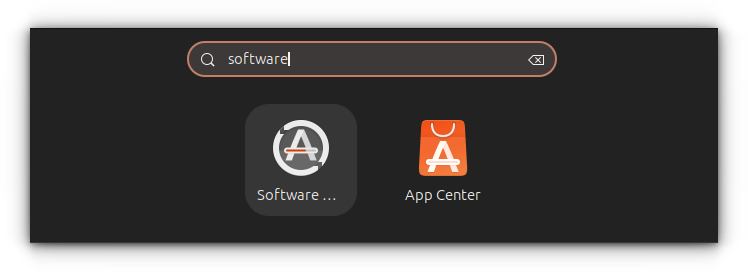
Users can handle this efficiently by launching the Software Updater utility from the Activities Overview or by utilizing the command-line interface with standard package management utilities. Executing an upgrade command refreshes the local package repository metadata and pulls down the latest software versions. This initial maintenance step ensures that the underlying kernel and system libraries are completely up to date before any new applications are introduced.
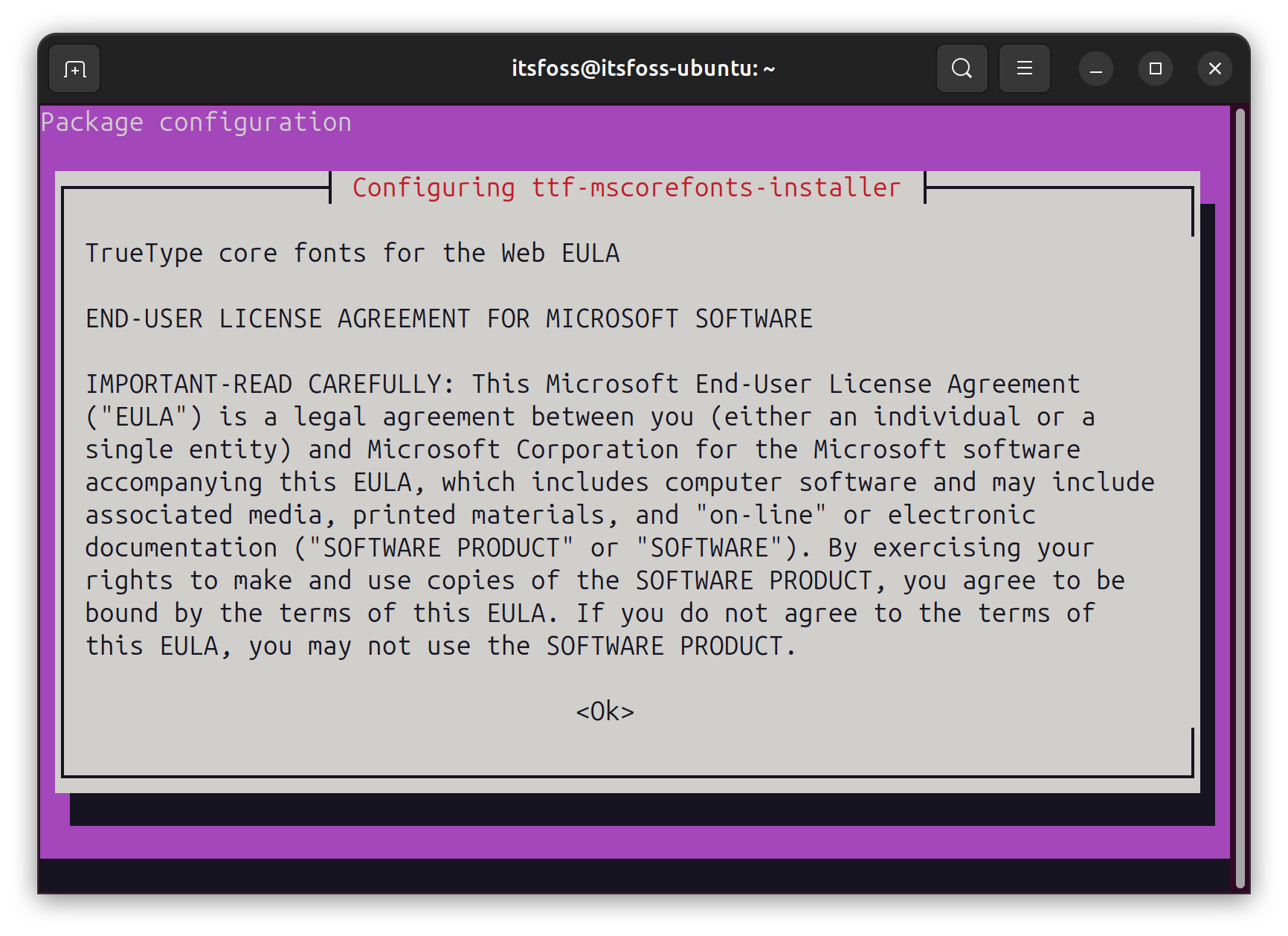
Following system maintenance, addressing multimedia compatibility is often a priority. Due to varying international licensing and copyright frameworks, standard Ubuntu installation images omit out-of-the-box support for certain proprietary media formats, including MP3, MPEG-4, and AVI. Bridging this gap is straightforward through the deployment of specific restricted extra packages, which bundle essential media codecs, Microsoft TrueType fonts, and components designed to optimize compatibility with common audio, video, and document formats. Users navigating terminal installations during this phase may encounter standard end-user license agreements, which require careful keyboard navigation to accept and proceed.
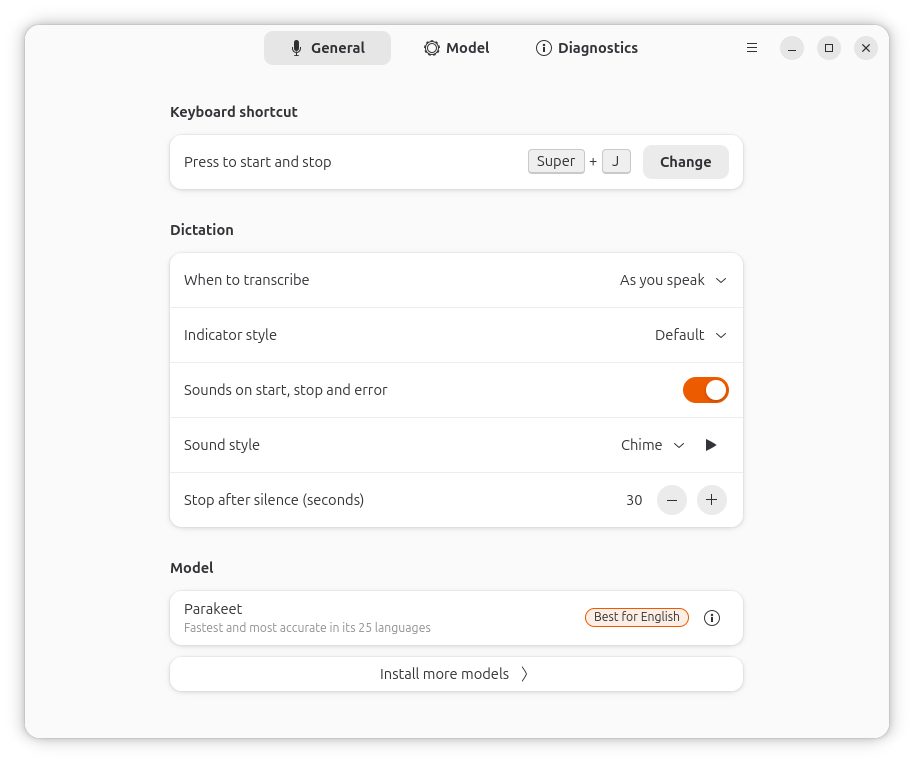
Embracing Advanced Productivity Features and AI Integration
Modern Linux distributions increasingly look toward innovative workflows to reduce friction in daily computing. Ubuntu 26.10 introduces a notable addition in the form of Myna, an optional speech-to-text utility designed to bring local voice dictation directly to the desktop environment. In an era where typing is not always the most efficient method for capturing notes, drafting correspondence, or outlining creative concepts, local voice input offers a compelling alternative.
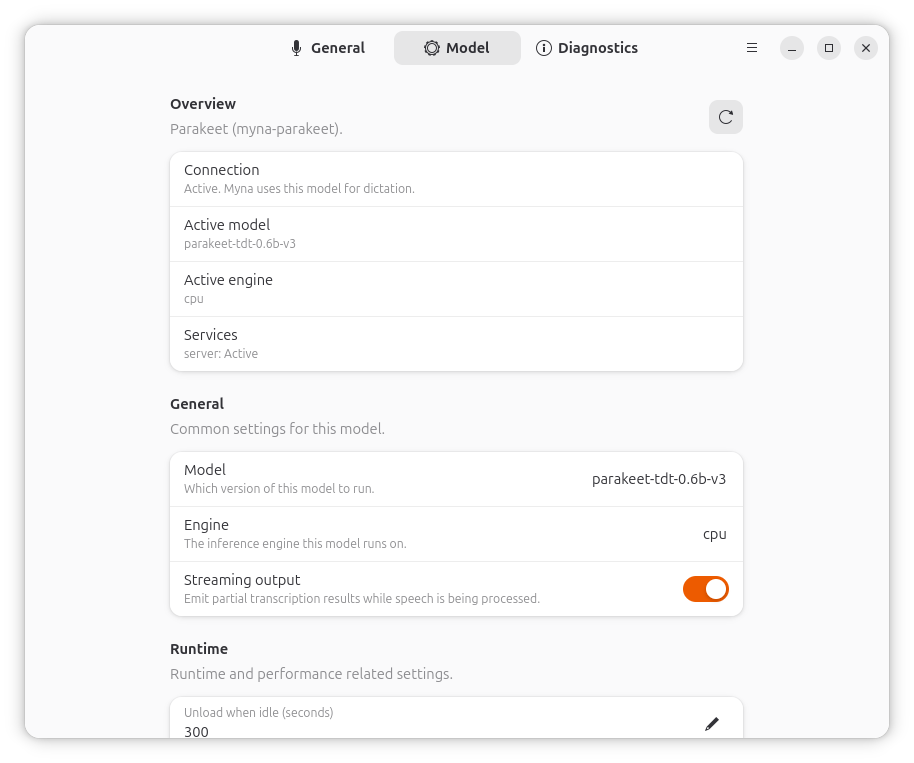
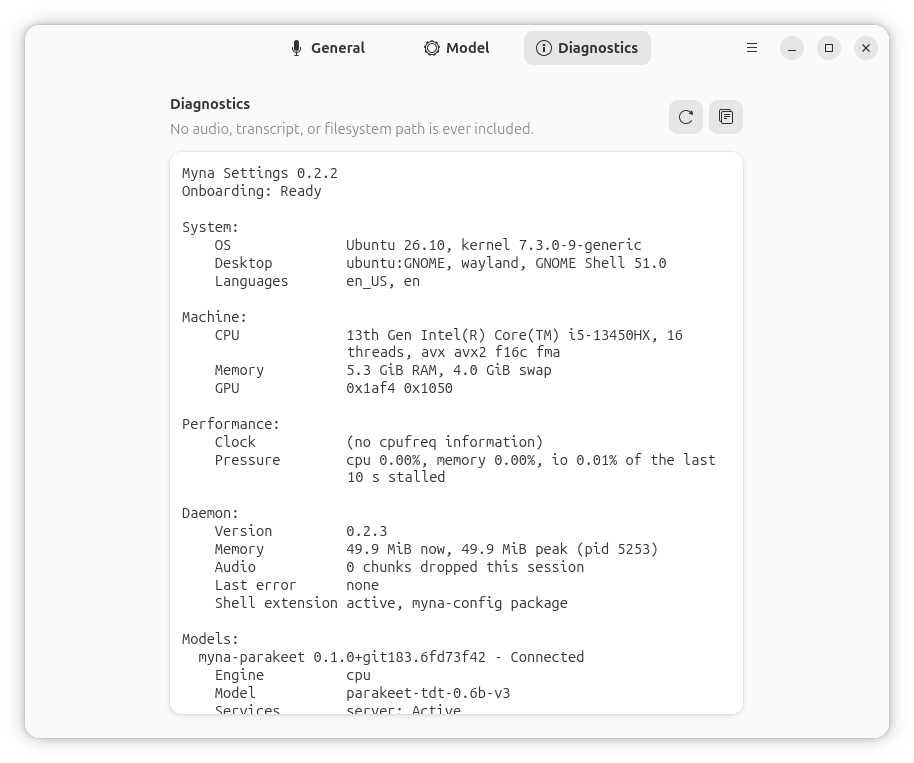
What distinguishes Myna from cloud-dependent transcription services is its emphasis on privacy. Speech recognition processes entirely on the local machine. Once the initial language model is successfully downloaded, the system requires no active internet connection to transcribe speech into text. Users simply position their cursor within any text field, activate the designated keyboard shortcut, and begin speaking. Because this capability is currently rolled out as a technology preview, early adopters should anticipate minor imperfections as the feature matures and undergoes further refinement.
Refining Aesthetics and Desktop Presentation
Visual personalization can profoundly impact the overall desktop experience without requiring heavy modifications or third-party desktop environments. Modifying the wallpaper and system accent colors allows users to tailor the interface to their personal preferences. Accessing the background configuration panel via a right-click on the desktop provides immediate access to default imagery as well as custom user photographs.
While files can theoretically be set as wallpapers directly from the default file manager, doing so carries the risk of broken pathways should the source image be relocated or deleted later. Coordinating accent colors with the dominant tones of the chosen wallpaper further unifies the visual presentation, yielding a cohesive aesthetic throughout the GNOME shell and native applications.
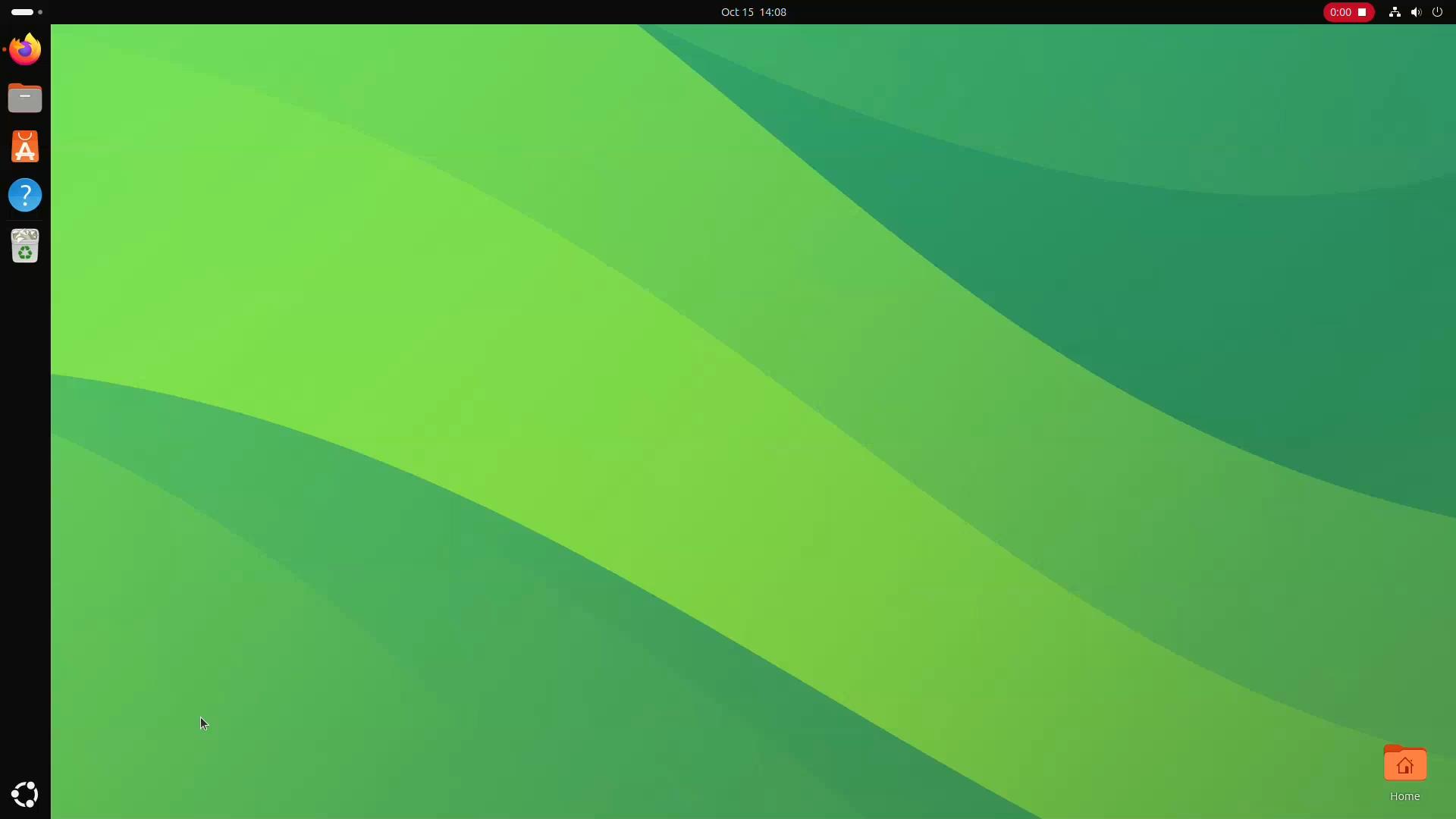
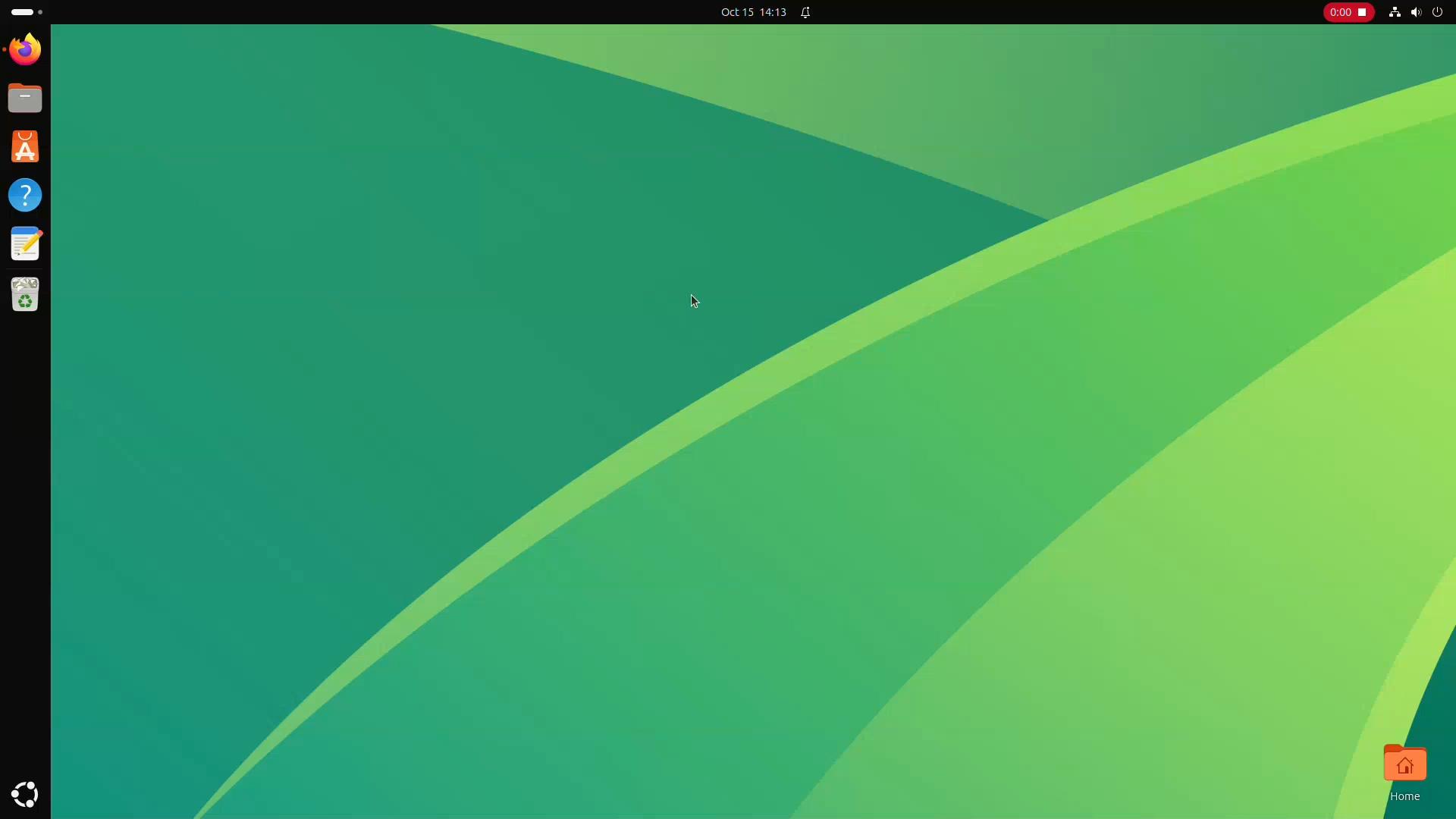
For users seeking to balance minimalism with functionality, managing desktop iconography is equally straightforward. Ubuntu traditionally populates the desktop workspace with a shortcut to the primary Home folder. While some users appreciate the immediate access, others prefer an uncluttered canvas that highlights their customized background imagery. Disabling desktop icons through the workspace settings allows individuals to maintain a pristine, distraction-free environment.
Expanding Software Ecosystems and Repository Support
While Ubuntu champions its native Snap packaging format for universal application delivery, the broader Linux desktop ecosystem relies heavily on alternative distribution methods. Flatpak has established itself as a cornerstone format for numerous independent developers. Enabling Flatpak support early in the configuration cycle ensures seamless access to software titles that may not be available through official system repositories or the Snap Store.
Integrating Flatpak involves installing the core utility framework and adding the Flathub repository, which functions as the central hub for the majority of Flatpak applications. Once these components are integrated and the system is rebooted, users gain the ability to manage and deploy applications effortlessly.
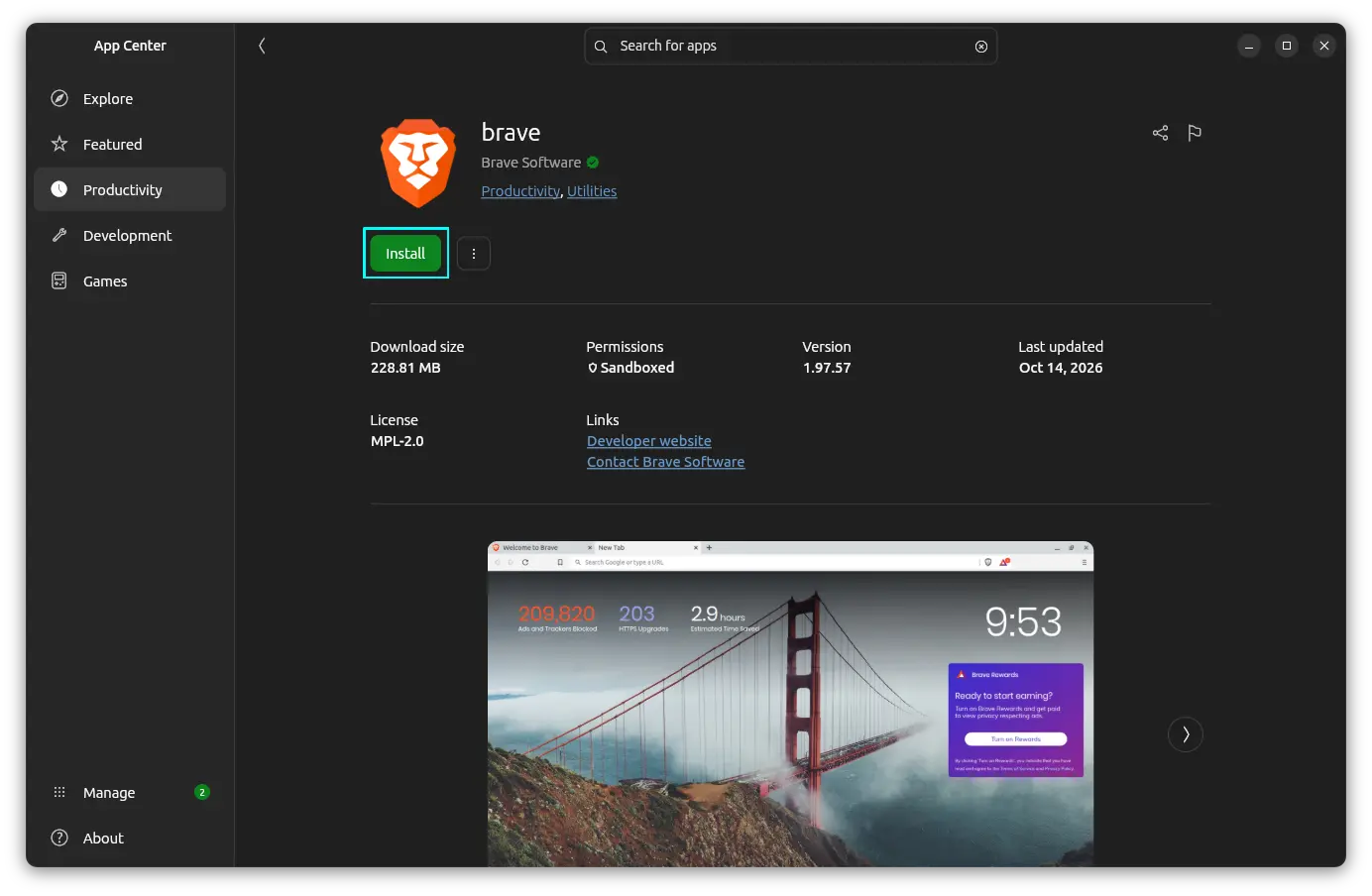
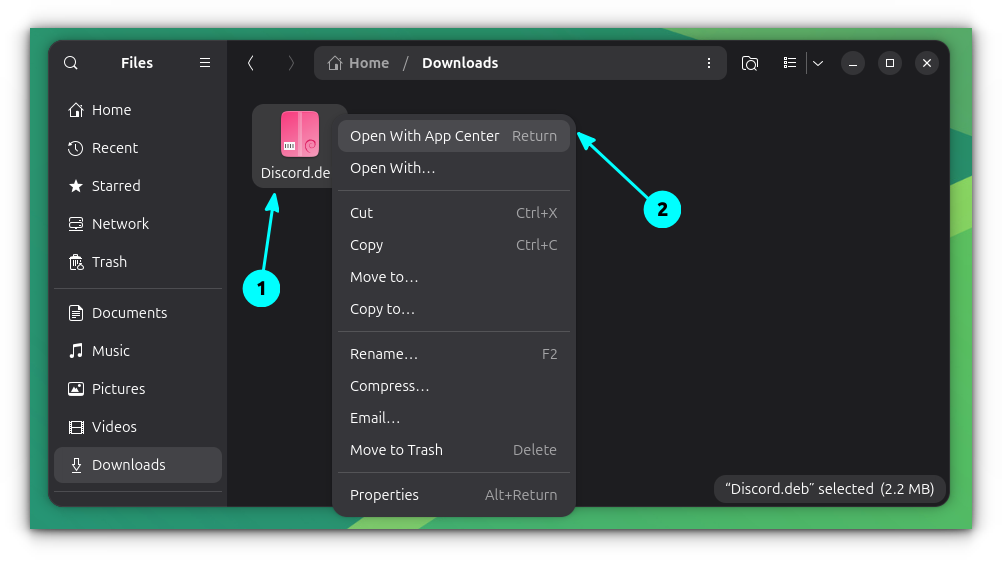
Beyond universal packages, installing software on Ubuntu can be accomplished through various pathways. The modernized App Center natively supports both DEB and Snap packages, though it tends to prioritize Snap applications when multiple formats are available. Furthermore, users frequently encounter standalone software distributed as compiled DEB files on vendor websites. Integrating these packages is as simple as opening them directly through the App Center interface for automated deployment.
Harnessing Extensions and Window Management
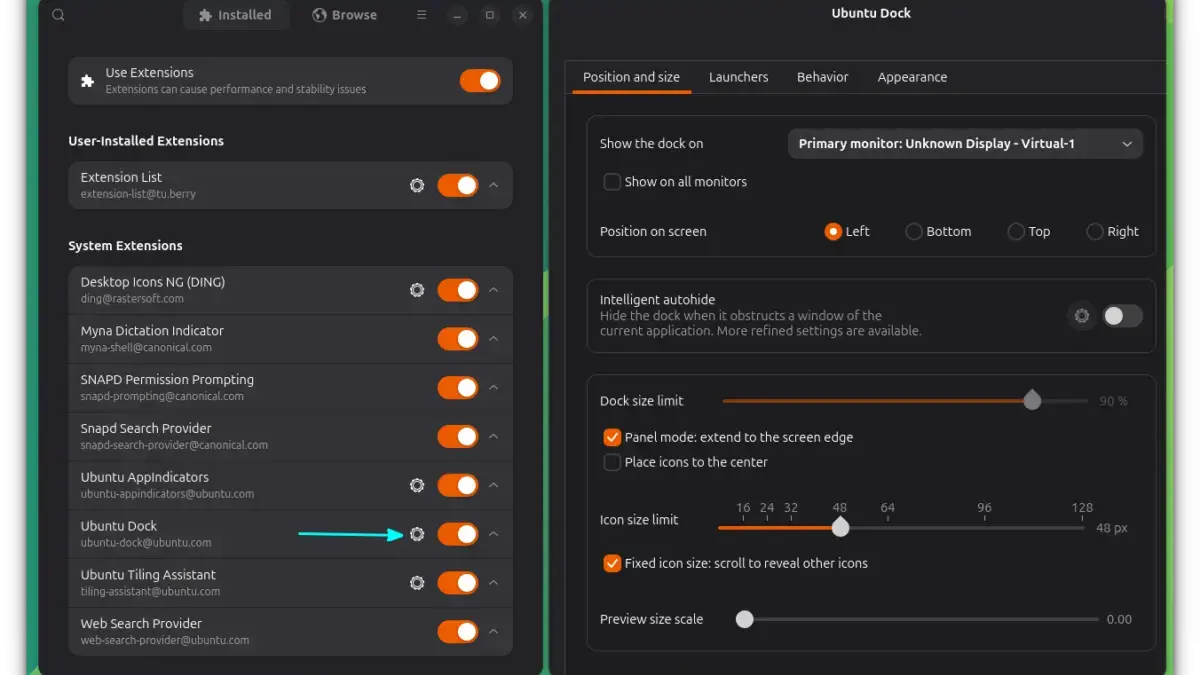
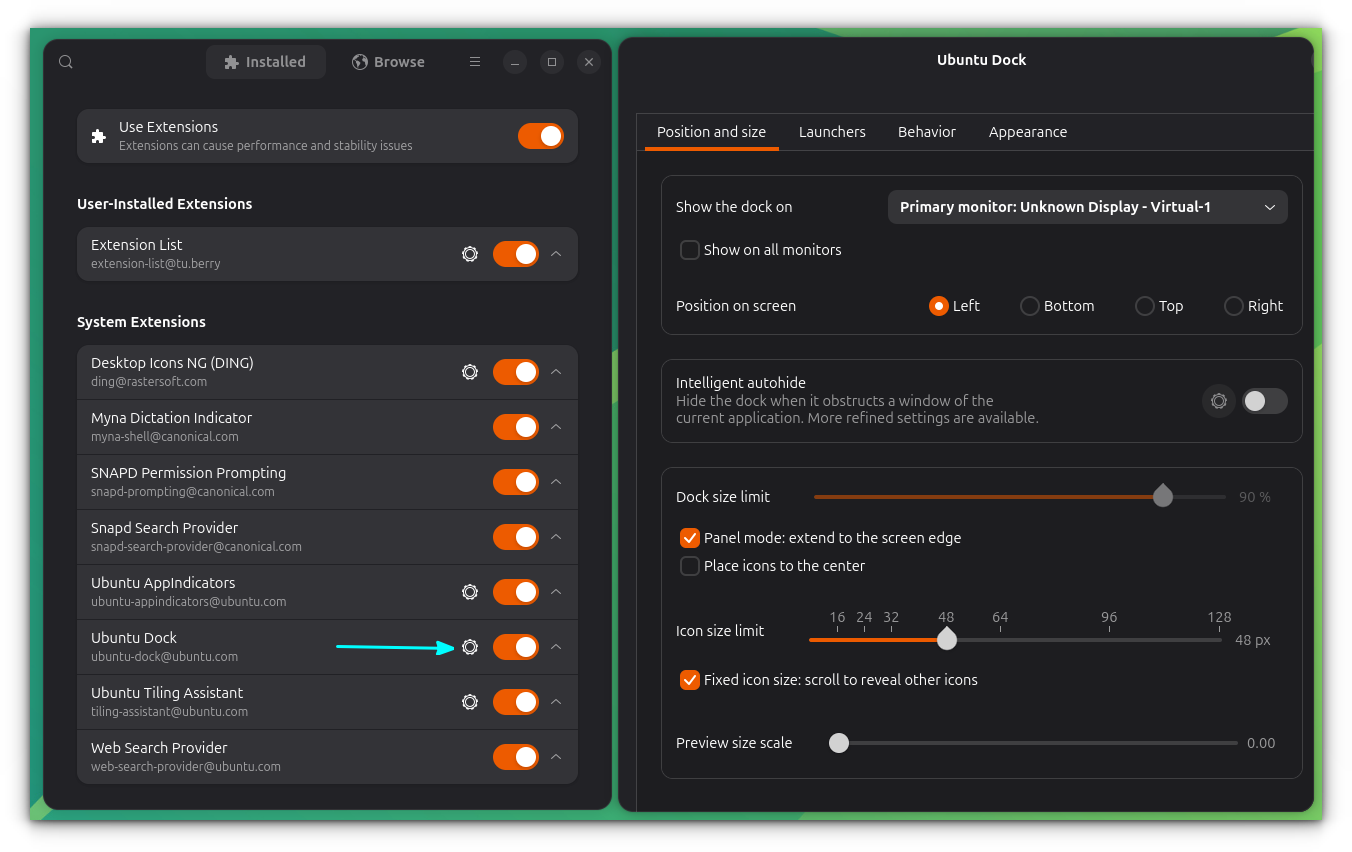
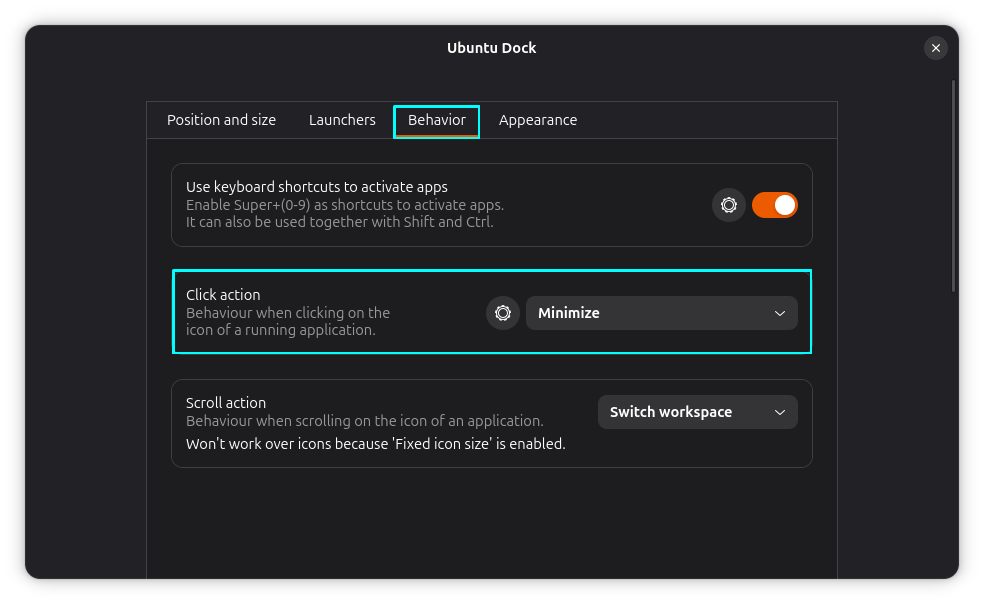
One of the defining strengths of the GNOME desktop environment is its robust extension architecture. Features such as custom docks, advanced window tiling assistants, and detailed system monitors often rely on GNOME extensions operating quietly in the background. Rather than managing these extensions manually, installing a dedicated extension manager provides a centralized graphical interface for browsing, updating, and toggling extensions on the fly.
Window management has also seen notable evolution in recent iterations of Ubuntu. The built-in window tiling assistant allows users to drag application windows toward the top or edges of the display to reveal intuitive snapping zones. Once an initial window is positioned, the system intelligently suggests companion applications to fill the remaining screen space, enabling structured multitasking without the tedium of manual window arrangement.
For users who prefer command-line efficiency alongside graphical navigation, deploying essential developer utilities like Curl and Git ensures that the system is immediately ready for code management, API interaction, and automated script execution. Many open-source installation guides implicitly assume the presence of these fundamental networking and version control tools.
Prioritizing Digital Wellbeing and Accessibility
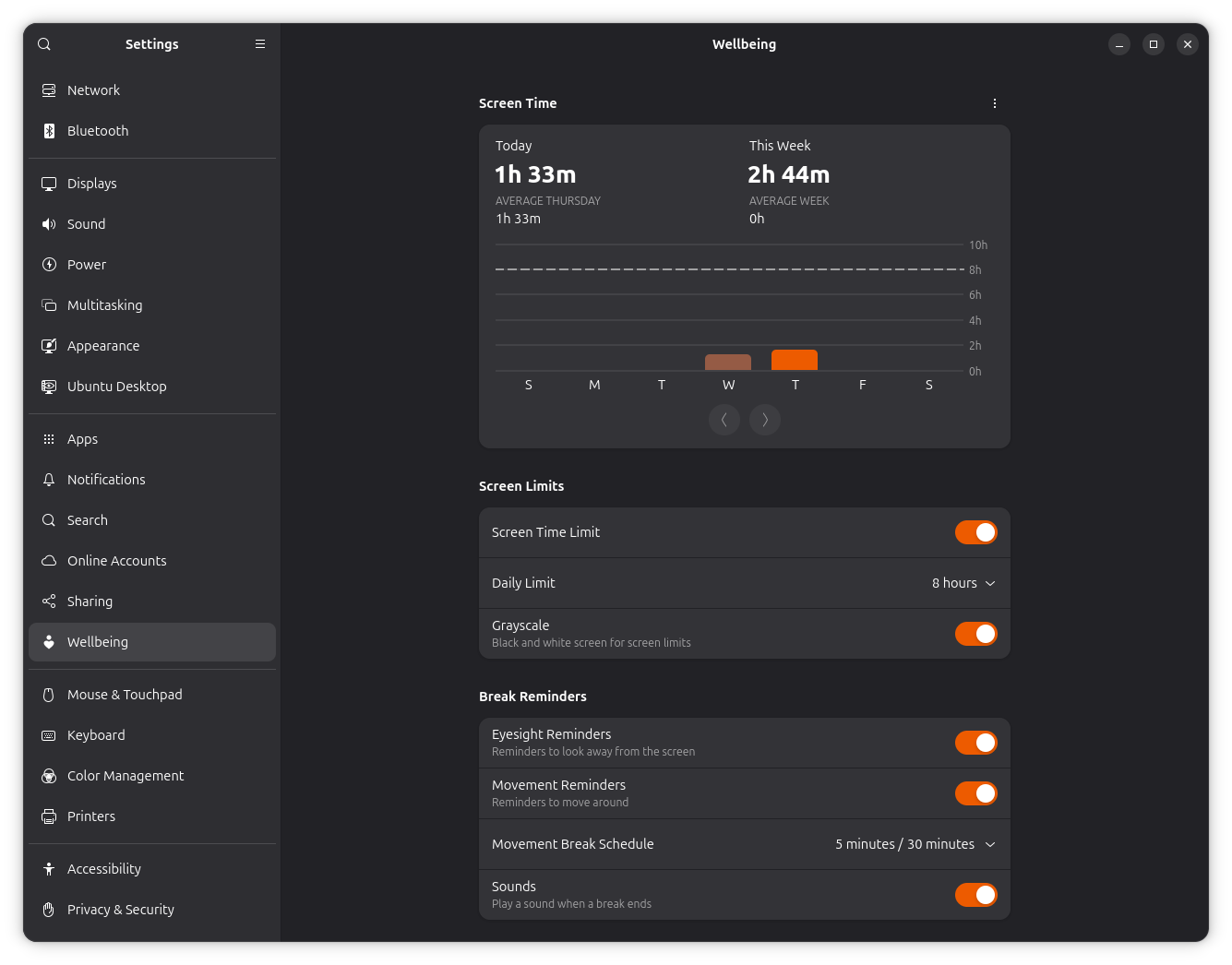
As computing becomes increasingly central to professional and personal life, managing screen fatigue is a growing priority. Ubuntu 26.10 incorporates digital wellbeing controls reminiscent of features found on modern mobile operating systems. Users can access these settings to monitor daily screen time usage, establish configurable eyesight reminders, enforce movement breaks, or configure displays to shift into grayscale once pre-set time thresholds are reached.
Complementing wellbeing features are several quality-of-life accessibility settings that benefit a wide range of users regardless of specific physical requirements. The pointer-location utility, for instance, allows users navigating multi-monitor setups or cluttered workspaces to instantly highlight the mouse cursor by pressing a designated keyboard modifier. Similarly, options to reduce motion animations can yield a snappier interface response, particularly on legacy hardware, while audio overamplification provides a software-based volume boost for quiet media recordings.
Ultimately, the strength of Ubuntu lies in its capacity to balance sensible out-of-the-box defaults with deep customization potential. By systematically addressing system updates, media codecs, software sources, and personal workflow preferences, users can craft a tailored computing environment suited precisely to their daily demands.