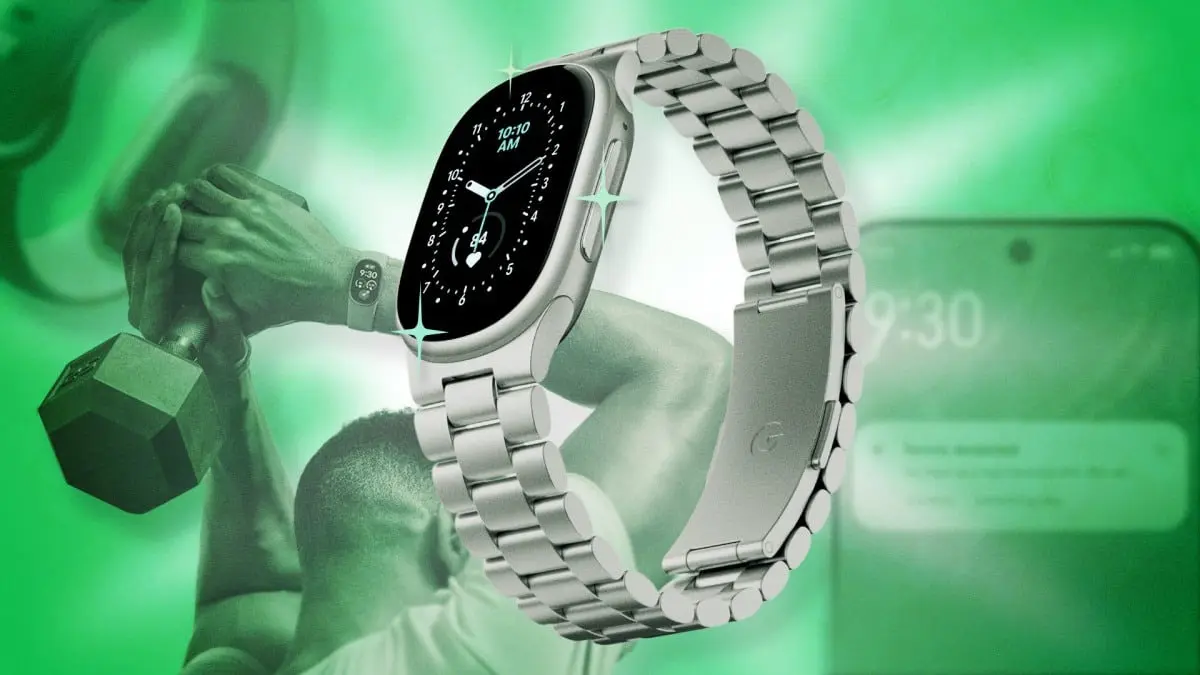
The Fitbit Edge has established itself as a compelling middle ground within the wearable technology market, bridging the gap between ultra-minimalist fitness bands and fully featured smartwatches. Positioned as a streamlined alternative to traditional trackers like the Fitbit Charge 6, the device caters specifically to users who favor a lightweight form factor while still requiring a dedicated display for real-time temporal and biometric feedback.
However, fully exploiting the capabilities of the Fitbit Edge requires navigating a mix of embedded hardware settings, underlying companion software configurations within the Google Health ecosystem, and third-party platform integrations. From refining motion-tracking sensitivity to managing artificial intelligence notifications and power consumption, a closer look at the device reveals several critical adjustments and hidden features that significantly enhance its overall utility.
Set Up a Watch Face Wardrobe From Your Phone
While the Fitbit Edge presents a minimalist interface on the wrist, its display customization options extend further than is immediately obvious through basic navigation. Users are not restricted to a single default aesthetic, as the ecosystem allows for the creation and rapid switching of a personalized watch face gallery.
To manage these visual layouts directly from the wrist, users can press and hold the center of the primary watch screen. This gesture initiates an interactive carousel displaying pre-selected watch faces stored on the device. Scrolling to the end of this carousel reveals a dedicated shortcut button that immediately launches the broader watch face gallery within the mobile app on a connected smartphone. Alternatively, this library remains accessible by navigating directly to the device preferences section within the app.
Inside the app interface, tapping the "All Clocks" tab opens a extensive catalog of downloadable designs. Once a specific watch face is installed, selecting the "Customize" option allows users to tweak primary and secondary color palettes as well as individual screen complications. Depending on the chosen layout, these complications can display real-time metrics such as daily step accumulation, current heart rate, or local weather conditions.
Notably, while the customization engine is robust, the built-in share function within this menu currently exhibits a software quirk: attempting to share a watch face configuration sends a broken URL pointing to legacy Fitbit web domains rather than a functional preview link. Nevertheless, the underlying ability to store and customize multiple faces provides significant stylistic versatility.
Flip It Around to Prevent Accidental Button Presses
The physical architecture of the Fitbit Edge assumes a standard wearing configuration, placing its single physical navigation button on the right-hand side of the chassis. For users wearing the device on their left wrist, this orientation can occasionally lead to unintended interactions—particularly during physical exercise, when bending the wrist or wearing heavy hand jewelry can inadvertently depress the button.
To resolve this ergonomic conflict, the underlying software includes an orientation-reversal setting. Within the Google Health application, users can navigate to "Device preferences" and locate the "Tracker orientation" setting. Toggling this parameter shifts the primary button assignment from the right side to the left side.
Executing this setting inverted the on-screen display by 180 degrees. Once the digital interface flips, taking off the physical tracker and rotating it on the wrist positions the tactile button safely away from the back of the hand. This simple spatial reconfiguration prevents accidental workout pauses or interface exits without compromising display readability or sensor placement.
Turn Off Unprompted AI Insights
Google’s ongoing integration of artificial intelligence into the health ecosystem has introduced automated summary features via the AI-powered Health Coach. While these algorithms analyze historical movement and sleep patterns to generate contextual suggestions, the resulting stream of unsolicited notifications and mid-day pop-ups can prove distracting for users seeking a quieter tracking experience.
Fortunately, the Google Health platform provides granular controls over how and when the AI coach interacts with the user. Rather than disabling the intelligence features entirely, the application includes an intermediate setting that silences proactive push notifications while keeping the core generative engine available on demand.
To modify these communication settings, users can tap their profile icon within the Google Health app, proceed to "Google Health Settings," select the "Coaching" menu, and activate the "No Coach Insights" option. Toggling this switch suppresses all automated textual summaries and proactive status alerts throughout the day.
Crucially, this modification does not strip the device of its smart capabilities. The "Ask Coach" portal remains accessible at the user’s discretion, allowing individuals to manually initiate conversations, ask specific health questions, or utilize generative text inputs for logging nutritional intake and manual workout sessions whenever needed.
Broadcast Heart Rate Data to Strava for Advanced Mapping and Laps
The native exercise application built into the Fitbit Edge offers a intentionally stripped-back tracking environment, omitting complex graphical displays and deep lap-analytics in favor of basic duration and heart-rate monitoring. However, users requiring more advanced exercise metrics can leverage the device’s hardware sensors by broadcasting live biometric data to external fitness applications like Strava.
Activating heart-rate transmission is executed directly from the tracker’s touch display. Swiping downward from the primary clock screen exposes the quick-settings menu, where tapping the Wi-Fi icon containing an embedded heart symbol initiates real-time telemetry broadcasting over local wireless protocols.
Once active, users can open the Strava mobile application, launch a new activity recording screen, and swipe up to access hardware peripheral settings. Selecting the Fitbit Edge as the primary heart-rate sensor pairs the tracker’s continuous optical monitor with Strava’s detailed GPS and analytical framework.
This hybrid setup combines the unobtrusive physical footprint of the Fitbit tracker with Strava’s advanced mapping software. As a result, athletes gain access to dedicated physical lap buttons, segmented split calculations, previous lap time histories, and highly detailed spatial maps detailing their route—metrics that far exceed the native operational capabilities of the standalone tracker screen.
Adjust Sensitivity Settings to Prevent Overcounted Steps
Accelerometer-based wrist devices face an inherent technical challenge: distinguishing between genuine walking motion and everyday incidental hand movements. Because activities like typing, gesturing during speech, or brushing hair can register as footfalls, Fitbit devices have historically leaned toward slight over-enthusiasm in their step-counting algorithms.
To calibrate the algorithm and reduce false positives, the Google Health platform includes a setting based on body lateralization. Within the mobile app’s "Device preferences" section, users can adjust the "Wrist preference" parameter between "dominant" and "non-dominant."
When set to "dominant," the software assumes the tracker is mounted on the arm that performs the majority of daily active tasks. Consequently, the motion-processing algorithms raise the detection threshold required to register a step, actively filtering out ambient arm swings and minor gestures.
This setting can also serve as a practical correction hack for users who wear the device on their non-dominant wrist but still observe inflated step tallies. By manually designating the non-dominant wrist as "dominant" within the application settings, the tracking software forces a stricter filtering threshold across all movement, dampening sensitivity and yielding a more conservative, precise daily step total.
Optimize GPS Settings to Balance Accuracy and Battery Life
Location tracking on the Fitbit Edge relies on a dual-mode system. The device contains an internal, autonomous GPS receiver, but it can also piggyback off the location hardware of a paired smartphone. By default, the device operates in a dynamic mode, automatically determining which signal source to utilize based on real-time signal strength and power metrics.
However, users can override this automatic selection within the app’s "Device preferences" menu under "GPS settings" to favor either maximum power efficiency or independent hardware performance.
For users who routinely carry their smartphone during outdoor runs or walks, forcing the tracker to strictly utilize phone-tethered GPS significantly reduces the onboard power draw of the Fitbit Edge. Outsourcing location processing to the smartphone extends the operational life of the wearable’s internal battery, making it an ideal choice during long endurance activities.
Conversely, setting the device to rely exclusively on its built-in GPS isolations location tracking to the wearable itself. This is particularly advantageous for individuals who prefer exercising without carrying a mobile phone, or for those paired with older smartphone models whose legacy GPS chipsets may struggle with pace accuracy or line-of-sight tracking under dense tree canopy. Manual override ensures consistent tracking quality tailored to the user’s hardware setup.
Seamless Multi-Device Swapping Within the Google Ecosystem
Unlike earlier generations of wearable technology that required a cumbersome unpairing and repair process when switching between hardware devices, updated Google software architecture supports concurrent multi-device integration. The underlying platform can maintain active profile syncing across multiple hardware lines simultaneously, including the Fitbit Edge, the screenless Fitbit Air, and the premium Pixel Watch lineup.
This system level interoperability allows users to alternate between hardware forms based on daily context or personal activity. For instance, an individual might opt for the display-equipped Fitbit Edge during structured training sessions or work hours, transition to a sleeker Fitbit Air for sleep monitoring or formal occasions, or switch to a Pixel Watch for full smartwatch functionality.
Transitioning between these devices requires no manual re-configuration within the smartphone app. Once initial pairing is established for each wearable, the Google Health platform automatically detects whichever device is actively secured to the user’s wrist and begins ingesting continuous telemetry, consolidating steps, heart rate trends, and recovery metrics into a single unified dashboard without data duplication or sync errors.
Enable Screen Magnification for Improved Visibility
Given the physical constraints of the Fitbit Edge’s narrow chassis, reading dense data complications, sub-menus, or fine statistical figures can present a challenge for users with visual impairments or those attempting to view metrics while in motion.
To compensate for the smaller physical real estate, the device incorporates an accessibility feature designed to magnify display contents on demand. Located within the app’s "Device preferences" menu, enabling the "Magnification" toggle introduces a simple touch gesture interface to the device screen.
When activated, executing three rapid taps on the tracker’s screen with a single finger instantly expands the visual interface. Users can then drag a finger across the glass to pan across different sections of the enlarged interface, making it significantly easier to inspect tiny metrics—such as secondary step count values buried within complex watch faces—under varying light conditions.
Within the app’s control panel, users can also set the default expansion factor to either a 2x or 3x magnification level. Repeating the triple-tap gesture restores the interface to its native display dimensions instantly.
Implement a Rapid Daily Top-Up Strategy for Infinite Battery Life
Battery endurance on the Fitbit Edge varies considerably depending on display parameters and usage patterns. Standard operation yields roughly seven days of continuous use on a single charge cycle. However, enabling demanding hardware features like the Always-On Display (AOD) dramatically elevates power consumption, drawing roughly 15% of total battery capacity per day and shortening overall operational lifespan to approximately three days.
Despite this increased power draw, the device utilizes a high-speed charging architecture shared with recent entries in the Pixel Watch hardware line. This rapid thermal delivery allows for exceptionally fast energy replenishment, turning brief idle periods into meaningful power gains.
Practical benchmarks demonstrate the efficiency of this fast-charging system: placing a depleted tracker on its magnetic charger for just three minutes can boost the battery level by ten percentage points (for example, elevating a charge state from 31% to 41%). Extending that charge time to five minutes provides sufficient energy to run the tracker for a full 24-hour period under standard operating conditions.
This dynamic opens up an alternative power management habit. Rather than allowing the battery to deplete entirely over several days—requiring the device to sit on a nightstand for an hour or more—users can adopt a daily micro-charging routine.
By removing the tracker for five to ten minutes during daily rituals like showering or preparing meals, the battery maintains a perpetually high charge state. If a user runs low on power unexpectedly while keeping the Always-On Display active, simply disabling AOD temporarily will stretch the remaining capacity across the rest of the day until the next quick charge window.
Show Offline Workouts to the AI Coach Using Image Recognition
While many fitness enthusiasts rely on third-party strength training applications like Hevy, or maintain traditional pen-and-paper workout journals, integrating those isolated training logs into a centralized digital record often requires tedious manual data entry.
The multimodal processing capabilities of Google’s AI Health Coach offer a streamlined workaround, allowing users to import external training logs directly into the Google Health environment via simple camera uploads or digital screenshots.
To upload an offline training session, users open the companion app, tap the "Ask Coach" button located in the lower right corner, and attach an image file—such as a screenshot of a completed weightlifting routine from a third-party app or a photo of a handwritten physical logbook.
By adding a brief textual instruction—for example, directing the assistant to "log this for my strength training session from last night"—the vision model processes the visual data, extracts set counts, repetition ranges, and exercise names, and maps those parameters directly to the designated workout slot.
Once processed, the detailed exercise breakdowns are permanently attached to the user’s activity history, fully readable alongside automated heart-rate profiles within the app’s primary "Fitness" tab. This hybrid approach preserves personal tracking preferences while ensuring the central database retains a complete record of all physical strain.