Sharing sensitive login credentials among team members has long presented a security challenge for organizations of all sizes. Traditional methods—such as pasting passwords into chat applications, dropping them into shared spreadsheets, or pinning notes on a digital board—often leave businesses vulnerable. These makeshift workflows work fine until a password changes, an employee leaves the organization, or credentials accidentally leak due to a hasty social media post.
To address these vulnerabilities, Passbolt has emerged as a prominent solution, particularly recognized within the Linux and open-source communities as a reliable password manager for businesses and teams. Developed by Passbolt SA, a company based in Luxembourg, the platform is designed to help teams securely store, manage, and share logins and other critical secrets from a centralized location. By keeping credentials organized and secure, Passbolt significantly reduces the likelihood that team members will rely on expired, insecure, or exposed credentials.

Beneath its user-facing interface, Passbolt relies heavily on OpenPGP for robust encryption. Every user who gains access to a specific secret receives a separately encrypted copy of that data, ensuring that access remains tightly controlled and cryptographically secure. Authentication requires a combination of a private key and a passphrase. To interact with the platform seamlessly within a web browser, users must install a dedicated browser extension that handles security-sensitive operations, such as auto-filling credentials on various websites.
Understanding the Licensing and Editions
Passbolt offers both open-source community editions and commercial tiers to suit different organizational needs. The Community Edition is fully open source and available on GitHub under the AGPL-3.0 license. This permissive approach extends to the platform’s browser extensions, mobile applications, and deployment configurations for Docker and Helm.
Alongside the free open-source option, the company provides several paid plans categorized into self-hosted and cloud-hosted options. The self-hosted Pro and Enterprise editions, as well as the managed Cloud Business, Cloud Sovereign, and Cloud Enterprise options, introduce advanced administrative features. These paid tiers build upon the Community Edition by incorporating enterprise-grade functionalities such as Single Sign-On (SSO), account recovery mechanisms, and comprehensive activity logs.
Passbolt notes that its Pro and Enterprise editions also operate under the AGPL license, with no separate repositories maintained for them on GitHub. However, the Pro tier requires an active subscription key to run properly, meaning that software updates and official support cease if the subscription expires.
Exploring the Passbolt Cloud Experience
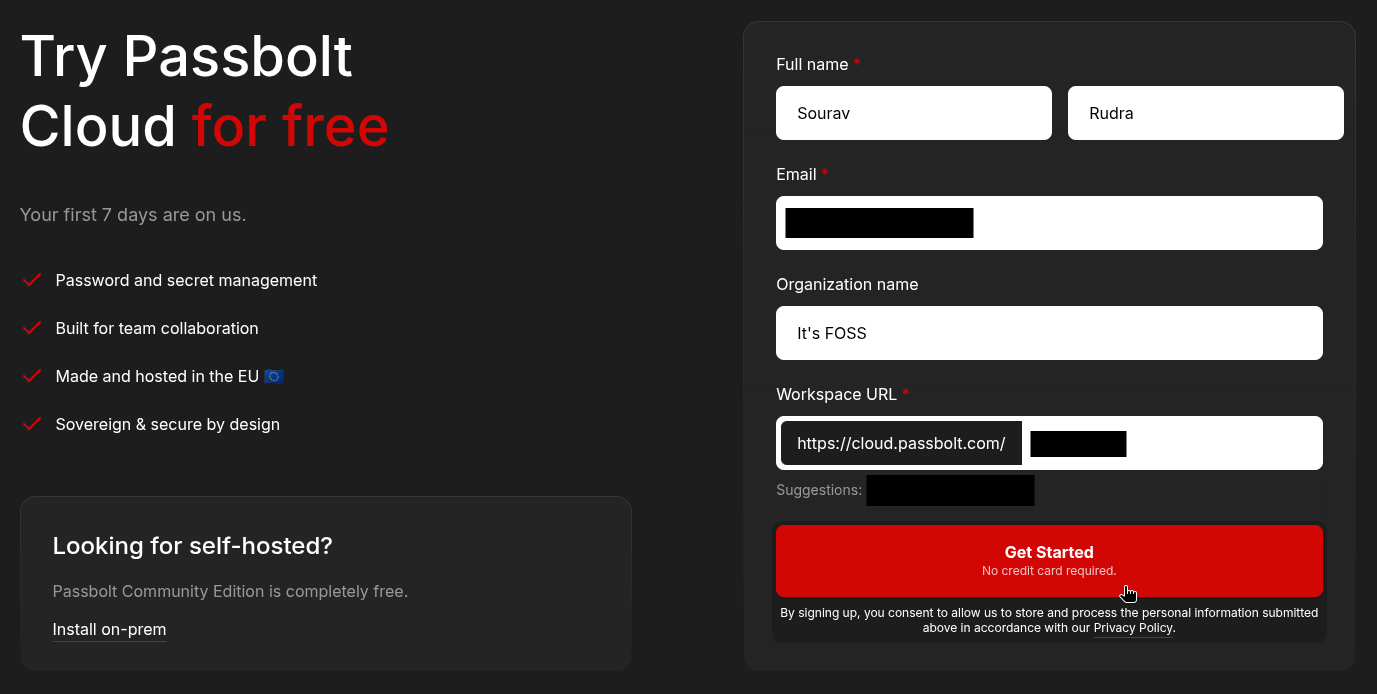
Evaluating the platform involves navigating a straightforward onboarding process. Signing up for a trial of the Cloud Business tier, for instance, requires filling out a standard form with a full name, email address, organization name, and the desired workspace URL where all organizational content will be stored. Users must also consent to the collection and processing of their personal information in accordance with the company’s privacy policy.
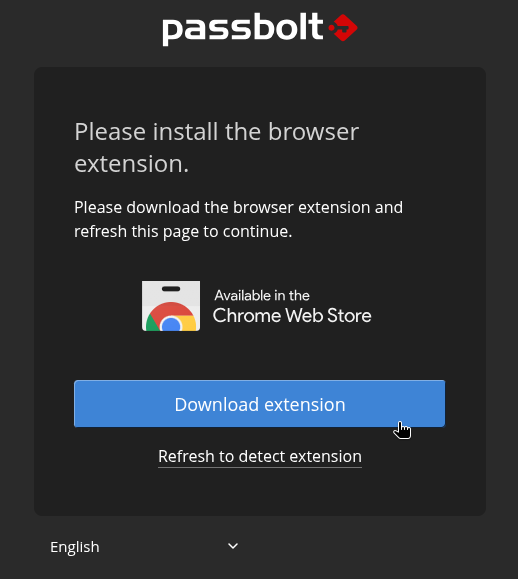
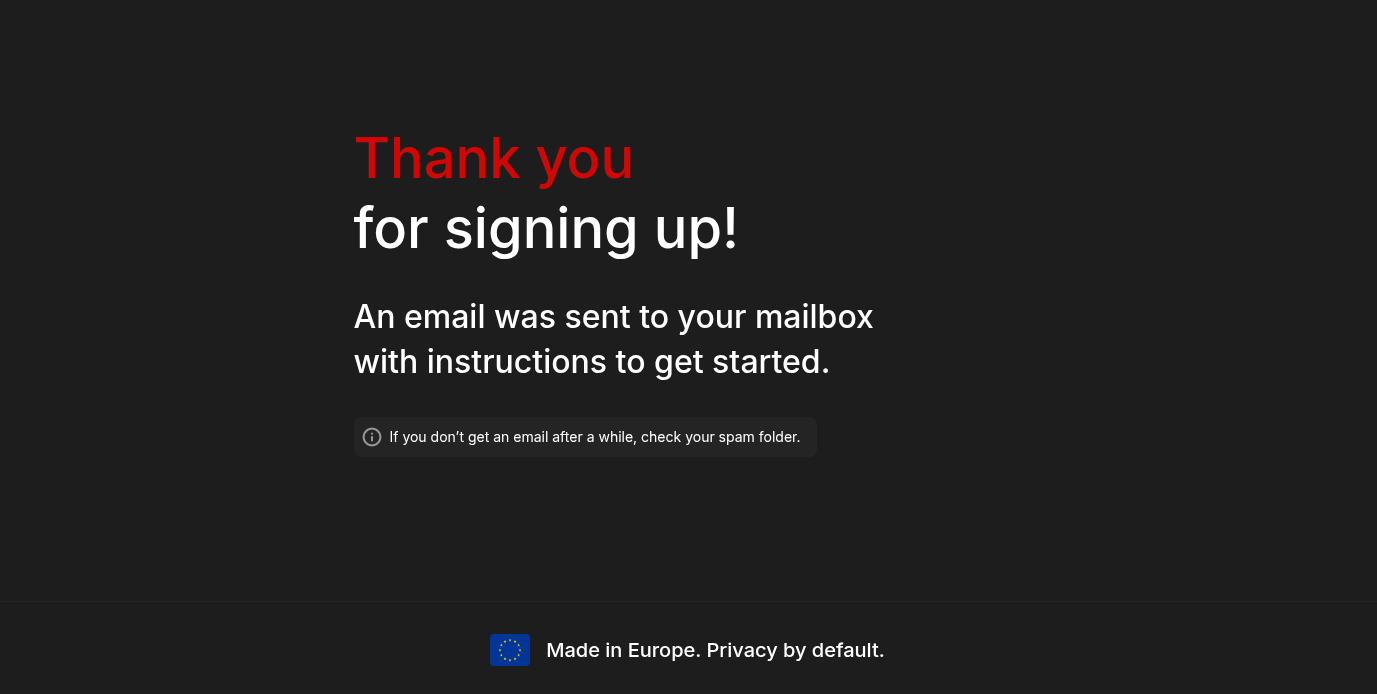
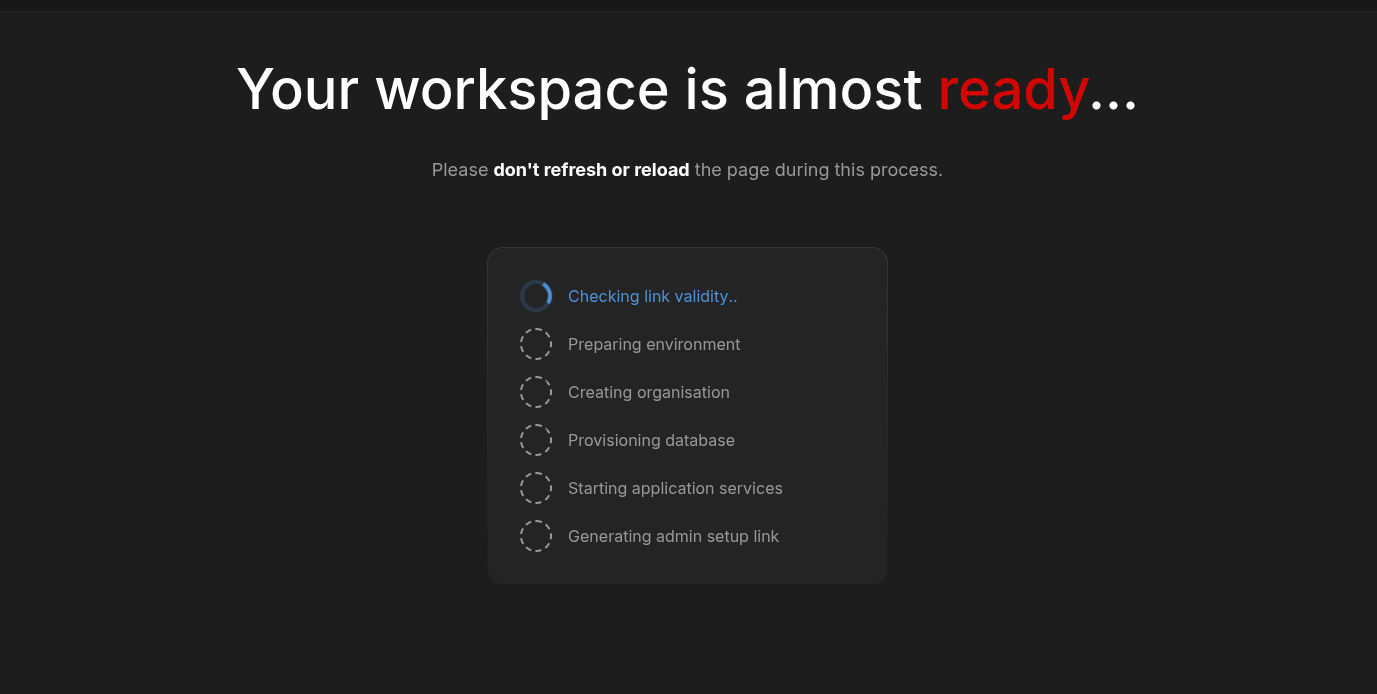
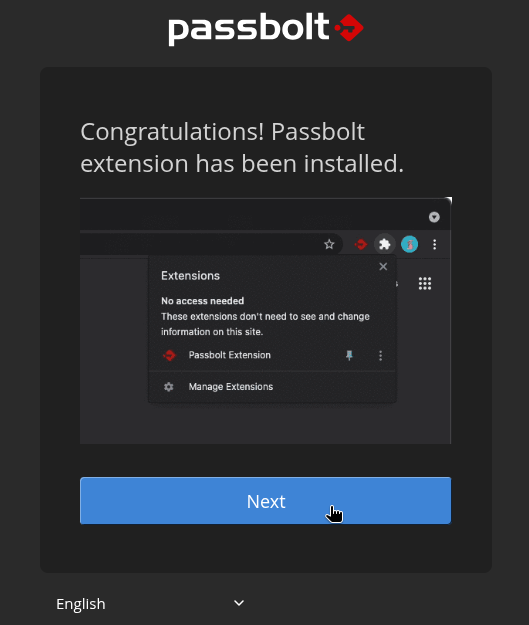
Upon submitting the registration form, users receive an email containing activation instructions. Following the provided link initiates a configuration sequence that guides new users through the initial setup without requiring a traditional password. Passbolt then prompts the user to install its browser extension to facilitate secure operations.
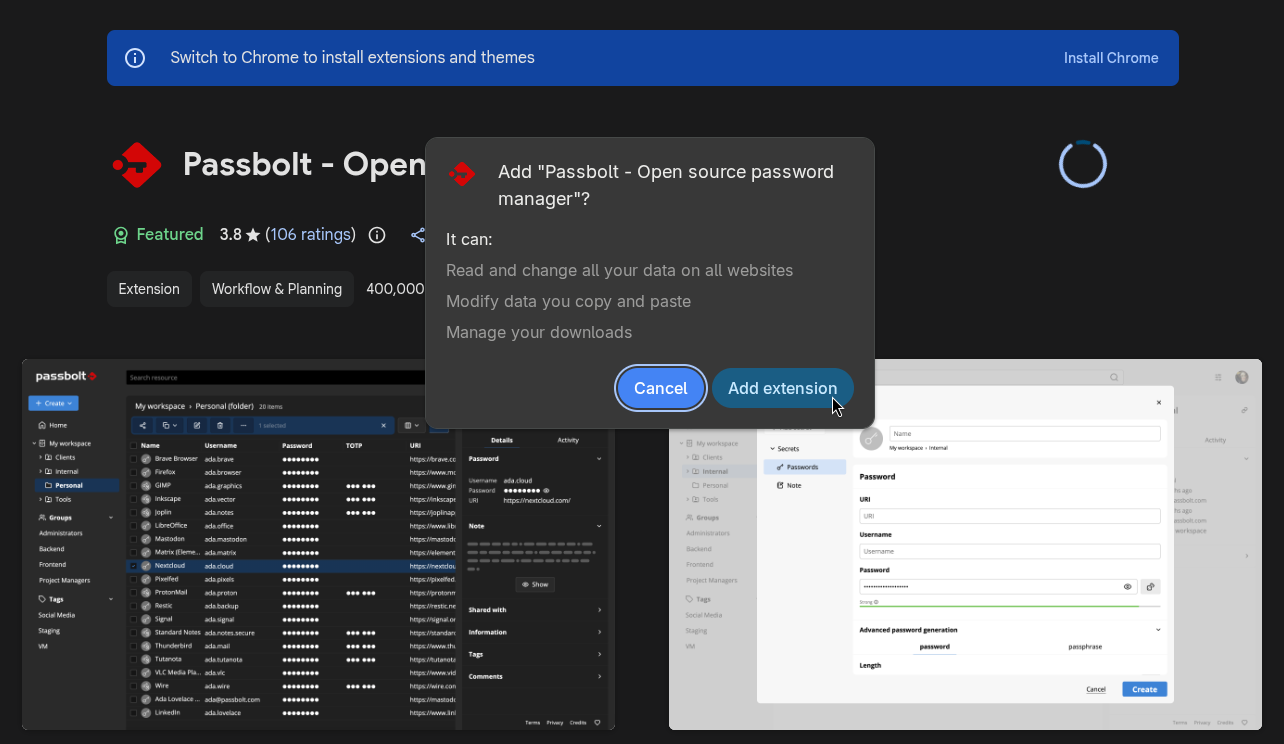
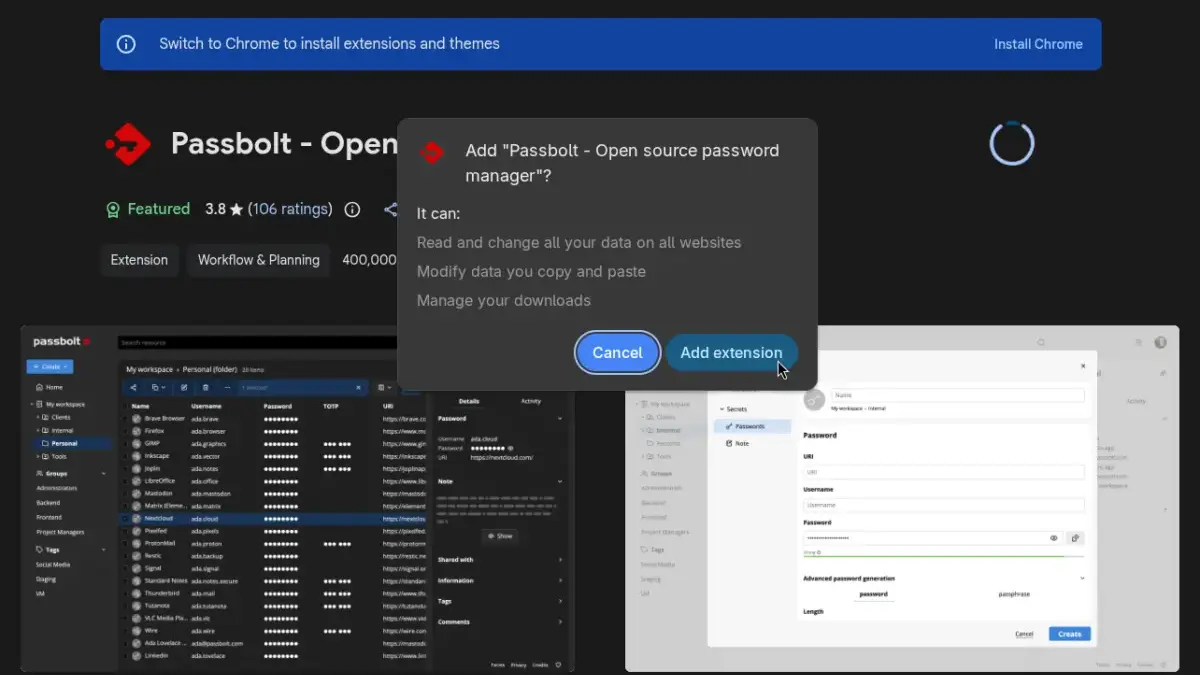
The browser extension automatically detects the user’s web environment, offering the appropriate version—such as the Chromium variant for browsers like Vivaldi. Before installation, users can review the permissions requested by the extension. These permissions are broad, encompassing the ability to read and change data across all websites, modify copied and pasted data, and manage downloads.
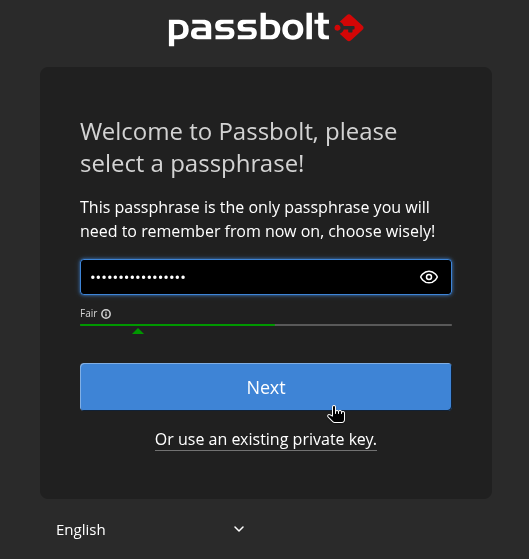
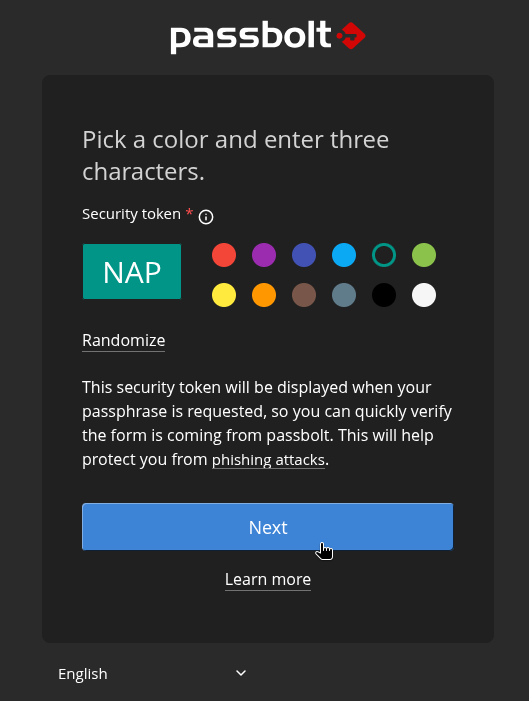
Once the extension is installed and permissions are accepted, users configure their passphrase and a visual security token consisting of a chosen color and a three-character code. This dual-layer authentication setup reinforces security before the user ever begins storing entries.
Managing Entries and Collaboration Features
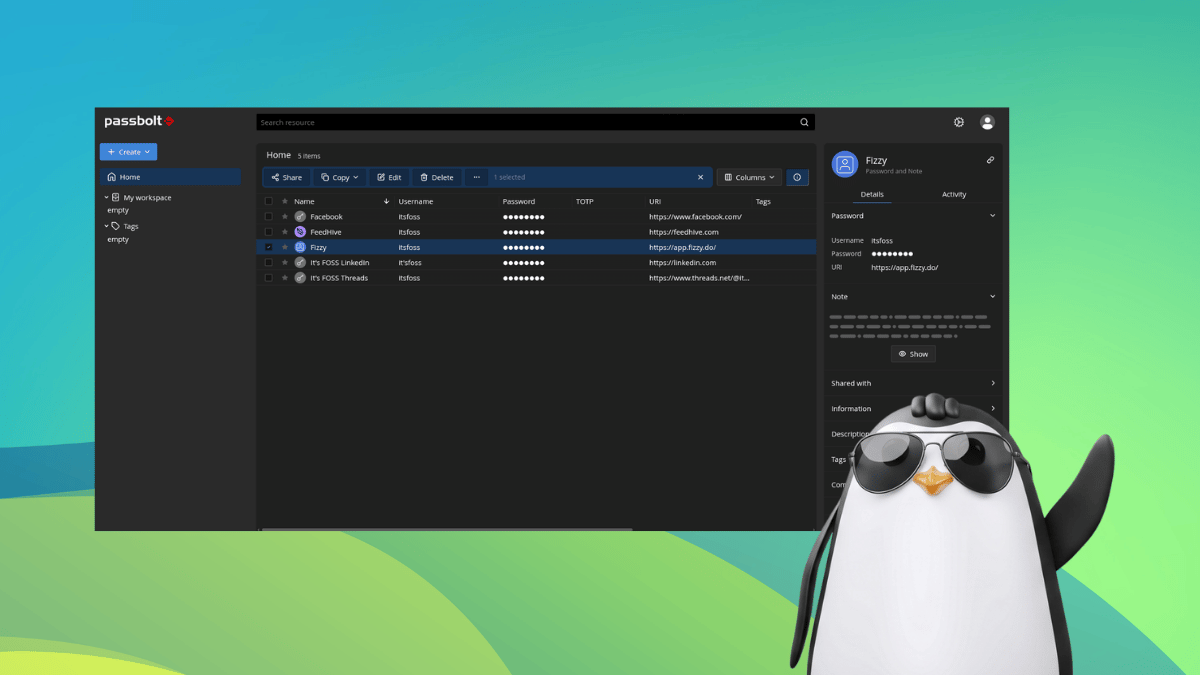
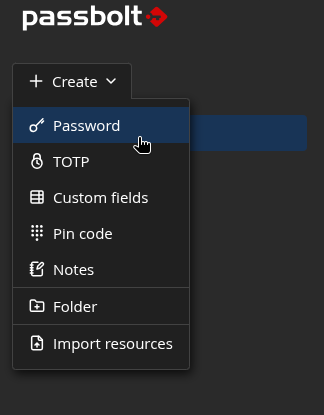
Once logged into the dashboard, users can generate and manage a wide variety of entries using the primary creation menu. Passbolt supports diverse entry types, including traditional passwords, Time-based One-Time Passwords (TOTPs), custom fields, pin codes, and secure notes.
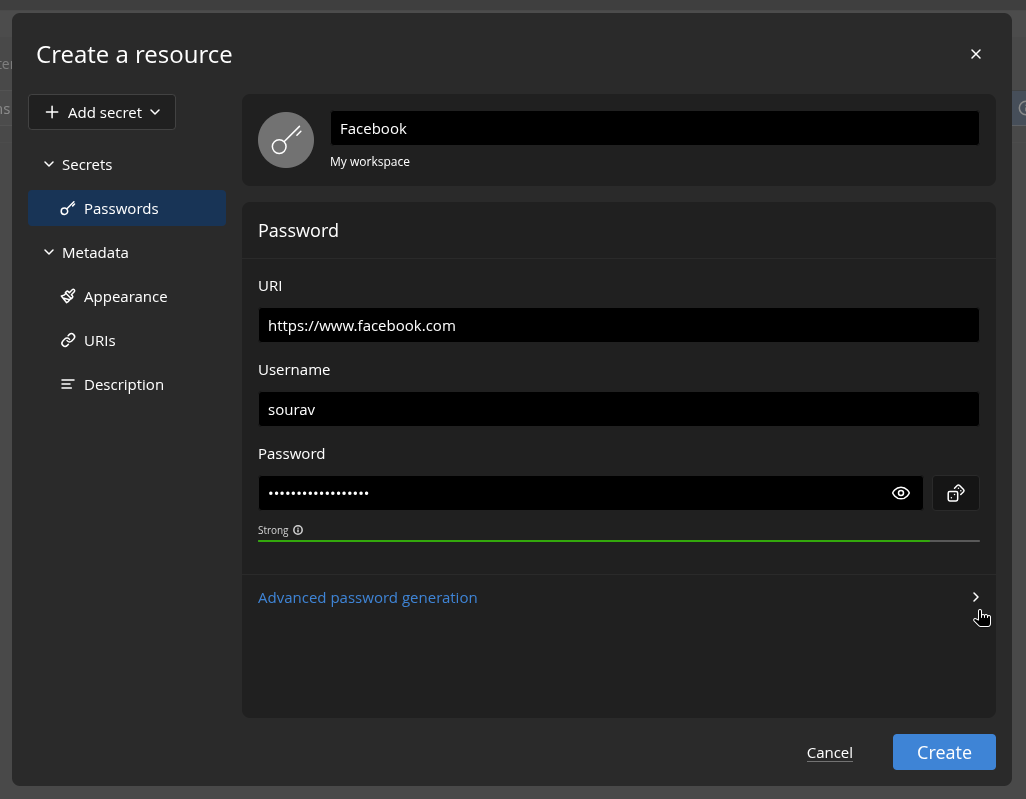
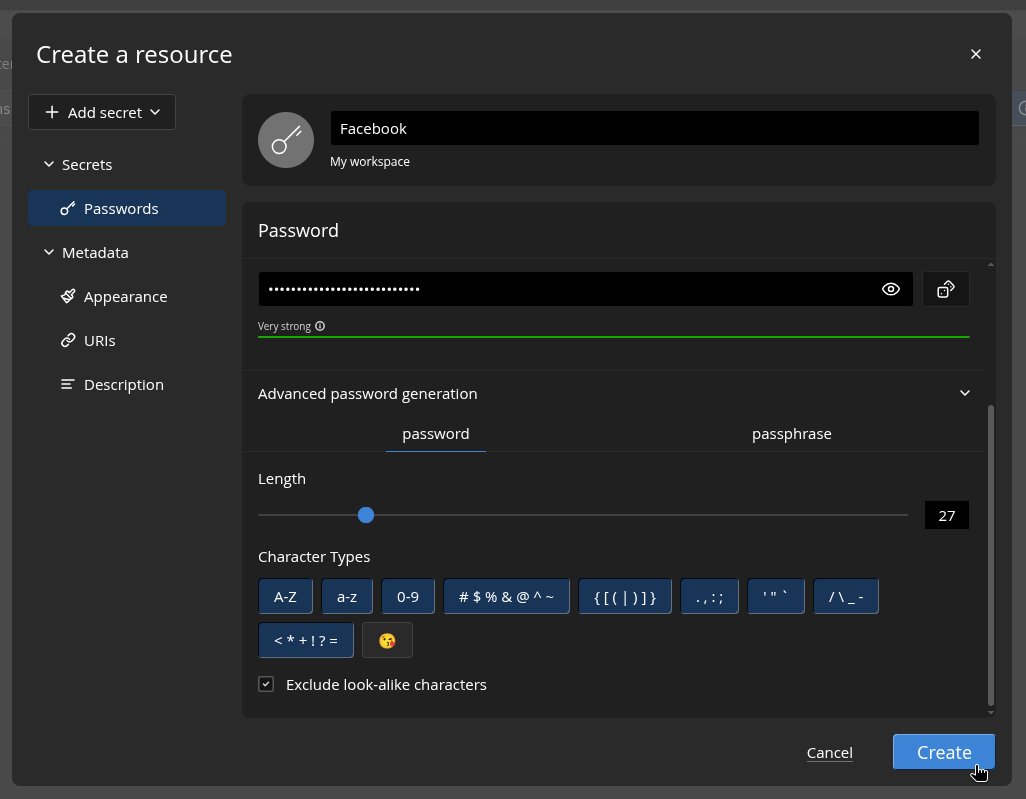
The password creation form offers extensive customizability, allowing administrators and team members to specify names, URIs, usernames, passwords, custom colors, and icons. A built-in password generator provides granular control over length, character types, and the option to generate secure passphrases instead of complex random strings. When saving entries, the system prompts for the user’s passphrase alongside their visual security token. Users can also configure how long the system remembers their passphrase, ranging from brief five-minute intervals to lasting until the user logs out.
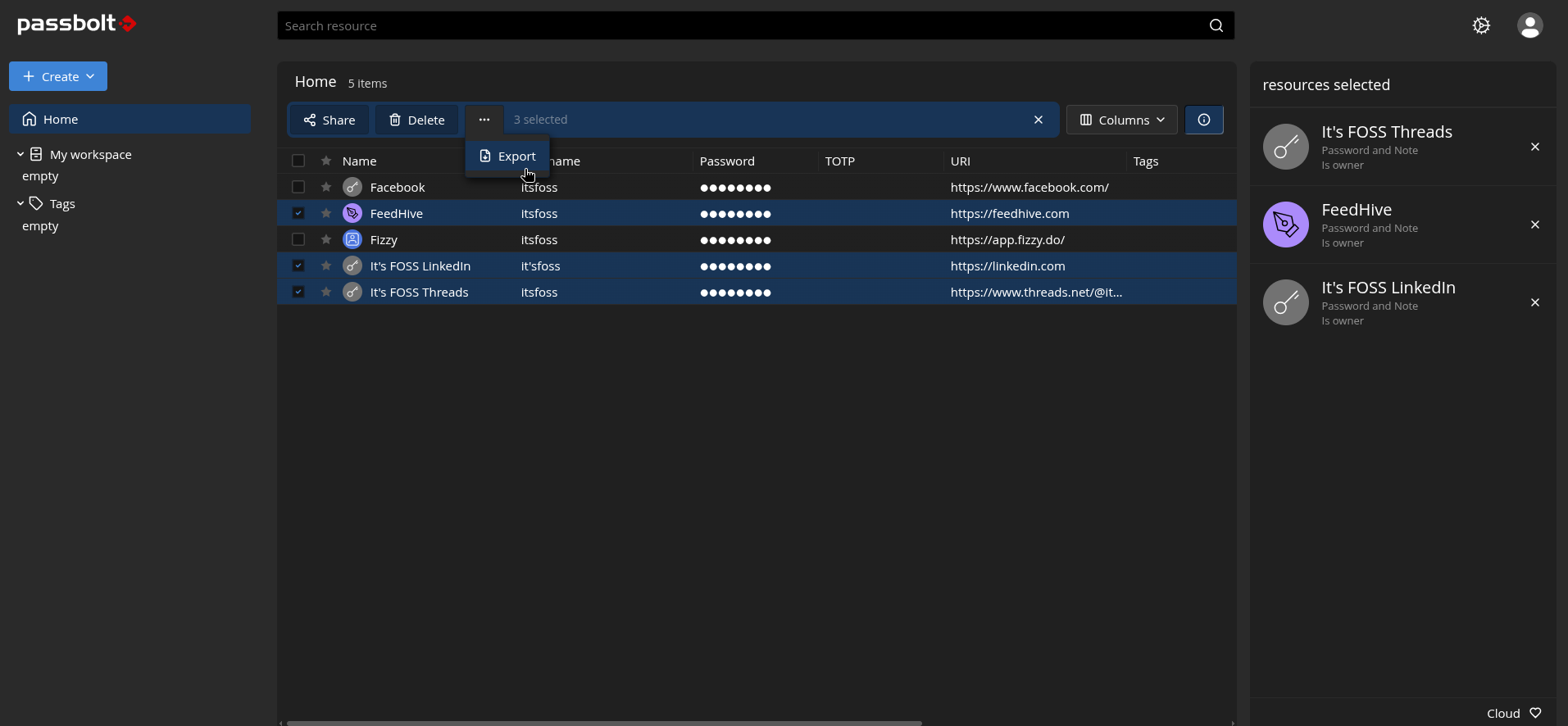
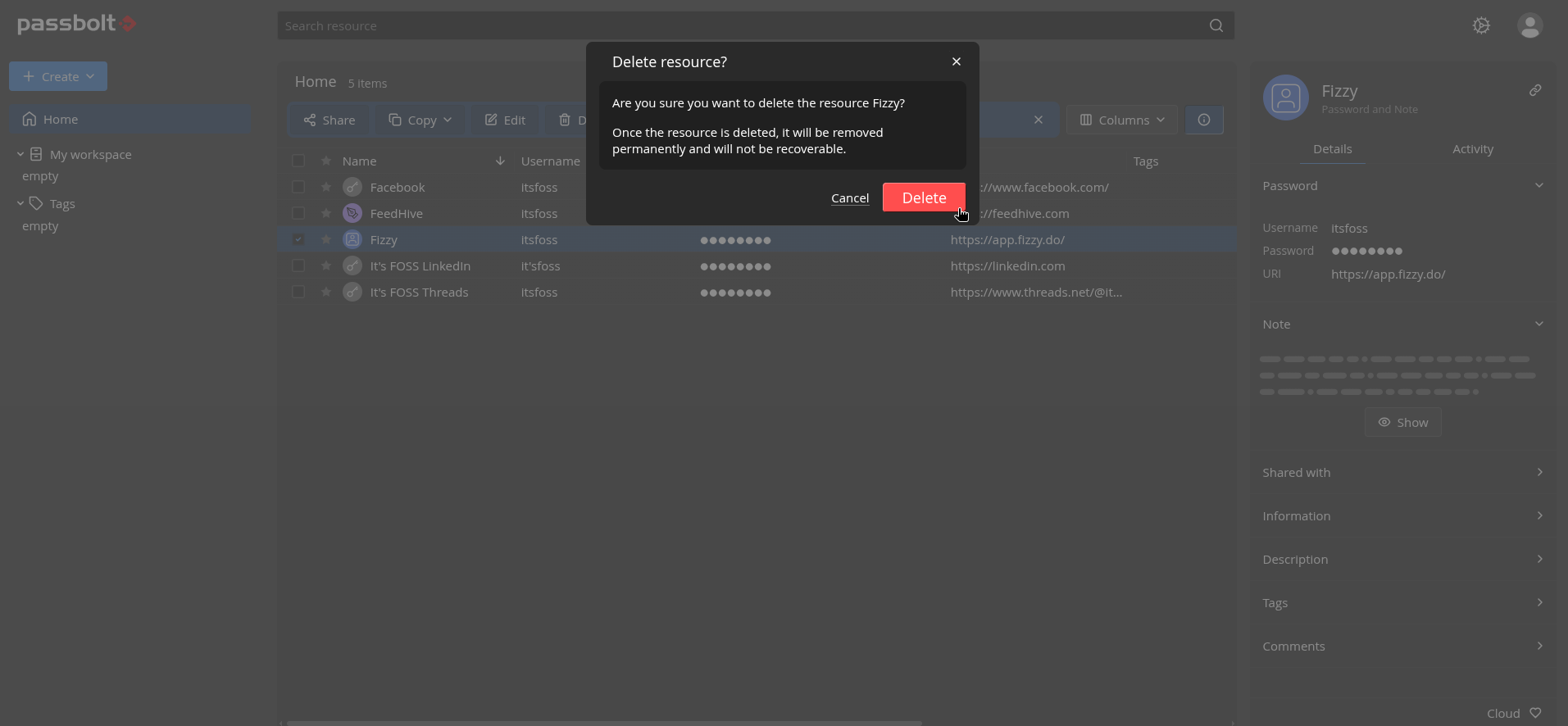
Batch management features allow teams to share, export, or delete multiple entries simultaneously. When performing deletions, the platform explicitly warns users that entries are removed permanently and cannot be recovered.
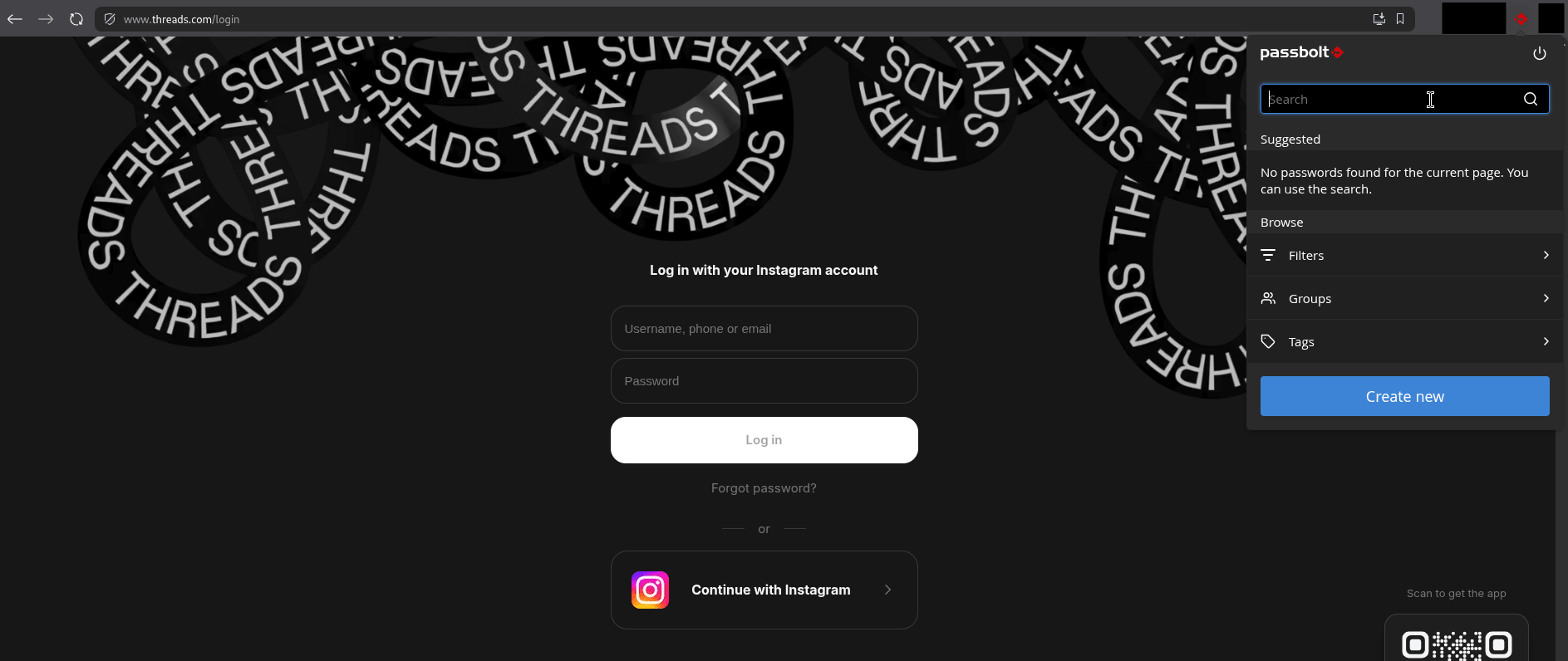
Autofill functionality is integrated directly into the browser extension, though successful matching depends heavily on exact URI configurations. If a saved credential uses a different top-level domain than the active login page, users may need to search for the entry manually and select the option to apply it to the current page. The extension also allows users to add new entries on the fly and filter through existing groups and tags.
The core strength of Passbolt lies in its collaborative capabilities. Workspace administrators can manage users and groups via a dedicated settings menu, inviting colleagues to join the workspace and assigning them to specific folders or teams. By right-clicking a folder and utilizing the sharing menu, administrators can grant specific read or write permissions to individual colleagues.
Invited collaborators receive an email notification and can access shared folders according to their assigned permissions. While read-only users cannot modify entries, they can easily copy necessary usernames, passwords, URIs, and permalinks. Administrators can promote users to administrative roles to give them control over workspace settings or suspend accounts when personnel changes occur.
Availability and Pricing Options
Organizations interested in evaluating Passbolt Cloud can sign up for a seven-day trial without providing credit card information. Following the trial period, paid cloud options include Cloud Business and Cloud Sovereign, both of which require a minimum commitment of ten users. Custom pricing is also available through Cloud Enterprise tiers for organizations with specialized requirements.
For teams preferring self-hosted infrastructure, the Community Edition remains free with no user caps and supports deployment across major operating systems and container environments, including Debian, Ubuntu, Docker, Kubernetes, Red Hat, and AlmaLinux. The Pro tier introduces additional enterprise capabilities such as LDAP provisioning and SSO support, billed annually per user with a ten-user minimum.

Browser extensions are widely available for Chromium-based browsers like Chrome, Brave, Edge, and Vivaldi, alongside dedicated options for Firefox and Safari. Mobile applications support iOS and Android devices, while desktop application support focuses primarily on Windows environments. Additionally, Linux users can utilize the official command-line interface tool provided by Passbolt to manage their credentials efficiently.