
For many technology enthusiasts, the journey of building a home server environment—commonly known as a homelab—begins with modest ambitions and a handful of services. What starts as a convenient way to stream media or manage smart home automation devices, however, can quickly devolve into a frustrating labyrinth of numerical addresses and colon-separated port numbers.
For one administrator, accessing daily applications meant memorizing an ever-growing list of configurations. Opening the media server Jellyfin required typing a specific local IP address followed by port 8097, while managing the Home Assistant platform demanded an entirely different combination ending in 8123. Services like Karakeep and local artificial intelligence platforms such as Ollama added even more complexity to the mix, turning routine web browsing into an exercise in bookmark management.
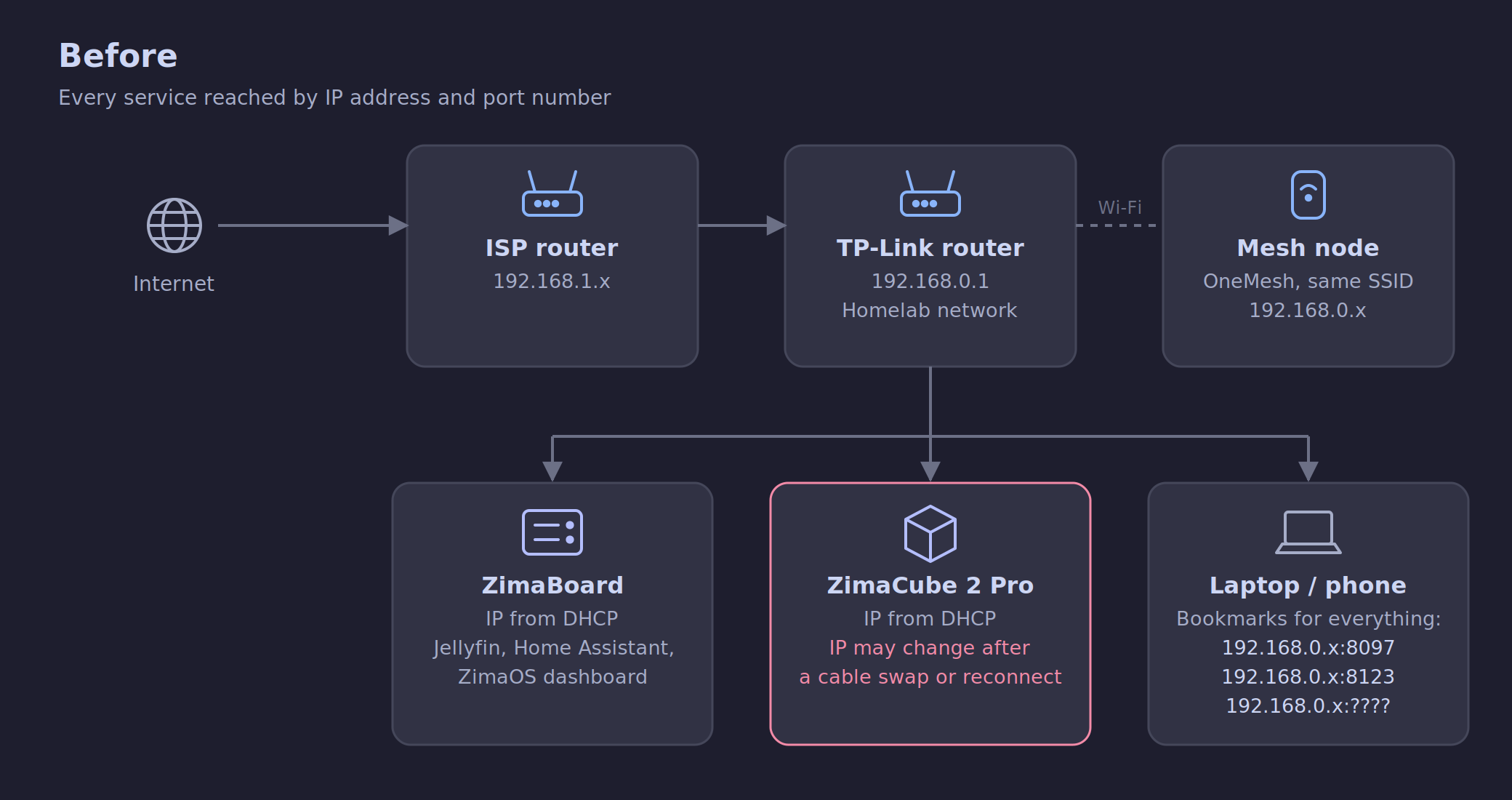
These bookmarks, unfortunately, proved notoriously unreliable. Like most network-attached hardware, the administrator’s ZimaCube personal cloud device dynamic-allocated its IP address via the home router. Whenever a network cable was swapped or the hardware reconnected, the device frequently returned with a new address, instantly breaking every saved bookmark and configuration pointing toward it. Typing a complex sequence of numbers and ports using a television remote control to access media added a layer of tedious friction to the daily routine, prompting a comprehensive weekend overhaul of the home network architecture.
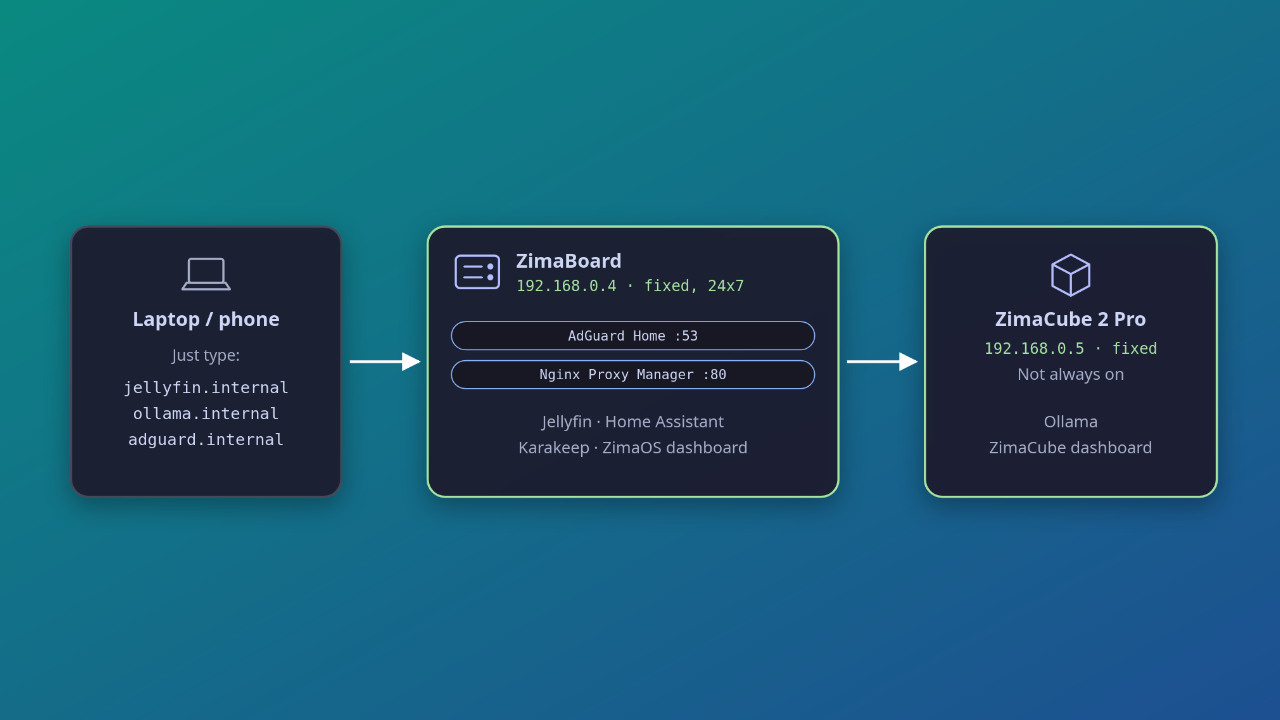
The ultimate objective of the cleanup was simple: replace erratic IP addresses and obscure port numbers with clean, memorable internal domain names. Today, instead of recalling a numeric string, the administrator simply types jellyfin.internal directly into any browser address bar, bypassing the traditional networking hurdles entirely and streamlining the homelab experience.

Understanding the Setup: Before and After
The original network infrastructure relied on a standard consumer layout. An internet service provider gateway fed into a primary TP-Link router, which managed the dedicated homelab local area network, complemented by a OneMesh wireless node extending coverage throughout the premises.
The physical hardware division centered around two primary units from Zima. A low-power ZimaBoard served as the constant, round-the-clock foundation, hosting continuous services like Jellyfin that needed to remain perpetually accessible. Meanwhile, a more powerful ZimaCube, equipped with an Nvidia Ada generation graphics card, was reserved for local artificial intelligence exploration. To minimize electricity consumption, the high-performance ZimaCube was configured to remain powered down when not actively in use.
Following the architecture redesign, the network structure was significantly upgraded. Both Zima units were assigned permanent, fixed IP addresses to ensure stability. The always-on ZimaBoard was tasked with managing critical network infrastructure, specifically acting as the local domain name system server and reverse proxy manager, while every individual service was assigned a clear, human-readable identifier.
The Core Strategy: DNS and Reverse Proxy Integration
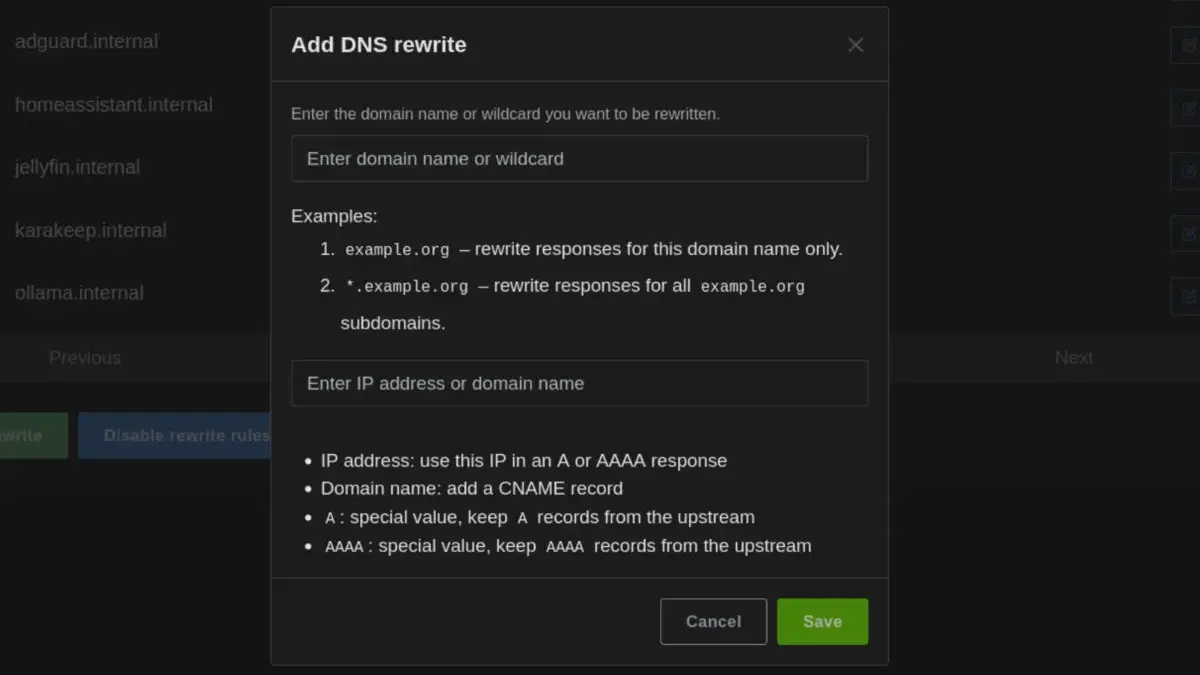
The revamped architecture relies on two primary software components working in tandem. AdGuard Home functions as the network’s local domain name system server, translating clean names like jellyfin.internal into the appropriate numeric IP address.
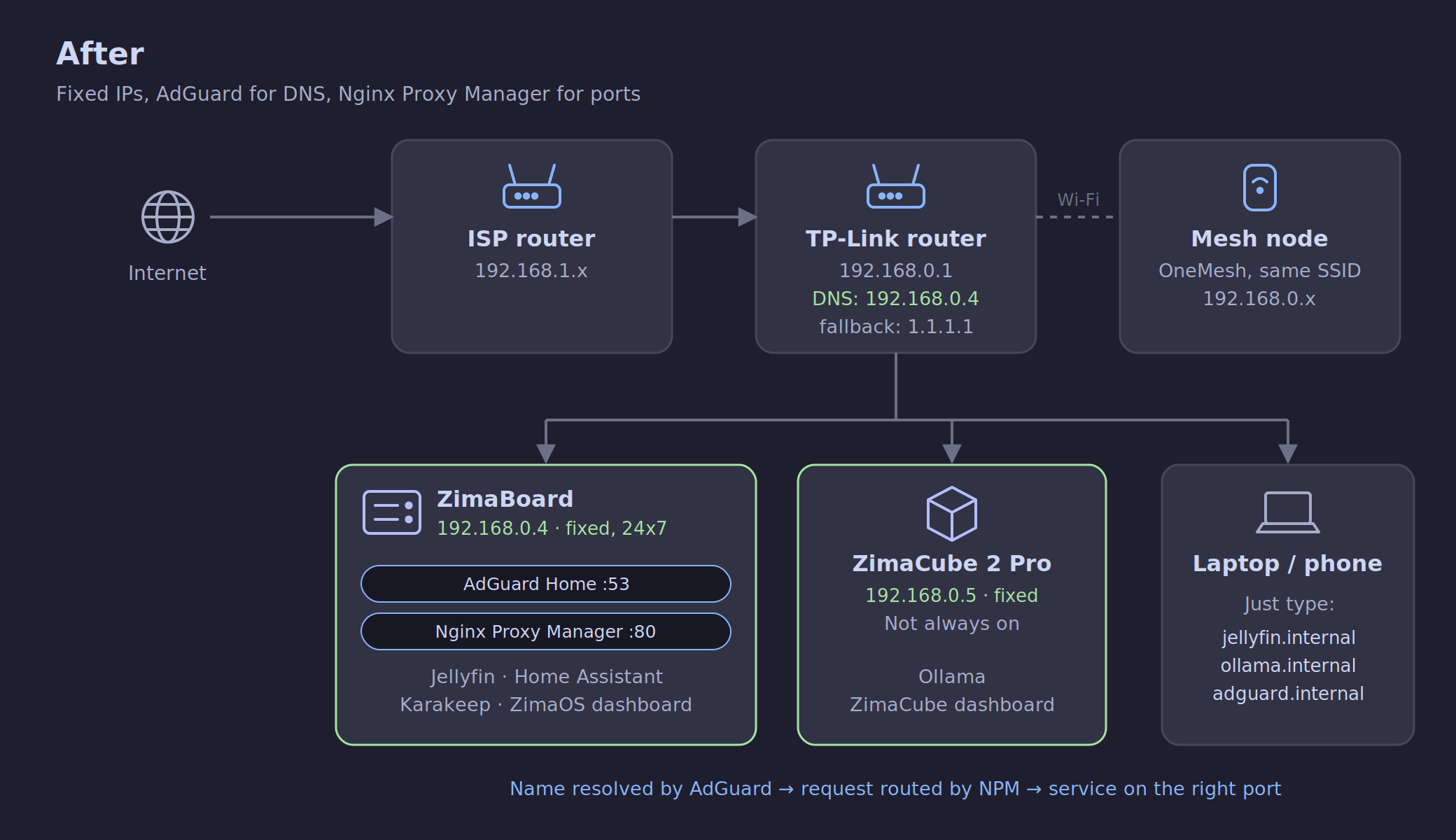
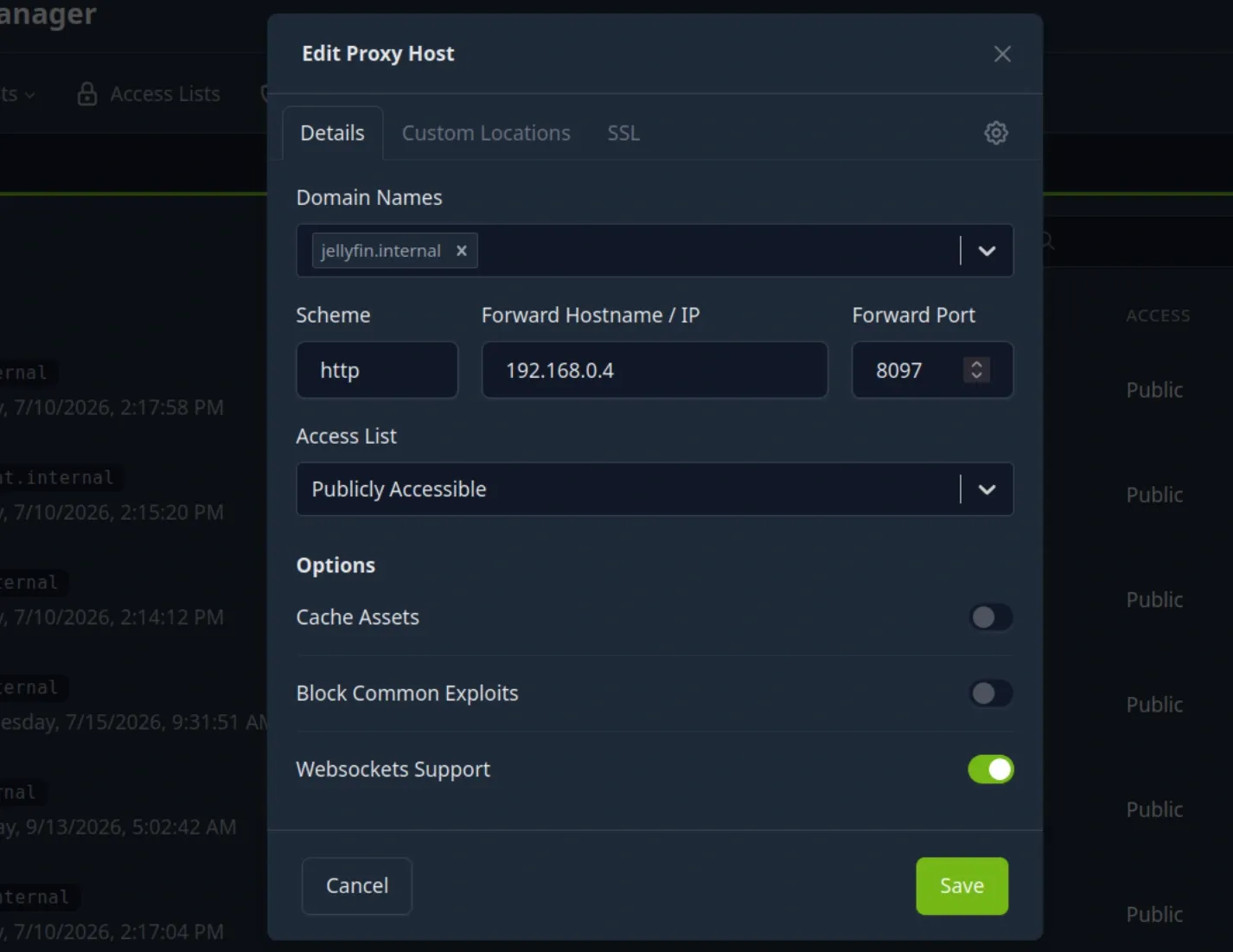
Because a domain system resolver can only route traffic to an IP address rather than specific port numbers, a second tool is required to bridge the gap. Nginx Proxy Manager analyzes incoming web requests based on the requested domain name and intelligently forwards them to the correct port on the backend.
Once this foundation is established, deploying a new service becomes a streamlined routine consisting of a single domain name rewrite rule and a corresponding proxy host entry.
Securing Fixed IP Addresses and Network Stability
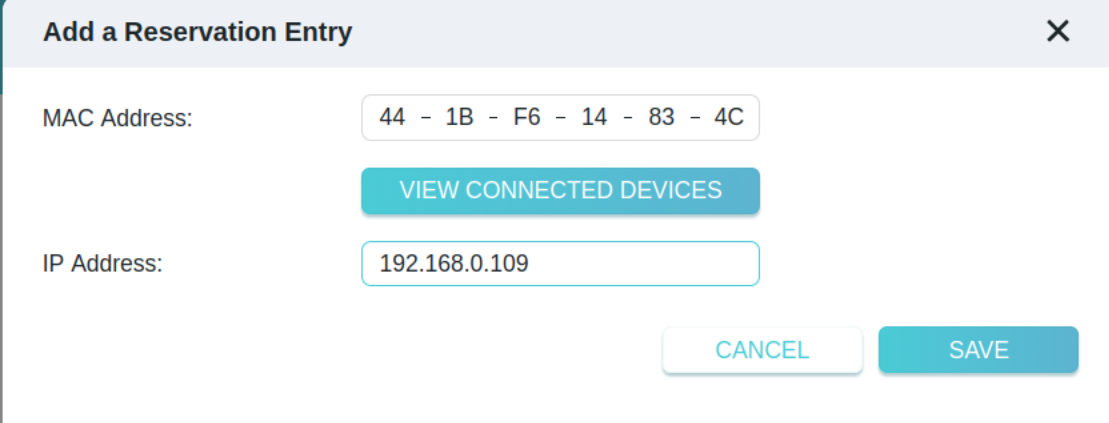
The entire architecture depends entirely on static IP addresses that never shift. If the primary domain server’s address were to change, the entire internal network configuration would fail. To prevent this, the administrator configured static address reservations directly within the router’s settings menu.
To prevent any conflict with devices dynamically connecting to the network—such as smartphones and laptops—the dynamic host configuration protocol allocation pool was adjusted to begin at a higher numerical range, ensuring that personal mobile devices never accidentally capture a reserved server address.
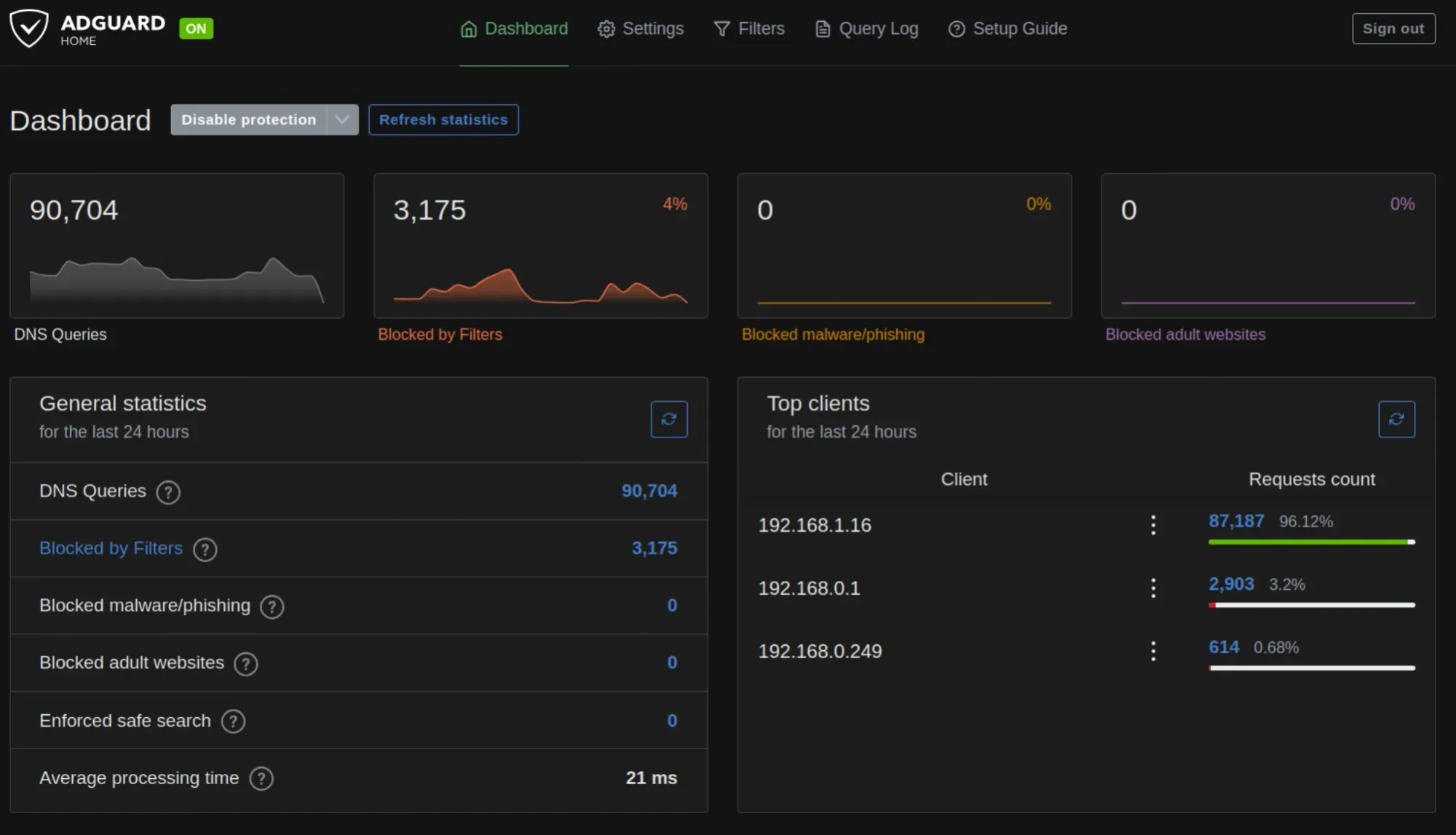
The resulting static allocation scheme designated the primary gateway router at the standard address, while dedicating specific fixed addresses to the always-on ZimaBoard and the intermittently powered ZimaCube. Additional single-board computers utilized for local artificial intelligence harnesses and security camera monitoring systems were similarly locked to dedicated addresses to maintain consistent communication across the local area network.
Deploying AdGuard Home and Managing Port Conflicts
Because AdGuard Home operates as the foundational domain server for the entire infrastructure, it requires an environment that remains operational around the clock. The ZimaBoard filled this requirement perfectly due to its continuous uptime.
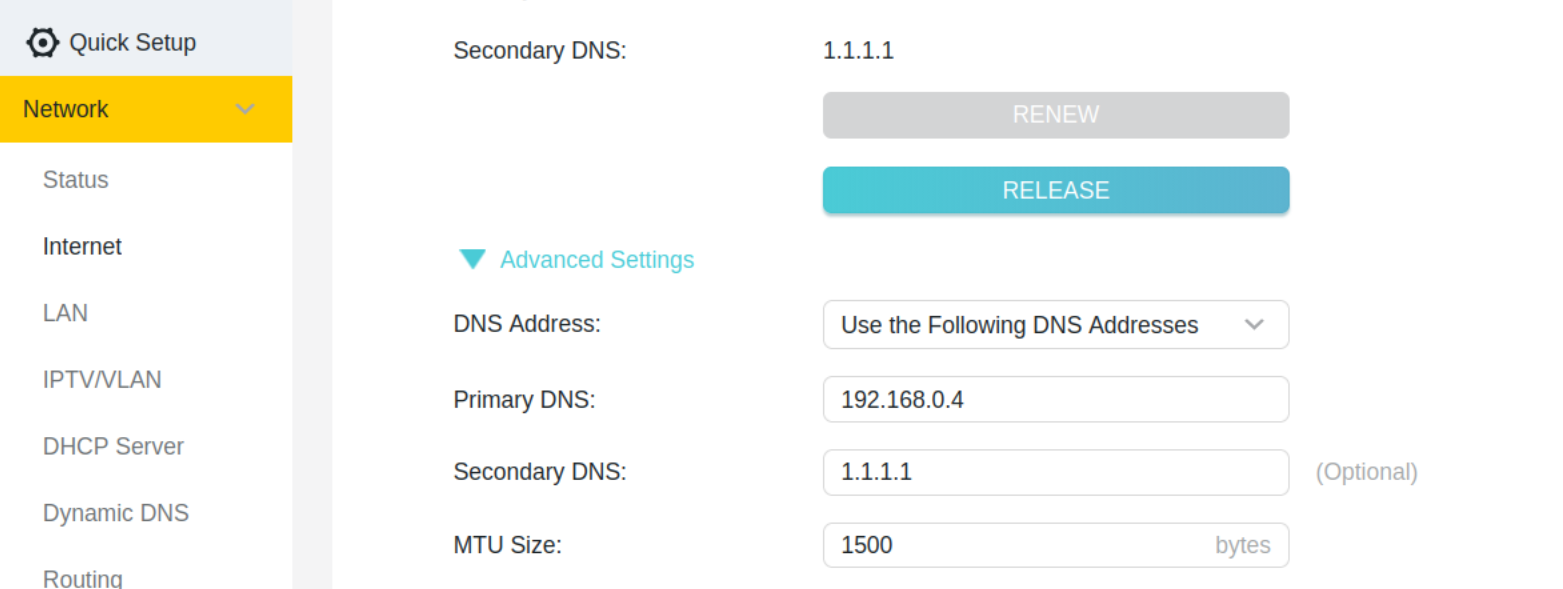
Utilizing the ZimaOS application ecosystem, the administrator installed the host-network variant of AdGuard Home rather than a standard containerized version. Host networking allows the application to bind directly to the standard network port 53 and correctly identify the true IP addresses of connecting client devices, avoiding the network address translation masking typical of default container bridges.
During the installation process, administrators often encounter port clashes with existing services. In this particular deployment, the web user interface port and the primary domain service port both conflicted with pre-existing configurations. A forgotten Pi-hole container running in the background was discovered occupying the necessary network ports and was subsequently removed, as AdGuard Home assumed its responsibilities.
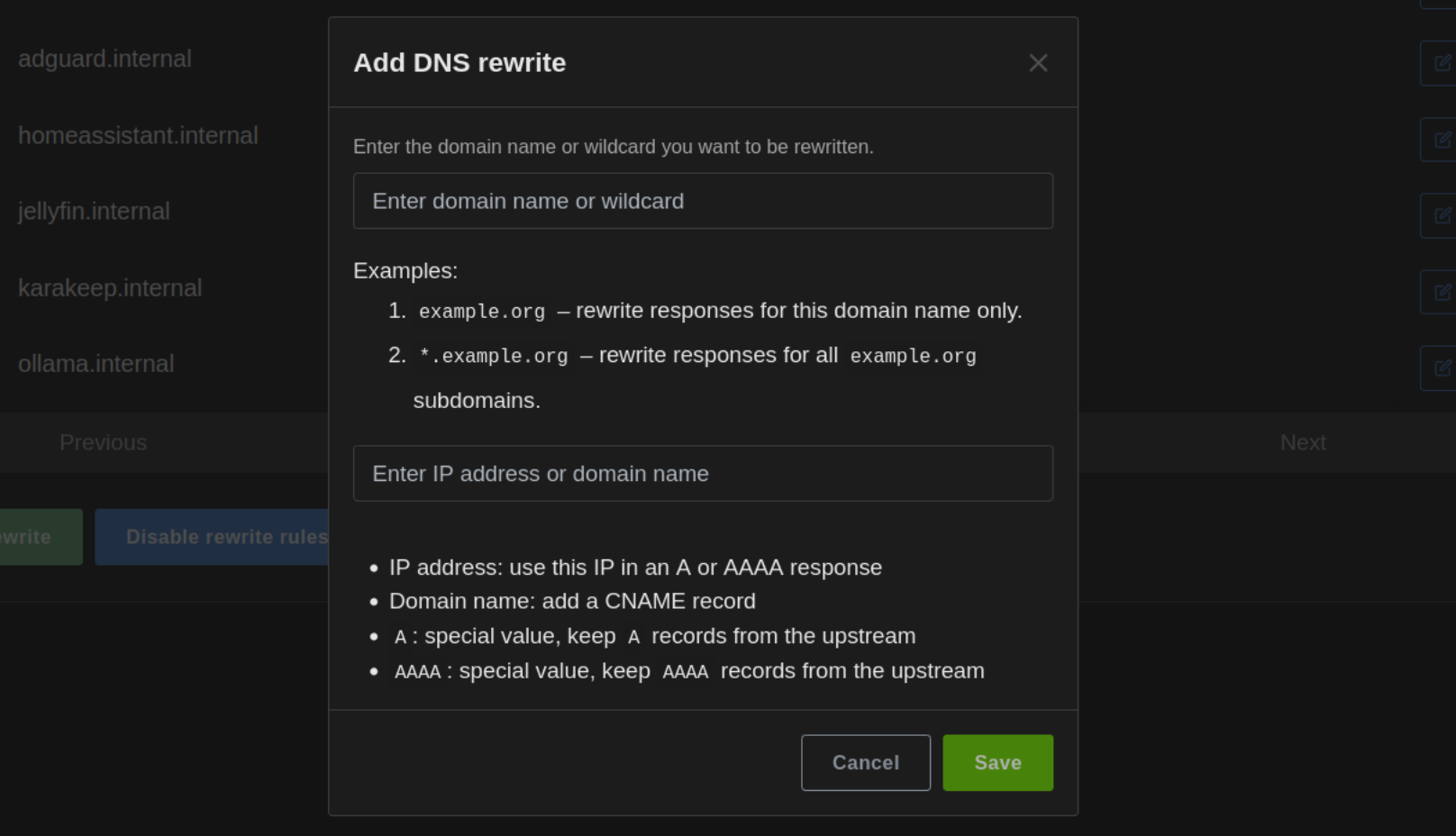
The network router was then reconfigured to direct all local domain queries through the newly established server, utilizing a public resolver as a secondary safety net to maintain internet connectivity in the event that the primary server hardware experiences downtime.
Mapping Internal Domains and Reverse Proxy Routing
With the domain server operational, the next challenge involved directing traffic to specific applications. Because domain rewrites resolve only to base IP addresses rather than specific ports, multiple services hosted on the same machine would normally create routing conflicts.
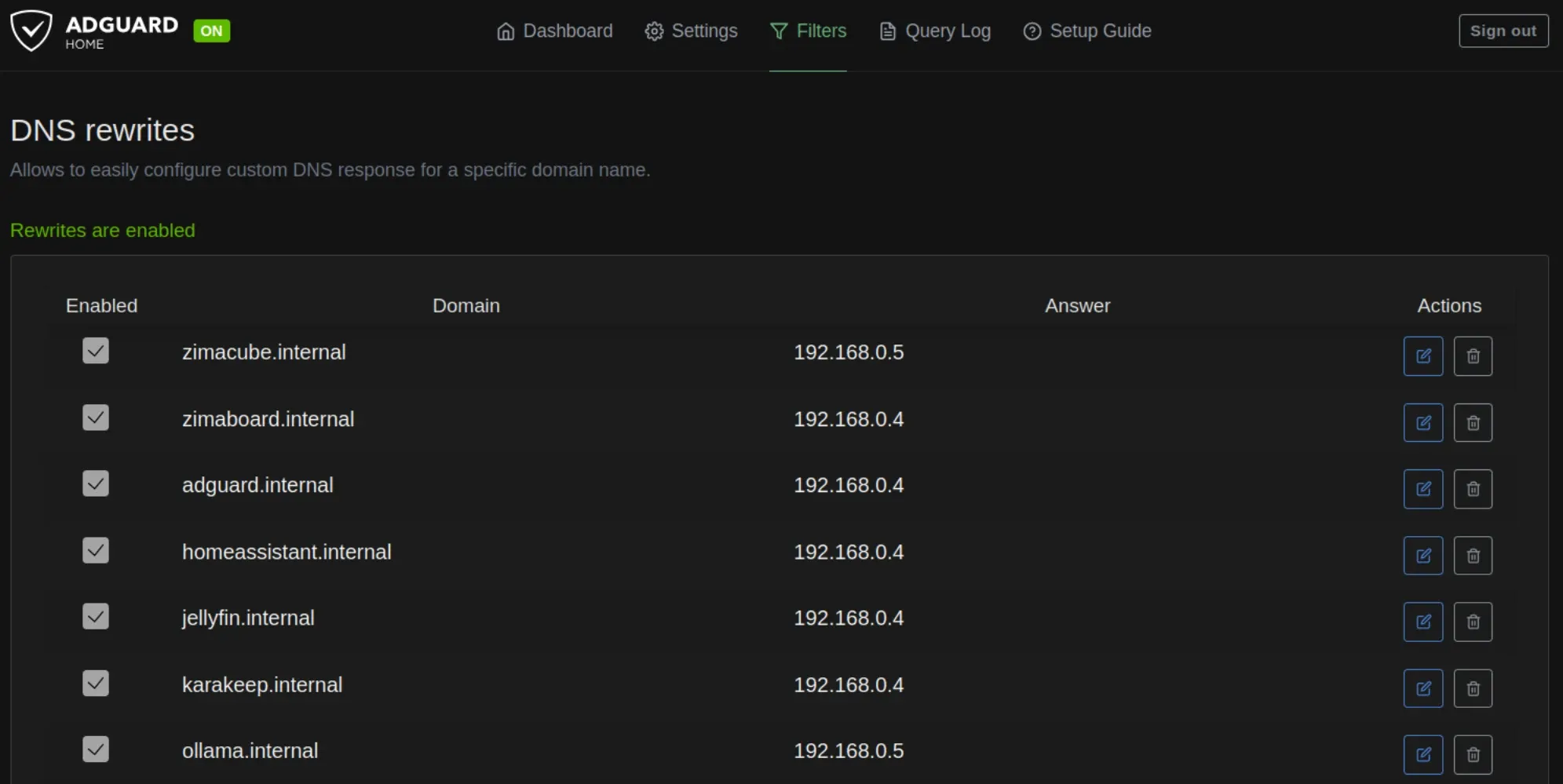
To solve this limitation, Nginx Proxy Manager was deployed on the ZimaBoard to act as a reverse proxy. Operating on standard web ports, the proxy manager listens for incoming requests, evaluates the requested hostname, and routes the traffic to the appropriate application port behind the scenes.
Addressing initial port conflicts required shifting the management dashboard of the underlying operating system to an alternate port, clearing the way for the proxy manager to handle incoming web traffic seamlessly. Once configured, adding new applications became a matter of creating a corresponding proxy host entry within the administrative dashboard.
While network modifications frequently introduce troubleshooting hurdles—such as adjusting application configuration files to recognize proxied headers or ensuring telemetry endpoints for streaming applications are properly permitted—the resulting environment completely eliminates the need to remember numerical addresses or port numbers. The completed setup demonstrates how basic network tools can be combined to transform a complex homelab into a polished, user-friendly local ecosystem.

Leave a Reply