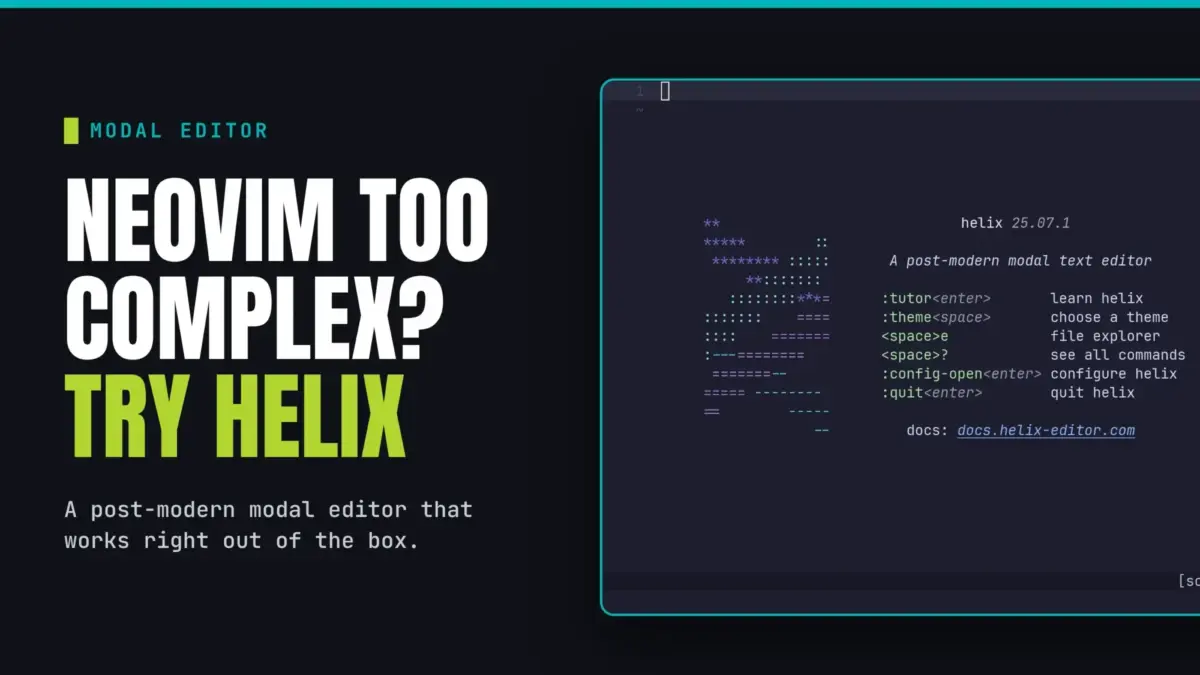
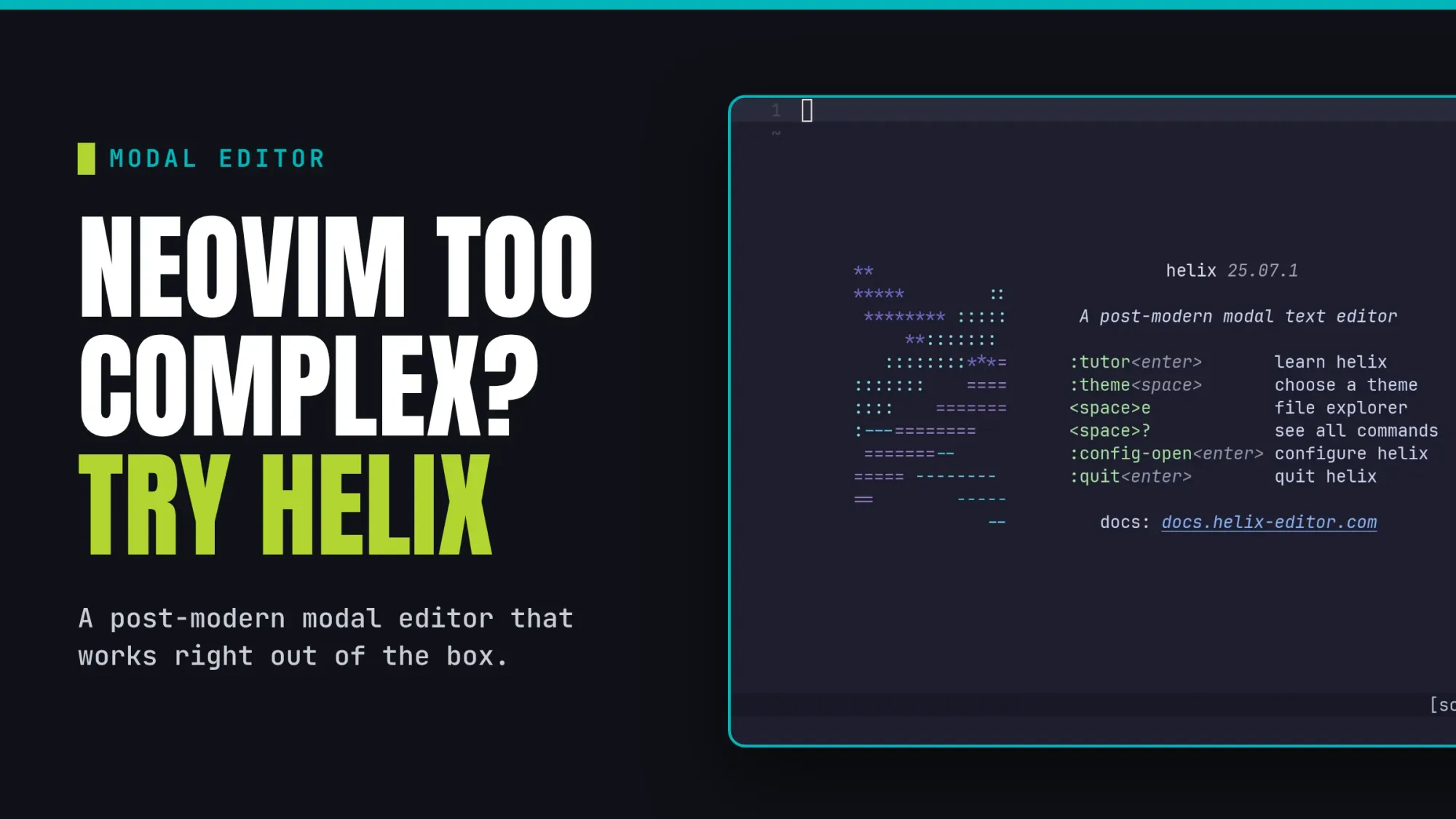
For developers and Linux enthusiasts who have long admired the raw speed and efficiency of terminal-based text editors like Vim and Neovim, but have been intimidated by the steep learning curve and complex configuration hurdles, a compelling alternative has gained significant attention. The Helix text editor offers a modern, modal editing experience that operates much like traditional terminal powerhouses, yet delivers an intuitive, out-of-the-box workspace equipped with advanced features like Language Server Protocol (LSP) and tree-sitter support by default.
While transitioning from a graphical user interface environment like VSCode takes some deliberate practice, mastering a terminal-based editor remains one of the most effective ways to boost daily productivity. Starting with Helix presents a remarkably smooth experience, particularly for users who may never have used modal editors before. The default settings are designed to be logical and responsive, provided the user is familiar with their standard keyboard layout. Furthermore, users can bypass the often frustrating hassle of learning a specialized programming language just to configure their workspace, as Helix delivers a robust, complete experience immediately upon installation.
Industry observers suggest Helix as an ideal choice for anyone seeking the coveted Neovim workflow vibe without investing the massive amount of time typically required to build and maintain a custom configuration from scratch. Out of the box, it integrates modern tooling that traditionally demands extensive plugin management in older environments. Although Helix currently lacks a traditional plugin system, its rich set of default features bridges the gap between classic terminal efficiency and contemporary development standards.
Installing Helix Across Linux Distributions
Getting started with Helix requires minimal effort, as the application is readily available in the official package repositories of several major Linux distributions. For users running Arch Linux, the editor can be installed swiftly through the default package manager using a straightforward command. Fedora users enjoy similar convenience, with packages available directly through the standard system repository.
Support for the editor has also expanded to mainstream releases, with distributions like Ubuntu including Helix in their official repositories for recent LTS releases and newer versions. Users on Ubuntu should note that the package and command name is designated as hx rather than the full editor name, a minor distinction designed to prevent naming conflicts within the environment. For users operating on other Linux distributions or alternative operating systems, pre-built binaries are made accessible via the official Helix GitHub repository, allowing for straightforward installation by following standard deployment documentation.
Understanding the Core Philosophy of Helix Modes
Because Helix is fundamentally a modal text editor, it operates across different operational modes, each dedicated to specific tasks and behaviors. Without a foundational understanding of these distinct modes, grasping how the editor processes commands can prove challenging.

A notable philosophical distinction separates Helix from classic editors like Vim. While Vim typically relies on an action-then-object model, Helix follows a distinct select-and-action model. Users consistently highlight text first before performing an operational command on the targeted selection. For developers migrating from traditional Vim workflows, this inversion can initially feel counterintuitive, but it forms the core of the Helix interaction design.
Normal mode serves as the default state across most modal editors, functioning as the central hub where all text manipulations are orchestrated. Whenever a user finds themselves navigating elsewhere within the interface, pressing the Escape key immediately returns them to this home base. Unlike conventional GUI editors where the workspace remains in a constant typing state, modal editors utilize normal mode as a foundational resting point for movement and command execution. Within normal mode, users cannot directly type text into the document; instead, they must explicitly transition into insert mode.
Insert mode represents the state where traditional text entry occurs, mirroring the behavior of standard graphical editors like VSCode where text actions are carried out directly. While in insert mode, the primary focus remains on composing content rather than executing structural deletions or copying operations. Standard arrow keys remain functional for cursor movement across both normal and insert modes. Once composition is complete, pressing the Escape key transitions the editor back to normal mode.

Select mode serves as the direct equivalent of visual mode in Vim, utilized specifically for highlighting text blocks within a document. Triggered by pressing a designated key while in normal mode, select mode automatically flags the character under the cursor as the starting point, allowing navigation keys to extend the selection across the file. Combining this selection model with movement shortcuts provides exceptional efficiency, enabling developers to highlight massive blocks of text with minimal keystrokes. Once the desired text is highlighted, operators can be applied directly to the selection without needing to exit the mode first.
Supplementary Modes and Navigation
Beyond the primary operational states, Helix incorporates supplementary modes designed for specialized workflow tasks. Command mode is accessed by entering a specific punctuation prompt from normal mode, opening an interface where administrative operations—such as saving files or quitting the session—are executed.
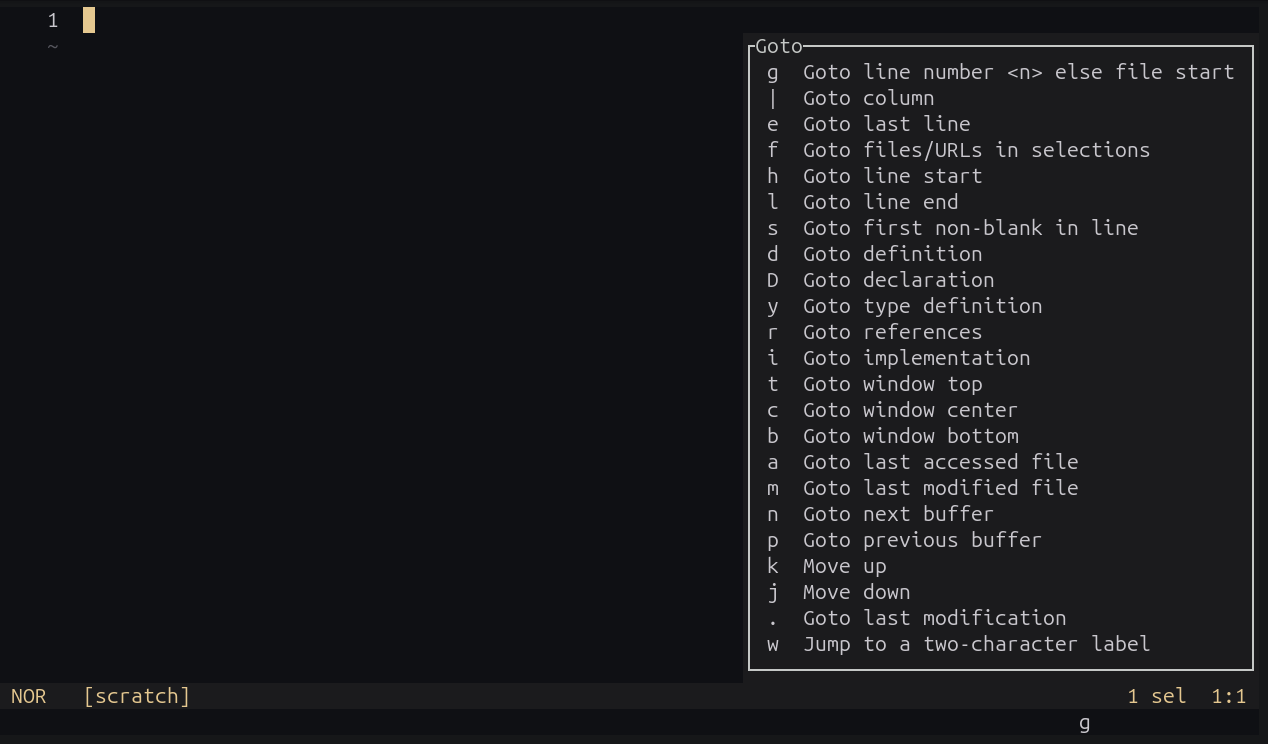
Picker mode introduces a minimalist fuzzy finder interface triggered by a designated spacebar command. This feature allows users to invoke file pickers, buffer pickers, and execute contextual operations such as block commenting sections of code. A defining characteristic of Helix is its contextual guidance system; whenever supplementary modes like picker mode or specialized key sequences are initiated, the editor displays a neat pop-up interface outlining available keys and their respective functions in real time.
For beginners looking to build muscle memory, Helix includes a built-in interactive tutorial accessible directly from the terminal. This tutorial guides new users through reading explanatory text and executing corresponding actions within a sample environment, offering practical day-to-day shortcut practice.
Configuration and Theme Customization
While Helix is fully functional right out of the box without requiring user-written configuration files, customization is supported through a clean TOML configuration file located in the user directory structure. Users can easily modify visual aesthetics by exploring pre-installed themes directly within a live editing session. By invoking the theme selection command and utilizing interface navigation keys, developers can preview various color schemes in real time before committing a permanent choice to their configuration file.
Language Server Protocol integration is handled natively by Helix, eliminating the complexity of manual LSP configuration. By installing standard language servers—such as CSS language servers or Rust analyzers—through system package managers, the editor automatically detects the available tools and provides advanced features like code completion and syntax analysis seamlessly upon opening relevant project files.
Supporting multiple cursors natively further enhances the editor’s utility, allowing developers to duplicate cursors and edit multiple lines simultaneously. While the editor may not aim to replace deeply customized Neovim setups for veteran users, Helix provides an exceptionally strong entry point for anyone eager to explore modal editing and terminal-based development environments.