Knowing how to check and manage your PHP version is a fundamental responsibility for anyone managing a website, server, or local development environment. Because a server can run multiple instances of PHP simultaneously—such as a command-line interface and a web server handler—the version shown in a terminal does not always match the one actively serving live traffic. Recent security vulnerabilities, notably the critical flaws tracked as CVE-2026-109618 and CVE-2026-109619 and collectively known as php2shell, have underscored the urgent need for precise version verification and prompt patching. Maintaining an outdated PHP branch can leave a website exposed to severe security risks, making it vital for administrators to understand how different environments report their underlying software.
Differentiating Between Server Environments and PHP Interfaces
A single server or computer often houses multiple versions of PHP. The version displayed when running a command-line utility in a terminal is frequently distinct from the version processing requests for a live website. This separation occurs because server environments rely on specialized handlers, such as PHP-FPM or LiteSpeed Web Server integrations, to execute code for visitors. Consequently, troubleshooting performance issues or confirming the application of security patches requires verifying the exact interface interacting with web requests rather than simply relying on default terminal outputs.
Testing environments, virtual private servers, and managed hosting accounts each handle these configurations differently. For instance, testing performed on standard hosting infrastructures and virtual private servers running Ubuntu reveals that command-line tools can report entirely different version numbers and build dates compared to browser-based scripts or dashboard tools. Recognizing these distinctions prevents false assumptions about a server’s security posture and ensures that updates are applied where they actually impact live web traffic.
Verifying PHP Versions Through Hosting Control Panels
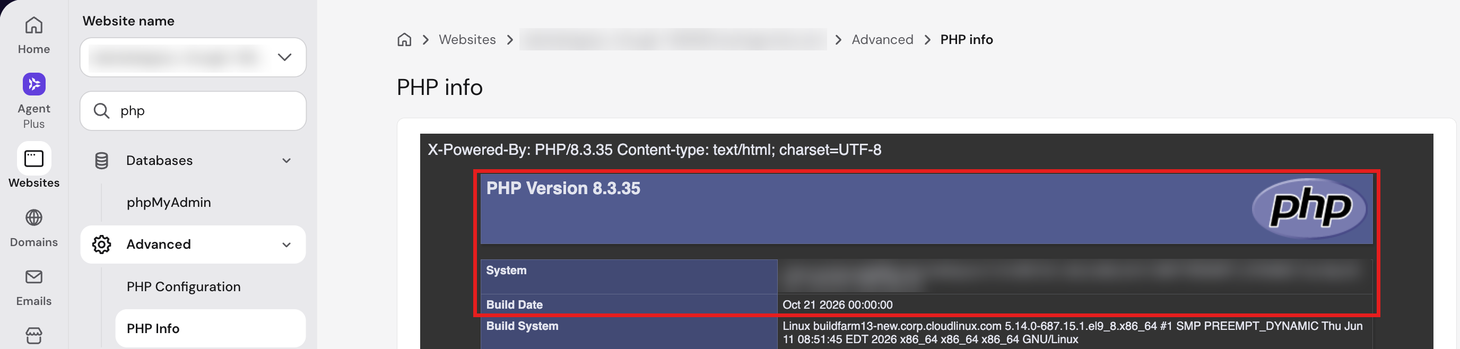
For administrators using managed web hosting plans, control panels offer a direct and code-free method to inspect active PHP configurations. Platforms like the Hostinger dashboard and cPanel provide dedicated sections to view active branches, exact release numbers, and build dates. Control panels read these details straight from the hosting server because PHP operates on the server side rather than within a visitor’s browser.
In a standard Hostinger dashboard, visiting the PHP Info section reveals comprehensive details including the precise release and build date, which helps confirm whether recent security fixes have been applied. Meanwhile, configuration menus typically display the active branch, such as PHP 8.3 or 8.4. Similarly, cPanel users rely on tools like MultiPHP Manager or the Select PHP Version utility to review active branches. While these panel interfaces offer a rapid overview of the environment, administrators requiring granular verification of build dates often need to cross-reference this data with specific server files or dashboard indicators.
Checking PHP Configurations Within Content Management Systems
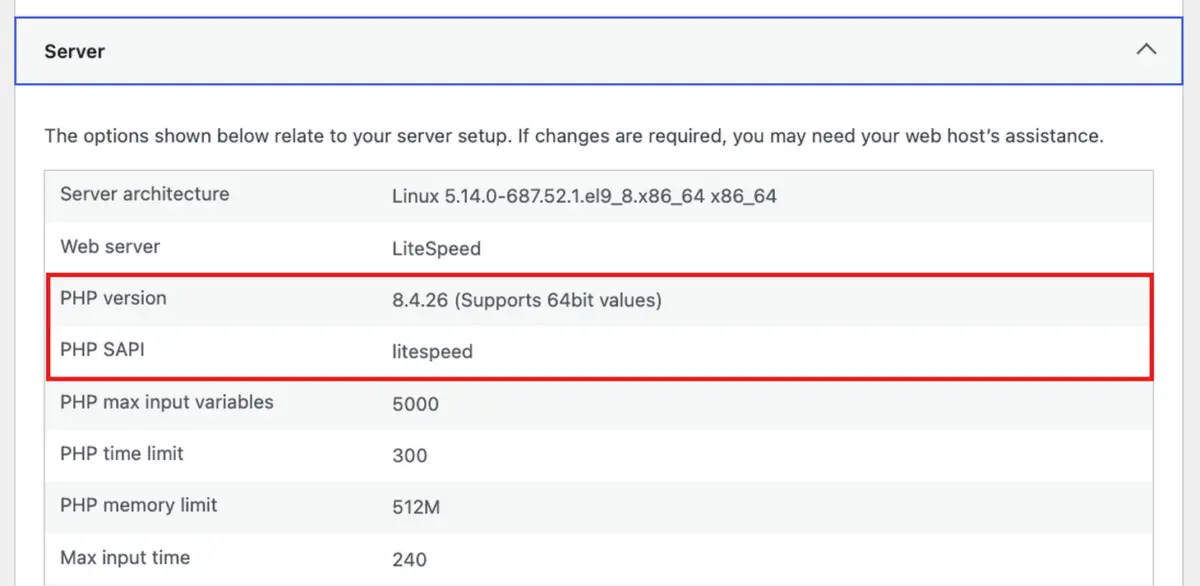
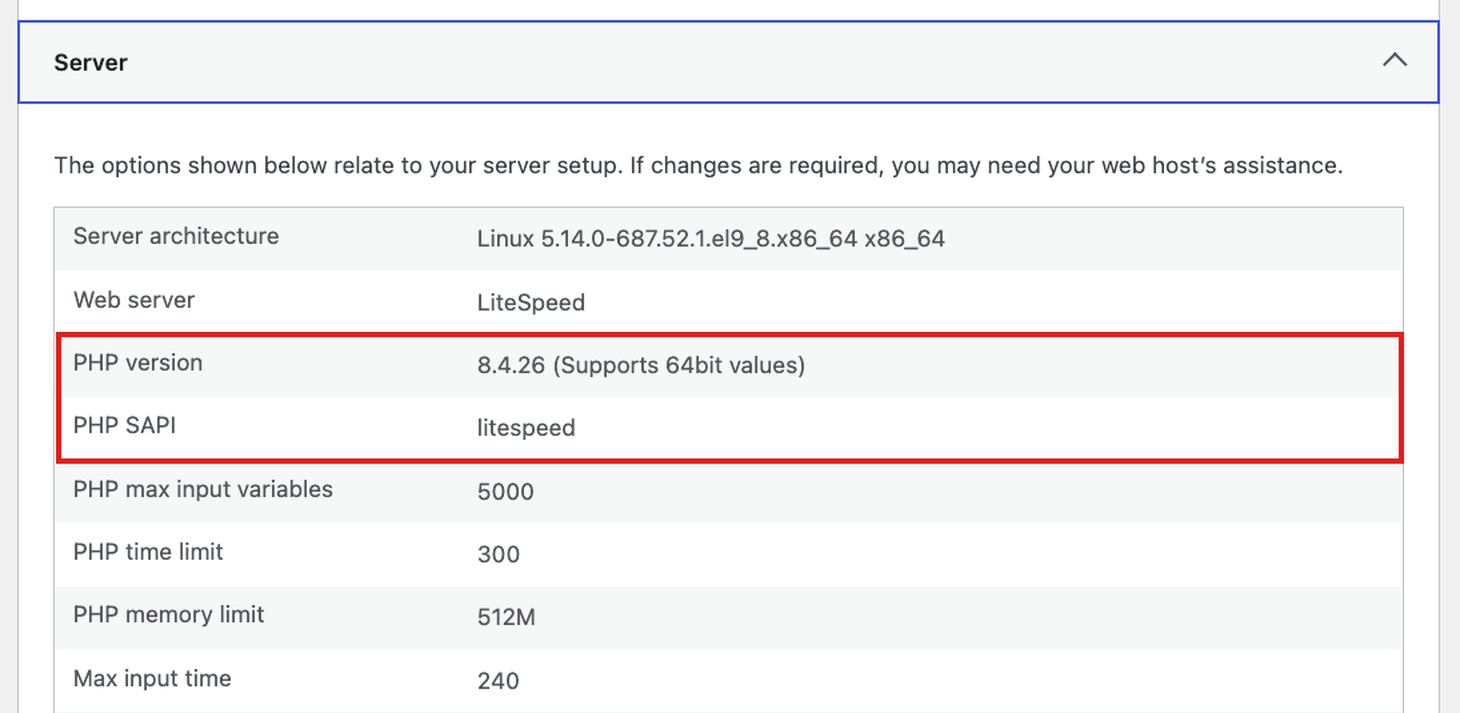
Content management systems like WordPress offer built-in diagnostic tools that report active server environments directly from the application dashboard. Navigating to the Site Health screen within WordPress provides a clear overview of the server infrastructure, identifying the exact PHP release currently powering the application along with the Server Application Programming Interface, or SAPI, in use. This interface indicates how PHP communicates with the underlying web server, highlighting protocols such as litespeed or fpm-fcgi.

The Site Health utility also acts as an early warning system by flagging outdated PHP branches as critical issues when they no longer receive security patches. However, administrators should note that command-line tools associated with the content management system, such as WP-CLI, may execute under a different PHP binary than the one serving frontend visitors. Comparing diagnostic readouts across these different layers ensures a comprehensive understanding of the system’s operational state.
Utilizing Browser-Based Scripts for Precise Diagnostics
When hosting control panels lack detailed release histories or when administrators need to verify specific subdomains and directories, uploading a dedicated PHP script serves as a reliable fallback method. By placing a minimal file containing a built-in diagnostic function into a website’s root directory and accessing it via a web browser, users can inspect exact version numbers, build dates, and comprehensive server settings. This approach mirrors the exact pathway taken by website visitors, offering the most accurate representation of the environment handling live traffic.
Because these diagnostic scripts expose sensitive system paths, installed modules, and configuration details, maintaining security requires prompt removal of the file immediately following the verification process. Alternatively, administrators can employ a streamlined script that outputs only the version number, minimizing potential exposure while still delivering the necessary data.
Inspecting Versions via Command-Line Interfaces and Secure Shell
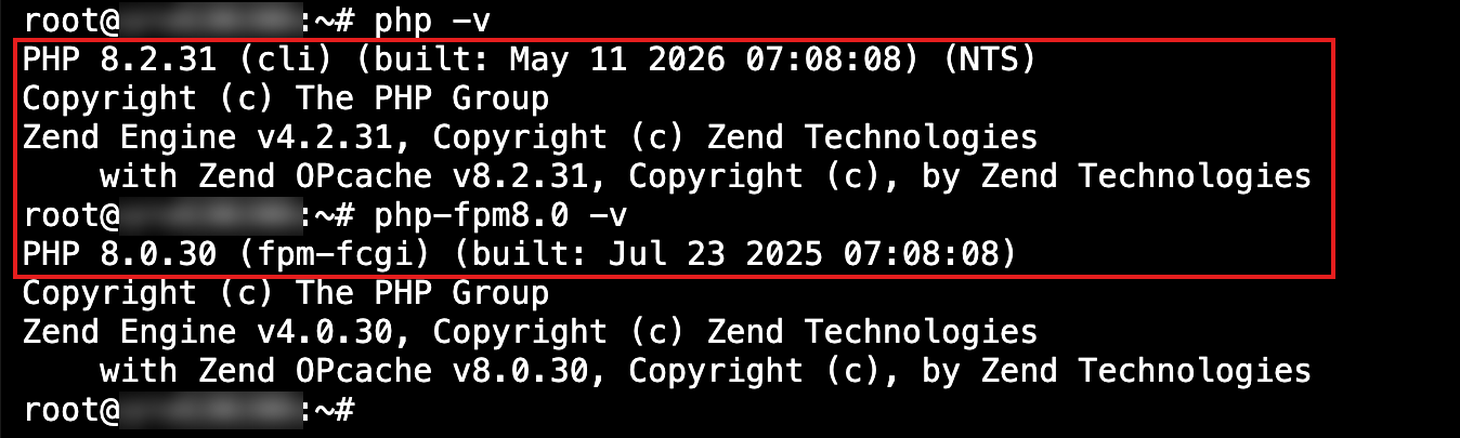
Server administrators frequently rely on Secure Shell connections and terminal interfaces to assess software packages. Executing a standard version query command reveals the command-line interface release and its corresponding build date. However, on shared hosting platforms and virtual private servers, this command-line PHP version often operates independently of the web server handler. Ensuring proper access to remote servers requires enabling Secure Shell privileges within the hosting dashboard and authenticating with the appropriate credentials, port numbers, and IP addresses.
Virtual private servers running Linux distributions often maintain multiple PHP branches simultaneously to accommodate diverse application requirements. Inspecting configuration directories and process lists allows administrators to identify which specific branch is bound to the web server via socket files or local ports. When package updates are applied on these servers, restarting the process manager ensures that active threads load the newly patched binaries.
Addressing Outdated Installations and Security Requirements
Keeping software up to date is essential for maintaining a secure and stable web presence. Supported PHP branches receive regular security fixes from development teams, while older branches eventually reach the end of their lifecycle and stop receiving patches. When a critical vulnerability like php2shell is disclosed, administrators must verify that their specific build incorporates the necessary fixes, as version numbers alone do not always reflect applied security patches.
Reviewing compatibility with modern content management requirements ensures that upgrading to a newer branch will not disrupt existing functionality. Once compatibility is confirmed, transitioning to a supported branch via a control panel or package manager protects the infrastructure from emerging threats. Regularly auditing these environments guarantees that both backend processes and public-facing web applications operate on secure, fully supported software foundations.