The Apple Contacts app forms the baseline architecture for virtually all personal and professional communication across the iPhone, iPad, and Mac ecosystems. Serving as the primary database for phone calls, iMessage, FaceTime, and native Mail, it remains one of the most frequently queried applications on Apple devices. Yet, despite its central position in daily workflows, Contacts is often perceived as a basic digital rolodex—a straightforward repository for names, email addresses, and phone numbers.
Underneath its minimalistic user interface, however, Apple has integrated a deep suite of power-user tools, touch gestures, and desktop capabilities designed to streamline contact management. From automated duplicate detection and hidden touch gestures for multi-selection to dynamic smart lists and granular privacy safeguards during wireless sharing, the Contacts app contains extensive functional depth across iOS, iPadOS, and macOS. Understanding these lesser-known mechanisms allows users to organize expansive address books, speed up multi-platform communication, and better protect personal data.
Streamlining Address Books with Desktop and Mobile Duplicate Management
Over time, address books frequently accumulate duplicate entries. Syncing multiple accounts—such as iCloud, Google Contacts, and Microsoft Exchange—alongside legacy phone migrations often results in fragmented cards containing identical phone numbers or email addresses. iOS addresses this issue natively by analyzing entries and presenting a consolidation banner directly at the top of the main contacts list, prompting users to merge overlapping cards with a single tap.
For desktop users, macOS features a dedicated tool embedded within the menu bar that offers similar functionality. Opening the Contacts application on a Mac and navigating to the Card menu reveals the Look for Duplicates option. When selected, macOS performs a system-wide analysis of the local and cloud-synced database, identifying entries that share matching names, numbers, or email addresses. The interface then gives users the option to rapidly merge these disparate cards into unified entries or discard redundant records entirely, maintaining database hygiene across all connected Apple devices.
Precision Gestures for Bulk Selection and Mass Deletion
Managing large volumes of entries on desktop platforms is straightforward: users can hold the Shift or Command keys while using the mouse or arrow keys to highlight specific ranges or non-sequential entries. Translating this level of granular control to touch-first interfaces like the iPhone and iPad historically presented friction, often requiring tedious tap-by-tap operations.

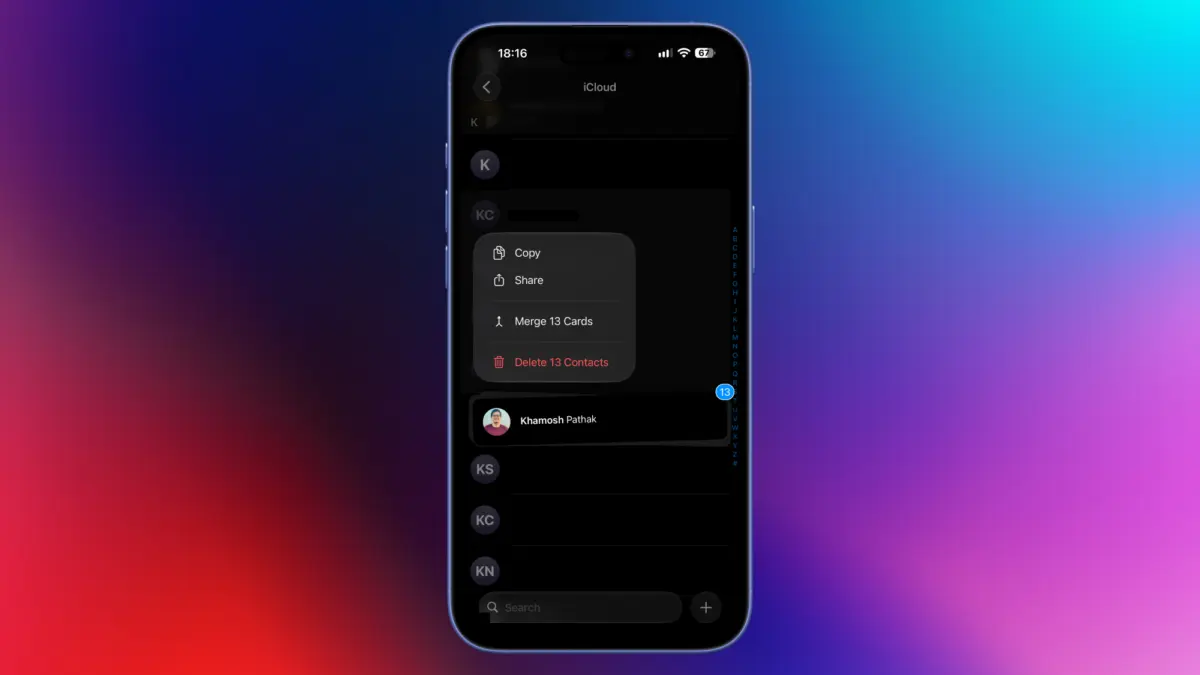
Apple resolves this on iOS and iPadOS through an unannounced two-finger drag gesture. By placing two fingers simultaneously on a contact entry and dragging vertically up or down the list, users can instantly highlight multiple contiguous entries. Crucially, this gesture supports multi-batch operations: users can scroll through their address book, execute the two-finger drag over a secondary group of entries, and append them to the active selection.
This multi-selection capability significantly reduces the friction of performing batch maintenance, particularly when purging outdated or unwanted records. Deleting contacts individually through standard entry menus requires tapping into a card, selecting an edit mode, and navigating to a confirmation screen—a deliberate process designed to prevent accidental data loss.
To bypass this slow pipeline, users can long-press a single entry from the main list view to pull up a contextual menu containing an immediate Delete Contact option. When combined with the two-finger multi-selection gesture, long-pressing any highlighted contact brings up a contextual prompt displaying Delete X Contacts (where X represents the total number of highlighted items), enabling swift address book decluttering.
Integrated Launchpads for Third-Party Communication Apps
While the Contacts app is heavily integrated with Apple’s first-party communication suites, it also functions as a central launchpad for third-party messaging and Voice over IP (VoIP) services, including WhatsApp, Signal, and Telegram.
By default, tapping the message or call icons on a contact card initiates an iMessage or a standard cellular call. However, performing a long-press on either the Message or Call action buttons triggers a drop-down menu detailing every installed, compatible application linked to that specific phone number or account handle.

This functionality provides a useful workflow workaround for privacy-conscious users who opt to restrict third-party platforms from indexing their entire address book. For instance, if a user denies WhatsApp access to their iPhone contacts, initiating a new conversation within WhatsApp directly can be cumbersome. By triggering the conversation via a long-press on the contact’s action icon inside Apple’s native Contacts app, the user can immediately launch into a third-party chat window without granting broad contact-indexing permissions to the third-party developer.
Privacy-Conscious Contact Sharing via Direct Clipboard Transfers
Sharing contact details via the native iOS Share Sheet presents an underrated privacy trade-off. When executing a standard contact card transfer, iOS packages the complete data set associated with that individual—including personal physical addresses, custom nicknames, birthdays, anniversaries, and secondary notes that may have been recorded over time.
While iOS includes a manual field-selection prompt prior to sending, this intermediate step creates minor friction when attempting to send a phone number quickly. To bypass full card transmission while keeping sensitive metadata private, users can employ a direct copy-paste method.
By long-pressing a contact’s name from the main list overview, users can tap Copy from the contextual pop-over. This action places a clean, condensed text representation of the primary contact details directly onto the system clipboard. When pasted into the Messages app, the data translates into a streamlined text entry suitable for SMS or iMessage, eliminating the risk of unintentionally sharing private background notes or home addresses.
Desktop Power Features: Data Exporting and Custom Entry Templates
The macOS iteration of the Contacts app serves as an administrative control center for managing, exporting, and restructuring database entries across an entire Apple ID account.

For data redundancy, migration to alternative ecosystems, or raw file management, macOS allows users to export their complete address book in standardized formats. Navigating to File > Export > Export vCard creates a global .vcf file containing the selected contacts, which can be natively imported into platforms such as Google Contacts, Microsoft Outlook, or local backup drives. Alternatively, users requiring a readable layout for record-keeping or physical printing can navigate to File > Export as PDF to generate a clean document format.
macOS also provides granular control over the data entry process itself. By default, creating a new contact card generates a broad array of blank fields—ranging from prefix and suffix inputs to multiple address blocks—that many users leave empty. To eliminate UI clutter during data entry, users can adjust the base template by opening Contacts on Mac and selecting Card > Add Field > Edit Template. This configuration menu enables users to strip away unused fields or pin high-priority fields directly to the default creation screen, ensuring new entries remain standardized and concise.
Contextual Sorting via Dynamic Desktop Smart Lists
Locating specific records in an extensive contact book can be challenging when key identifying details, such as a full name, are forgotten. This frequently occurs when a user saves a phone number for an immediate transaction—such as contacting a service professional or real estate agent—and later struggles to locate the entry amid thousands of alphabetical records.
The Mac Contacts app addresses this discoverability problem through Smart Lists, which dynamically aggregate contact cards based on customizable, rule-based criteria. To create one, a user navigates to File > New Smart List on macOS. From the drop-down menu parameters, setting the initial condition to Card combined with has changed in allows the user to define a specific rolling time window, such as the past 10 days.
Once created, this Smart List populates automatically in the left-hand sidebar menu, isolating all cards created, edited, or updated within that defined window. This allows users to pinpoint recently added numbers without remembering the contact’s name.

Beyond time-based parameters, Smart Lists can be configured to assemble logical working groups based on metadata embedded within card fields. For example, setting rules to filter contacts containing a specific company name allows professionals to automatically maintain up-to-date groups of former colleagues, clients, or regional vendors without manually assigning contacts to static folders.
Proximity Sharing Safeguards and Profile Customization
With the introduction of proximity features like NameDrop, Apple enabled users to exchange contact cards simply by bringing the top of an iPhone near another iPhone or Apple Watch. While NameDrop streamlines networking, it highlights the importance of auditing personal contact cards to ensure shared data remains professional and appropriate.
Because NameDrop pulls information directly from the user’s personal card—designated as "My Card" at the top of the Contacts app—any stored information within that specific entry is eligible for transmission during a wireless handshake.
To safeguard personal privacy during these transfers, users should open the Contacts app on their iPhone, select their name at the top of the interface, and choose Edit. From this screen, users can audit and remove sensitive personal data points, such as secondary home addresses, personal email aliases, or private notes. Furthermore, users can customize their poster, photo, and Contact Photo settings—replacing casual personal photos with a polished professional headshot or a stylized Animoji—ensuring that proximity-based exchanges remain clean and secure.