
By now, the critical importance of maintaining a robust backup strategy for your Windows PC or laptop goes without saying. It takes only a moment to reflect on how much personal and professional data sits at potential risk of a catastrophic drive failure, an unforeseen natural disaster, or a malicious cyberattack if a solid, dependable backup plan is not already in place. The best Windows backup software solutions on the market today offer much more than basic file archiving. They encompass comprehensive disk imaging, full system image restoration capabilities, and complete disaster recovery tools designed to get users back up and running with minimal downtime.
Industry evaluations and expert reviews for the best Windows backup software are curated with all the absolute must-haves of data backup and recovery in mind. In the tragic event that a primary local data repository is compromised or fails entirely, having the right utility ensures that users are fully covered and protected against permanent loss.

What Backup Utilities Come with Windows?
Sadly, while competing operating systems often streamline the backup process, Microsoft continues to saddle Windows users with a patchwork system of legacy utilities and holdover imaging tools originally designed for Windows 7.
While some of these native features function reasonably well—such as Restore Points and File History—others consistently fall short, including the System Repair Disc and the Recovery Drive. None of these built-in options are truly suitable for quick and effortless disaster recovery. Even the cloud-based online backup features available when using Windows alongside a Microsoft account leave significant gaps in comprehensive system protection.
Fortunately, a number of highly capable and far more reliable third-party software options exist for Windows. These platforms cover the entire panoply of data backup, system restoration, drive migration, and disaster recovery. Decades of rigorous hardware and software testing by industry experts show that third-party utilities consistently outperform native operating system tools when facing severe data loss scenarios.
EaseUS Todo Backup 2026 (Home): Best Overall Windows Backup for Most PC Users
For most everyday computer users looking for a reliable safety net, EaseUS Todo Backup 2026 (Home) has matured into an outstandingly versatile and comprehensive backup solution. Priced affordably with a traditional perpetual license, it costs significantly less than subscription-only competitors such as Acronis True Image and Macrium Reflect X.
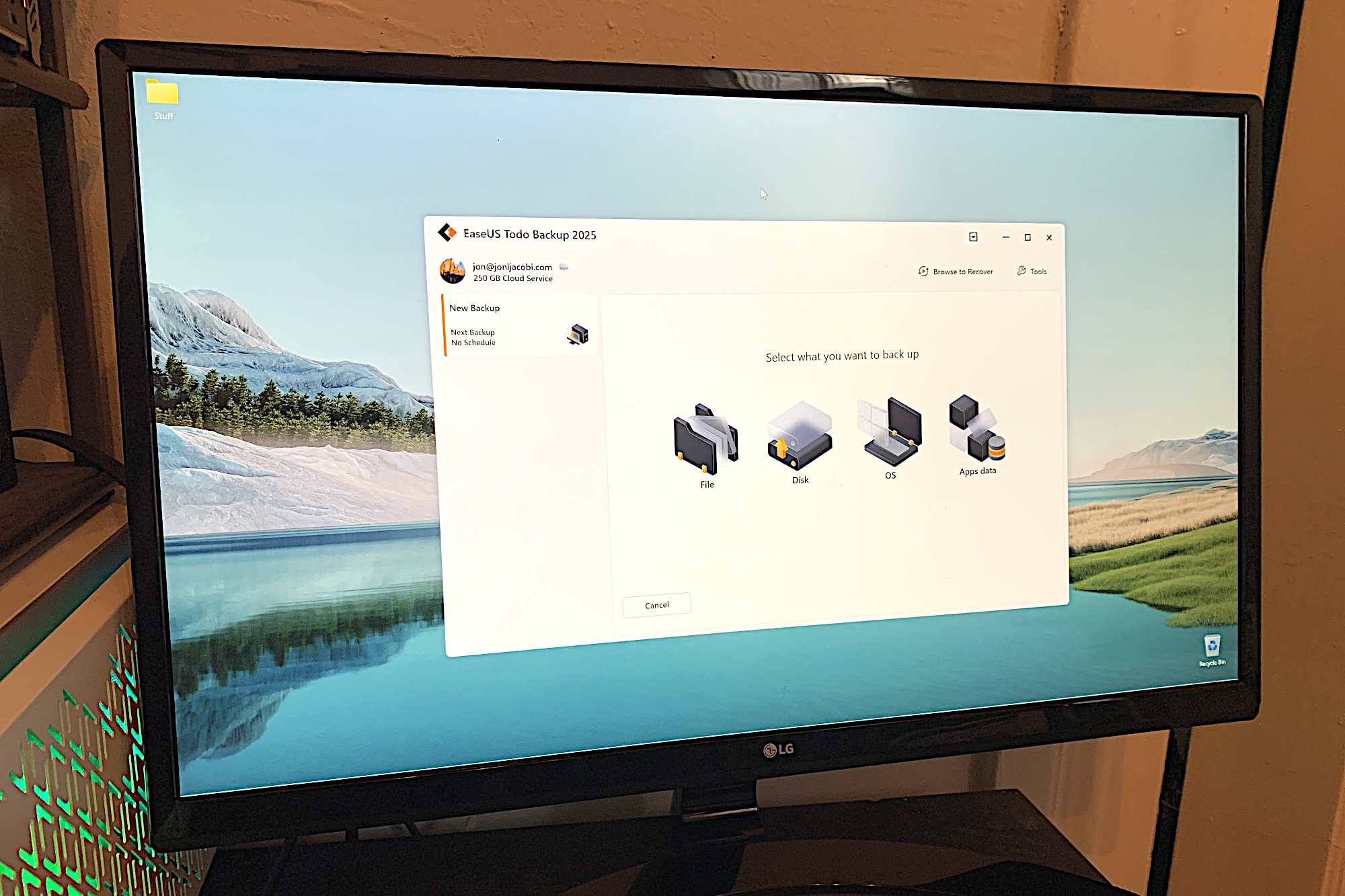
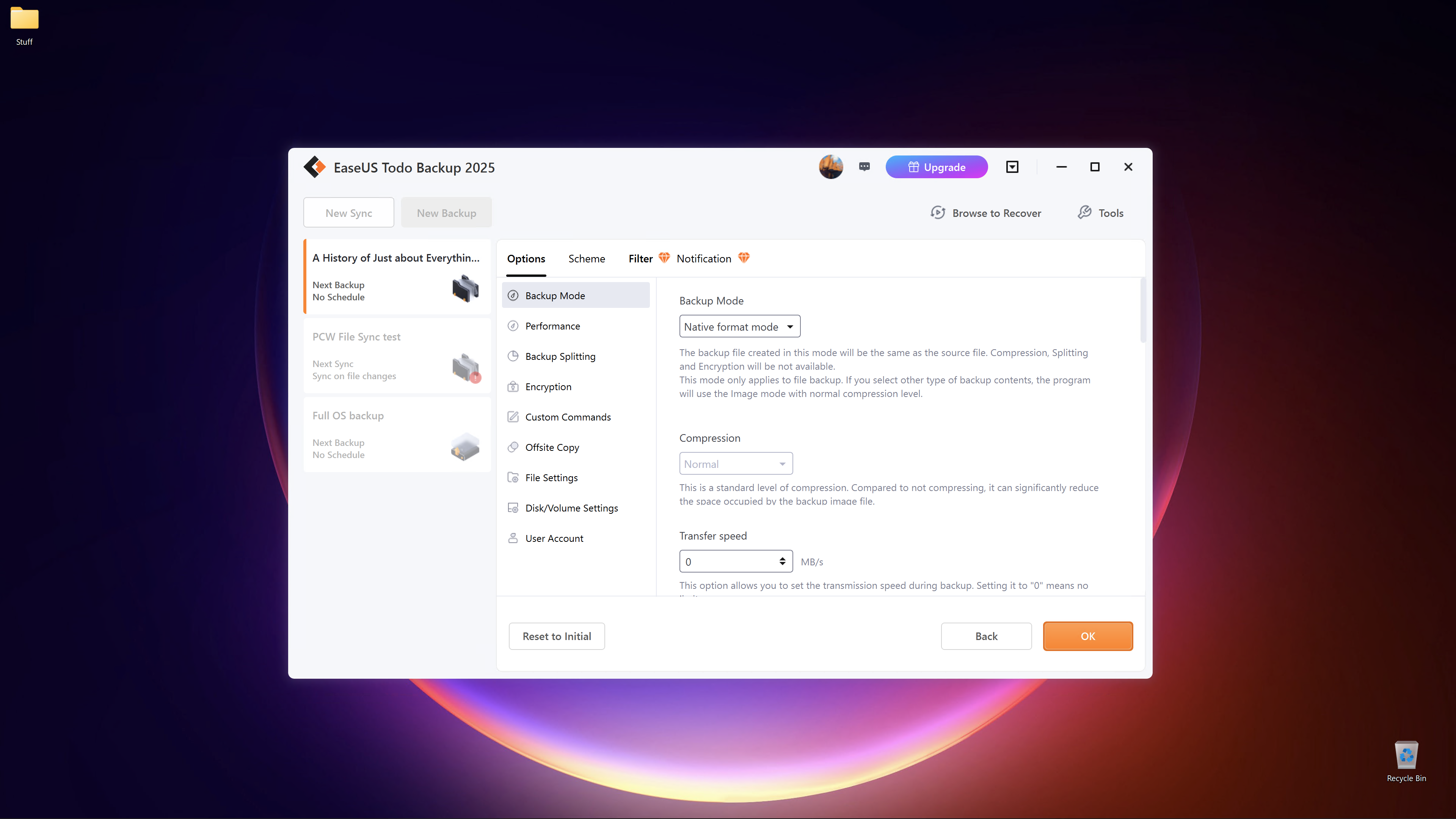
The paid tier of EaseUS stands out as the premier all-round home-PC choice for anyone wanting thorough backup and recovery backed by a straightforward "buy once, use forever" licensing model. Its feature set accounts for nearly every bell and whistle in the modern backup space, including system imaging, disaster recovery, compressed or uncompressed file and folder backups, directory synchronization, and continuous real-time protection. Beyond its technical capabilities, Todo Backup greets users with an animated, polished interface built upon a supremely logical layout.
While the perpetual license avoids forced subscriptions, users who wish to leverage EaseUS proprietary cloud storage must opt for a yearly plan, priced at around $60 per year for software bundled with a generous 1TB of online storage space. For budget-conscious users who prefer a zero-dollar entry point, the company also offers EaseUS Todo Backup Free, which delivers essential file backup, scheduling, partition imaging, and bootable media creation without financial cost, though it does feature occasional promotional nags.
Acronis True Image: Best Comprehensive Backup and Malware Protection
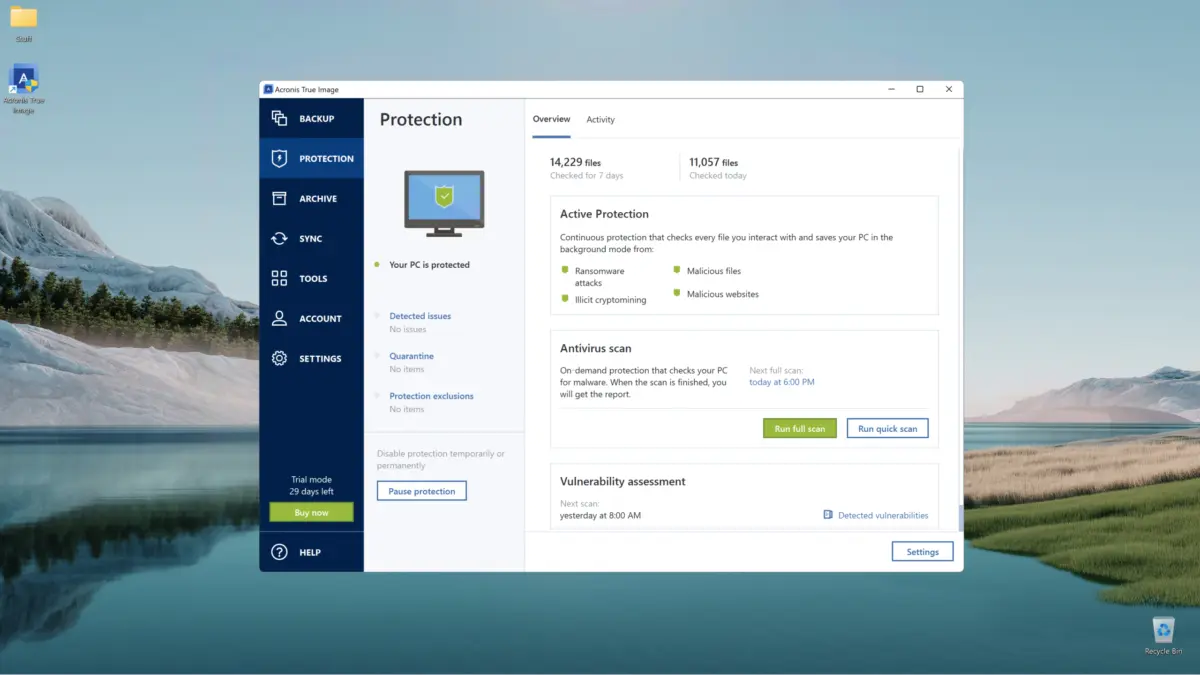
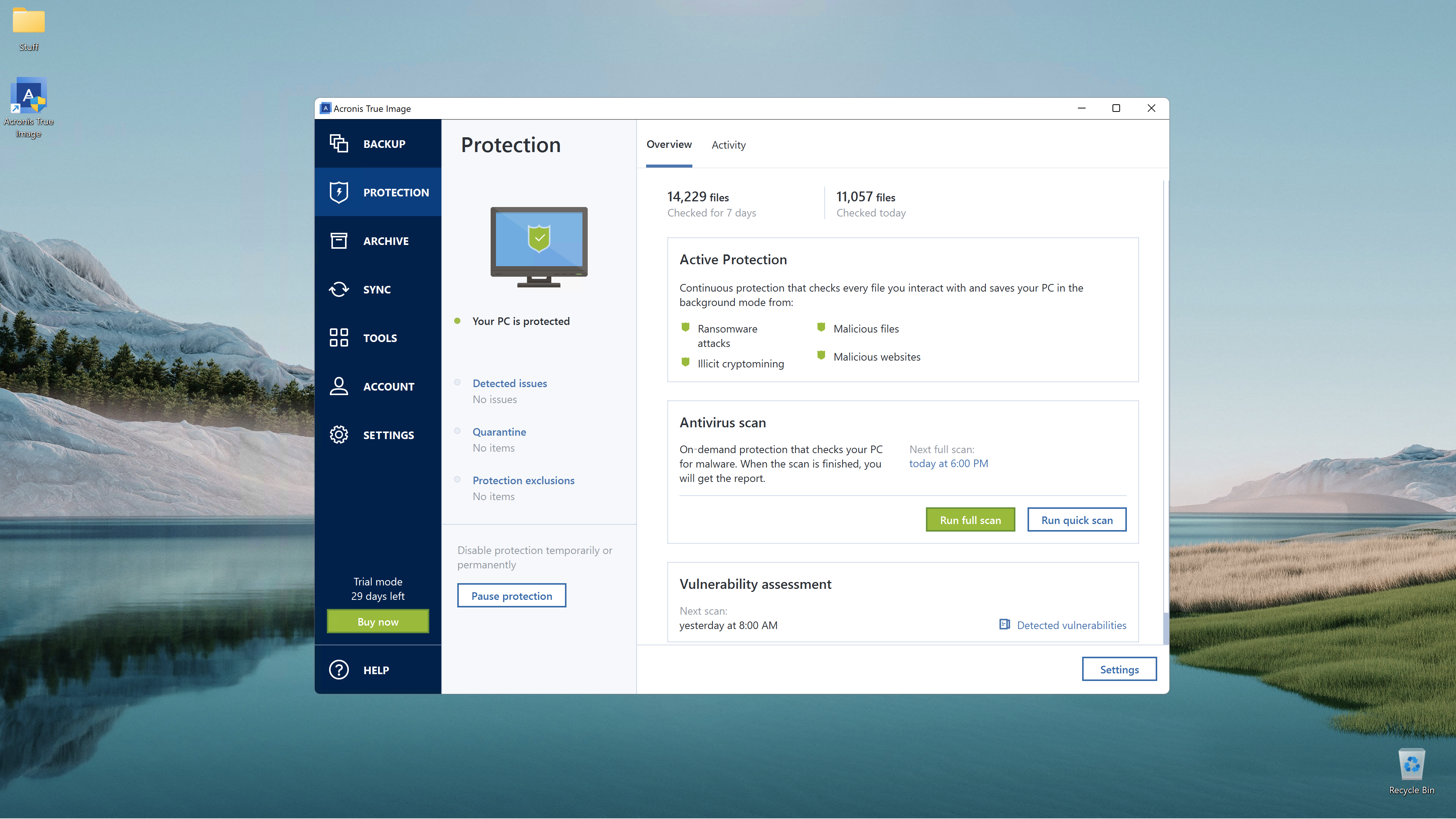
For users willing to embrace a recurring subscription model in exchange for top-tier security features, Acronis True Image remains a heavyweight contender. True Image is tailored for individuals seeking seasoned, dependable file and system image backups coupled with full-fledged, active protection against malware, including aggressive ransomware strains.
Acronis has established itself over many years as a trustworthy stalwart in the data protection sector. Throughout various branding changes, the underlying software has remained exceptionally reliable, gradually evolving into a flexible ecosystem that merges traditional archiving with advanced cybersecurity defenses. While True Image does not support third-party cloud storage directly—requiring users to rely on its native cloud infrastructure—it seamlessly handles backups to and from local network locations.

The primary trade-off for such a comprehensive, set-it-and-forget-it security shield is a somewhat heavy system footprint, with multiple background processes operating simultaneously. Furthermore, the product is strictly subscription-based. Industry experts generally recommend stepping up from the basic entry tier to the Advanced plan, which packages essential cloud storage capabilities into the annual subscription.
Arcserve ShadowProtect SPX: Best Windows Backup for SMBs
Home offices, small-to-medium-sized businesses, and power users managing complex environments require a different caliber of data protection. Arcserve ShadowProtect SPX is engineered specifically for users who need backup software that is significantly more powerful than consumer norms and capable of scaling smoothly across networked corporate ecosystems.

ShadowProtect SPX is heavily loaded with professional and enterprise-grade features, including robust support for third-party virtual hard drives like VHDs. It also serves as an exceptional choice for Linux administrators or IT professionals working within mixed Windows and Linux operating environments, as versions are built specifically for both platforms. While the software carries a higher price tag that represents overkill for the average home consumer, its foolproof continuous data protection and lightning-fast execution make it an invaluable asset for demanding professional workloads.
How to Choose Backup Software
When assembling a comprehensive data protection strategy, understanding the core components of reliable backup software is essential. Whether utilizing utilities included with newly purchased external hard drives from major manufacturers like Seagate and Western Digital, or investing in dedicated third-party software, several key features demand careful consideration.

File backups are crucial for safeguarding essential personal documents, financial records, and irreplaceable family photographs. While operating systems and software applications can theoretically be reinstalled following a failure, restoring personal data files requires targeted file-level preservation.
For complete peace of mind, image backups—often referred to as disk imaging—create byte-for-byte snapshots of entire hard drives or specific partitions. Imaging captures the operating system, installed applications, drivers, and custom configurations in a single operation, eliminating the risk of omitting vital files that can occur during selective file backups.

In the event of a catastrophic system crash where the primary operating system refuses to boot, recovery boot media becomes an absolute necessity. Reliable backup software must provide the capability to generate bootable USB thumb drives or optical media capable of initiating a recovery environment outside of the damaged OS.
Regular scheduling ensures that data protection happens consistently without requiring manual intervention, utilizing background processes or continuous real-time tracking for rapidly changing files. Meanwhile, versioning retains older iterations of files rather than indiscriminately overwriting them during routine synchronization tasks, protecting users against accidental data overwrites or corruption.

Leave a Reply