
When most computer users think about digital security threats and malicious software, their minds naturally drift toward financial records, personal identification documents, private photographs, and sensitive communications. However, modern malware is capable of infiltrating far deeper into a compromised computer system. If a device becomes infected with a sophisticated virus, spyware, or a remote access trojan, cybercriminals can gain direct, unauthorized control over peripheral hardware components—turning webcams and integrated microphones into covert surveillance tools that operate entirely without the owner’s knowledge or consent.
While achieving total immunity from advanced digital threats requires a comprehensive, multi-layered cybersecurity strategy, users can significantly reduce their attack surface and eliminate a major privacy vulnerability through a straightforward system adjustment. By disabling unused or secondary microphones directly within the Windows operating system, computer owners can effectively close a common backdoor used by malicious actors for audio eavesdropping. This protective measure involves shutting off the software pathways that unauthorized applications might exploit, ensuring that even if a background process manages to bypass certain defenses, it encounters a dead end when attempting to harvest ambient audio data.
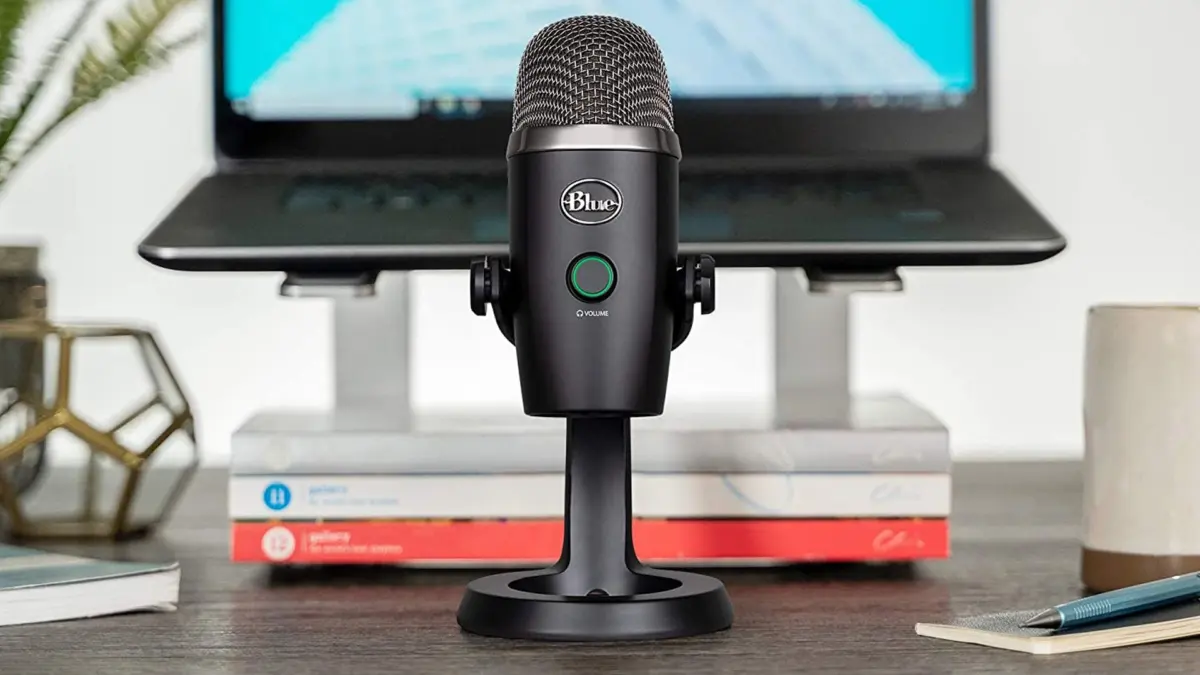
The process is particularly relevant for modern desktop and laptop configurations, where multiple audio input devices are frequently connected simultaneously. Many modern computer setups feature a dedicated desktop microphone used for high-fidelity recording or streaming, alongside an integrated webcam equipped with its own internal microphone. By systematically disabling the microphone built into the webcam while activating the physical mute switch on a standalone desktop microphone, users create a robust double layer of defense. This combination ensures that any potential eavesdropping attempt is effectively blocked at both the software level and the physical hardware level.
Beyond the vital security benefits, implementing this configuration offers an immediate and welcome bonus for day-to-day productivity: it eliminates the recurring annoyance of joining virtual meetings with the wrong audio input device active. Anyone who frequently participates in collaborative video conferencing software like Zoom, Microsoft Teams, or Google Meet is likely familiar with the frustration of broadcasting dead air, experiencing sudden audio feedback, or scrambling to switch input settings while a meeting is already underway. Optimizing input configurations within the operating system helps streamline the user experience, ensuring that communication software defaults to the correct, intended microphone every single time a call begins.

How to Manage Audio Input Settings in Windows
For users looking to implement this security and convenience upgrade, the configuration process is managed directly through the core audio preferences of the Windows operating system. By navigating to the primary sound management menu located within the system settings, individuals can view a comprehensive list of all active and inactive audio hardware currently recognized by the computer. Under the input category, the interface displays every device capable of capturing sound, ranging from dedicated professional headsets and standalone desktop microphones to integrated webcam arrays and auxiliary capture cards.
Selecting a specific audio device within this menu reveals individual hardware properties and management controls. Within the general audio sub-menu, Windows provides a straightforward toggle that dictates whether the operating system and installed applications are permitted to utilize that particular piece of hardware. By selecting the option to block or disallow the device, users effectively sever the connection between the microphone and the software layer of the PC. Once this restriction is applied, the operating system stops routing audio signals from that component, rendering it entirely dormant to any application attempting to capture sound through that specific channel.
Evaluating Hardware Disconnection Alternatives
A common question that arises when discussing peripheral security involves whether physical disconnection is a superior alternative to software-level restriction. Unplugging an audio device or a webcam cable when it is not actively in use is a valid, traditional strategy for privacy-conscious users, but it often proves impractical for daily use. While physical disconnection offers absolute peace of mind, it presents notable operational hurdles depending on the hardware configuration and the user’s workflow.
The first major limitation of physical disconnection stems from modern hardware design. Many contemporary computer accessories, most notably webcams, combine multiple data streams over a single physical connection. Because the video capture feed, internal lighting controls, and the embedded microphone audio input are multiplexed and routed through the same USB cable, unplugging the device to silence the microphone inevitably means sacrificing the camera functionality as well. For individuals who frequently need rapid access to video communication, constantly connecting and disconnecting the peripheral is rarely a viable workflow solution.

The second consideration involves the physical wear and tear associated with constant hardware manipulation. Repeatedly plugging and unplugging USB cables places mechanical stress on both the cable connectors and the physical USB ports integrated into the motherboard or computer chassis. Over time, this mechanical fatigue can loosen connections, lead to intermittent signal failures, or physically damage the port entirely. While this particular hardware concern can be mitigated by investing in an external USB hub equipped with individual power and data switches—allowing users to electrically disconnect a device with the push of a button rather than pulling a plug—adjusting access permissions directly through the Windows operating system remains a completely free, software-based alternative that preserves hardware lifespan.
Maintaining Comprehensive System Defense
While disabling unused microphones serves as an effective preventative precaution against covert audio surveillance, cybersecurity experts emphasize that it should always be treated as one component of a broader, proactive defense strategy. Securing a personal computer requires vigilance against the initial installation of spyware and malicious payloads, meaning that foundational cyber hygiene remains paramount for overall digital safety.
Users should ensure that reputable antivirus software is installed, actively running, and configured to perform regular, automated system scans to detect and neutralize threats before they can compromise sensitive hardware. Alongside automated security scans, practicing safe browsing habits—such as exercising caution when navigating unfamiliar websites, avoiding unverified software downloads, and carefully vetting email attachments—drastically reduces the likelihood of a malware infection.
Additionally, computer owners should periodically review their installed applications and active browser extensions. The digital landscape constantly evolves, and even legitimate, trusted software applications can occasionally be compromised, sold to malicious operators, or updated with invasive code that undermines user privacy right under the owner’s nose. By combining proactive system monitoring, careful software management, and simple operating system configurations like disabling unused microphones, users can establish a significantly more secure and stable computing environment for both professional tasks and daily personal use.


Leave a Reply