
It has been nearly a decade since the web development community first welcomed the native HTML <dialog> element into the browser ecosystem. Despite its maturity, front-end developers frequently find themselves revisiting documentation to understand its nuanced mechanics, optimal use cases, and styling strategies. This piece examines the architecture of the native dialog element, exploring everything from basic markup and accessibility considerations to advanced styling, smooth animations, and the critical differences between dialogs and popovers.
Marking up a <dialog>
At its core, implementing a native dialog requires minimal markup. A developer can establish a standard button element alongside an empty dialog element within the document structure. By default, the dialog remains hidden. While it is technically possible to force the element open by applying a boolean open attribute directly within the HTML, this is rarely useful in production environments outside of specific edge cases or server-side rendering previews.
Instead, developers rely on JavaScript control mechanisms. Invoking the standard show() method triggers the display of the element. However, seasoned web developers approach this method with caution because show() treats the dialog more like an uncontained pop-up than a true modal.
In contrast, deploying the showModal() method transforms the experience entirely. A true modal automatically establishes a backdrop, centers itself precisely within the viewport, and listens for the escape key to facilitate seamless dismissal. Relying on showModal() ensures that developers capture the full suite of native browser behaviors expected from a modern application overlay.

More about closing
Once a modal dialog occupies the screen, users naturally expect familiar interaction patterns. Pressing the Esc key while the dialog maintains focus will instantly close it, a behavior provided out of the box by the browser. To incorporate visible user interface controls—such as a dedicated close button positioned inside the dialog container—developers can attach a click event listener running the close() method.
Interestingly, while the opening mechanism distinguishes between show() and showModal(), the closing mechanism relies exclusively on a unified close() method regardless of how the dialog was initially invoked. Furthermore, developers can implement a JavaScript-less, declarative approach directly within the markup by nesting a form with a method attribute set to dialogue containing a submit button. This allows forms inside dialogs to shut the container automatically upon submission without requiring custom script execution.
As the web platform continues to evolve, experimental features are emerging to streamline these interactions further. The introduction of invoker commands represents an evolving web standard designed to open and close dialogs entirely declaratively through specific HTML attributes. By attaching command and command-for attributes directly to trigger elements, developers can target specific dialog IDs to execute actions like showing a modal or closing the interface without writing event listeners. While browser support for invoker commands is still rolling out across modern engines, it hints at a future where declarative UI states require significantly less boilerplate code.
About button labeling and accessibility
Accessibility remains a paramount concern when implementing interactive components like dialogs. Developers are often tempted to label close buttons with a minimalist visual indicator such as an "X" character or an inline SVG icon. However, screen readers require explicit text alternatives to communicate the function of the element effectively to visually impaired users.

To maintain a clean visual design while ensuring robust accessibility, developers routinely employ a visually hidden span element containing descriptive text like "Close modal," paired with an aria-hidden attribute on the decorative icon container. This ensures that assistive technologies announce the intended action clearly without disrupting the visual layout.
Focus management also demands careful attention. When a modal dialog opens, the browser automatically shifts focus to the first focusable element inside, which is frequently the close button positioned at the top of the markup. While functional, this can occasionally lead to accidental closures if a user presses the spacebar immediately upon opening. Developers aiming for optimal user experience may choose to manage initial focus manually using the tabindex attribute to target primary form fields or links within the dialog content.
Innate inertness
One of the most powerful architectural advantages of the native <dialog> element configured as a modal is its innate inertness. When a modal opens, the entire underlying page content automatically becomes inert. This means background text selection, button clicking, keyboard focus, and user inputs are completely disabled across the rest of the document without requiring custom JavaScript overlays or manual aria-hidden attributes on wrapper elements.
This inert behavior is exclusive to true modals invoked via showModal(). Dialogs opened via the basic show() method behave more like lightweight tooltips or non-modal popovers, leaving the background page fully interactive and accessible. When competing interactive elements are present, the topmost modal layer takes strict precedence, ensuring that background elements remain inaccessible until the primary dialog is dismissed.
Styling the backdrop and element appearance
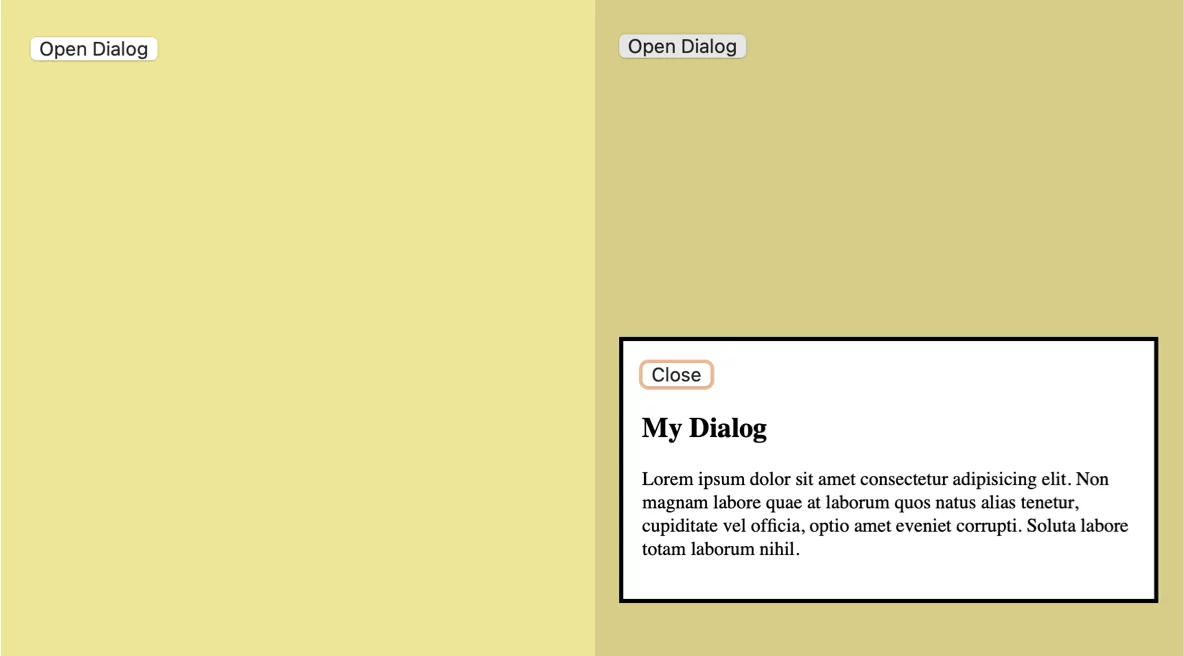
Styling the native dialog and its associated backdrop has historically presented challenges due to subtle default user agent styles. The default backdrop provided by browsers applies a very faint tint to the background page, which can be difficult to perceive against certain designs. Developers can customize this layer using the ::backdrop pseudo-element, allowing for solid background colors, custom opacities, or even advanced blur effects using backdrop-filter properties to maintain visual context while emphasizing the foreground content.
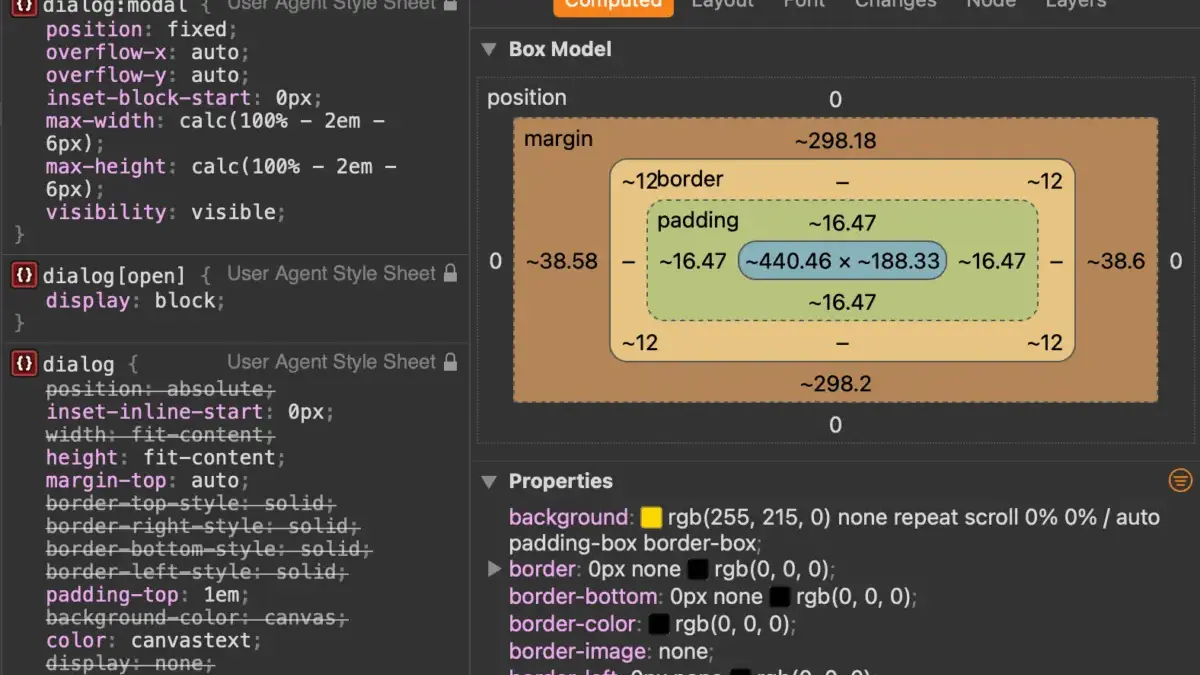
Similarly, customizing the dialog container itself requires specific attention to pseudo-classes. Because browsers apply baseline styles including a plain white background and a heavy border, custom styles must target the element in its active state. While developers can target the [open] attribute directly in CSS, utilizing the :modal pseudo-class provides even higher specificity to handle robust style overrides.
Handling background scrolling while a modal is active is another common hurdle. Historically, dialogs were not considered scroll containers, making it difficult to prevent background page scrolling without altering body overflow styles via JavaScript. Recent updates in modern browser engines, such as Chrome, have introduced support for overscroll-behavior on non-scrollable scroll containers, allowing developers to contain scrolling behavior declaratively when paired with an overflow hidden rule on the dialog itself. Alternatively, many development teams continue to rely on a straightforward CSS selector targeting the document body when a dialog with an open attribute is present.
Animating dialogs and entering views
By default, native dialogs snap abruptly into and out of view when toggled. Enhancing these transitions with smooth fade-in or slide effects requires careful handling because elements that transition from a display state of none cannot be directly animated using standard CSS transition properties alone.

To achieve smooth entry animations, developers must leverage the @starting-style at-rule in combination with standard CSS transitions. By defining an initial opacity of zero within a starting-style block for open dialogs, browsers can smoothly interpolate property values as the element transitions into the DOM. While some developers look toward the View Transitions API for entering and exiting animations, modal dialogs residing in the top layer often complicate traditional view transition pairs, making standard CSS transitions and keyframe animations the more reliable choice for fine-tuned modal motion design.
Dialog or Popover?
Choosing between the Dialog API and the Popover API is a common dilemma for modern web developers, given their superficial similarities. The primary differentiator between the two systems centers around accessibility affordances. Popovers are lightweight, non-modal containers designed for transient UI elements like menus, tooltips, and floating panels. They do not automatically trap keyboard focus, nor do they render the background page inert.
Conversely, the Dialog API is explicitly built for interactive workflows that demand user attention, such as confirmation prompts, critical forms, and destructive actions. Selecting the appropriate API depends entirely on the functional requirements of the user experience. Forcing a popover to behave like a modal requires building complex focus-trapping and background-inertness logic from scratch, whereas the native dialog element provides these robust accessibility guarantees out of the box.
As browser support solidifies across all modern rendering engines for advanced features like invoker commands and open pseudo-classes, the native HTML dialog element continues to solidify its role as an indispensable pillar of modern, accessible web architecture.


Leave a Reply