
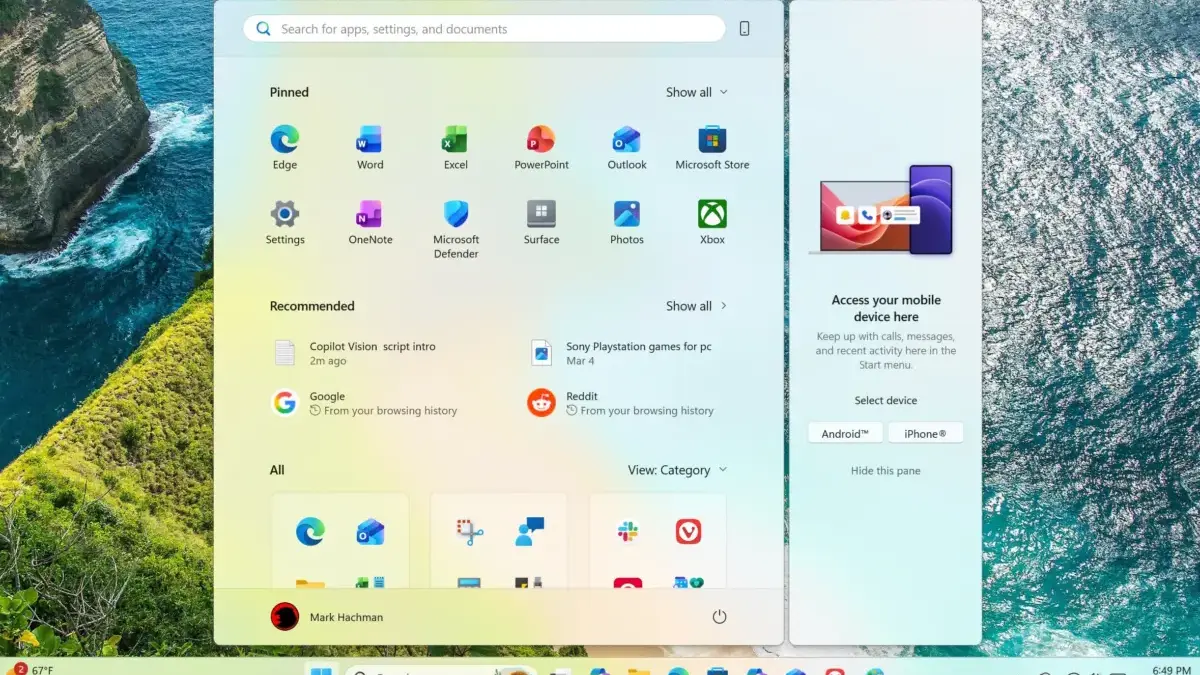
The Windows taskbar is one of the operating system’s most prominent and versatile interface elements, offering users a wide array of customization features to tailor their desktop environment. From repositioning and resizing the taskbar to modifying the displayed system buttons, managing pinned applications, and altering the appearance of the integrated search box, Microsoft provides considerable flexibility. However, this high degree of personal customizability can introduce management challenges, particularly in shared computing environments where multiple individuals access the same hardware or user profile.
When a computer is shared among family members, students, coworkers, or public users, individual preferences often lead to frequent alterations of the taskbar layout. For system administrators, IT professionals, or primary account holders, this means spending valuable time manually restoring the taskbar to a standardized, preferred configuration. To circumvent this administrative overhead and maintain a consistent desktop experience, Windows allows administrators to render specific taskbar settings inaccessible, effectively freezing the configuration against unauthorized or accidental modifications.

Administrators have two primary methodologies at their disposal to secure the taskbar configuration: freezing current operational settings to prevent specific behavioral tweaks, or entirely blocking users from making any modifications whatsoever to the taskbar interface. Depending on the edition of Windows installed on the machine, these security and management policies can be implemented through either the Windows Registry or the Local Group Policy Editor, providing scalable options for both home users and corporate environments.
The Local Group Policy Editor serves as a centralized management tool for configuring system settings, though its availability is traditionally restricted to Windows editions designed for professional and institutional use, such as Windows Pro, Enterprise, and Education. For systems running these supported editions, policy-based configurations offer a streamlined approach to system management. Alternatively, the Windows Registry provides a universal mechanism accessible across virtually all editions of the operating system, allowing deep-level modifications to user profiles and system behavior through direct key manipulation.
To completely lock down the taskbar using the Registry, users must access the built-in registry editing utility by entering the appropriate command into the system search box and launching the application. Within the Registry Editor, navigation proceeds to a specific registry hive governing current user settings, specifically targeting the Explorer subkey nested within the system policies structure. By generating a new 32-bit DWORD value designated with a specific internal identifier, administrators can establish a directive that tells the operating system to lock down taskbar configurations. Assigning a precise numerical parameter to this newly created value activates the restriction, causing relevant customization toggles within the main operating system settings application—such as the option to automatically hide the taskbar—to appear greyed out and unresponsive to user interaction.

The exact same operational outcome can be achieved through the Group Policy Editor for administrators managing professional-grade installations. By navigating through the user configuration hierarchy to administrative templates governing the Start Menu and Taskbar, administrators can locate a specific policy directive dedicated to locking all taskbar settings. Enabling this policy applies the restriction system-wide for the targeted user profiles, bypassing the need to manually adjust individual registry keys while achieving an identical security posture.
Beyond locking general behavioral parameters, administrators frequently need to prevent standard users from making any alterations to the taskbar and Start Menu layout altogether. This broader restriction can likewise be enforced using either of the primary configuration conduits. Through the Registry Editor, navigating to the relevant Explorer policy branch allows for the creation of a distinct policy value designed to restrict general taskbar modifications. By establishing this entry and assigning the enabling parameter, the operating system blocks standard user accounts from reshaping the taskbar environment.
In parallel, the Group Policy Editor houses a corresponding configuration option nested within the Start Menu and Taskbar administrative templates. By enabling the policy governing the prevention of changes to the taskbar and Start Menu settings, system controllers can secure the desktop layout against unwanted interference. These administrative safeguards ensure that shared workstations remain organized, predictable, and aligned with the operational standards defined by the system owner or IT administrator, reducing maintenance friction in multi-user deployment scenarios.



Leave a Reply